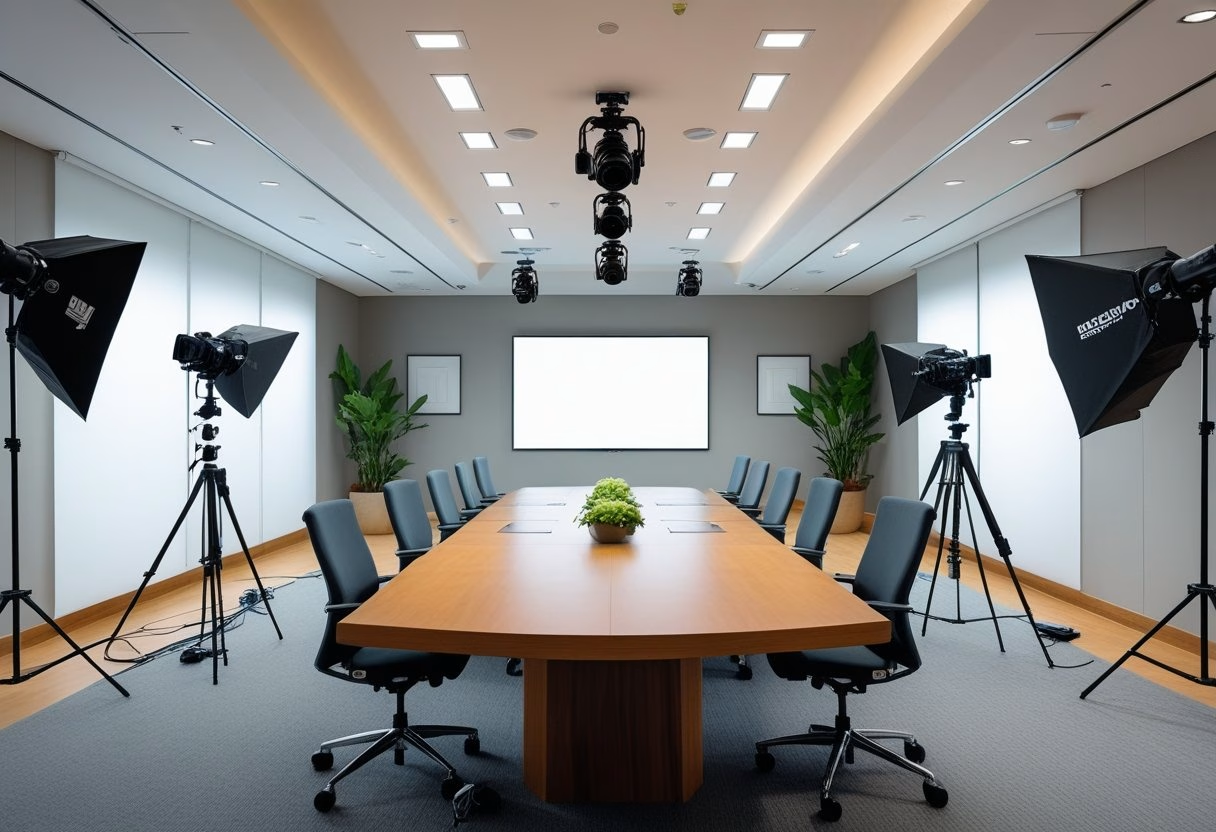
You walk into a typical meeting room and see potential: a place that can double as a dependable production set for video, podcasts, and streaming. With a few adjustments to lighting, sound, and layout, the space can capture clear video and clean audio without disrupting daily use. You can turn regular conference rooms into studio-ready spaces that deliver repeatable, professional results for internal and external content.
This approach saves time and money while making content creation part of the normal workflow. Small changes—better microphone placement, controllable lighting, and a simple streaming setup—make hybrid meetings and recorded content feel polished and consistent, so teams can focus on the message instead of the gear.
Key Takeaways
- Convert common meeting spaces into reliable production-ready rooms with modest upgrades.
- Focus on lighting, acoustics, and camera placement to achieve consistent video and audio quality.
- Use simple, integrated tech to support both live hybrid meetings and recorded content.
Key Elements of a Studio‑Ready Conference Room
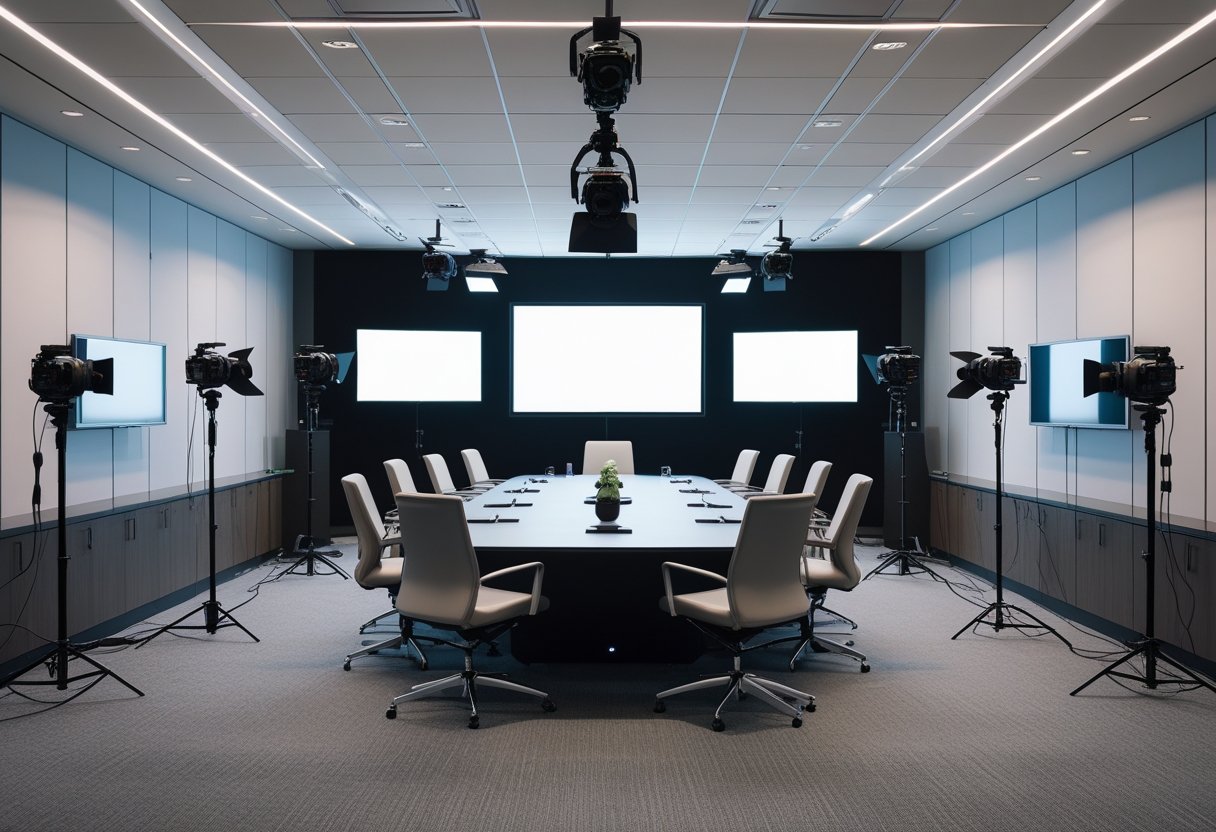
A studio-ready conference room must deliver clear sound, sharp visuals, and a layout that supports both live meetings and recorded productions. Each element — audio, video, and space — needs specific gear and placement to make meetings look and sound professional every time.
Optimizing Audio and Acoustic Design
They start with room acoustics first. Use sound-absorbing materials on walls and ceilings to cut reflections and reduce reverb. Place acoustic panels at first-reflection points and add bass traps in corners for balanced low-frequency response. Carpet or rugs help damp foot noise and table vibration.
Select microphones to match the use case. Ceiling microphones or boundary mics work well for distributed talkers. For focused speakers, use shotgun or lavalier mics. Configure a mixer or DSP to apply EQ, gating, and automatic gain control so voices stay consistent.
Speakers and audio systems must cover the room evenly. Install flush-mounted or wall speakers for distributed sound, plus a flush subwoofer in larger rooms for clarity. Use a dedicated audio processor to manage echo cancellation and to integrate with the video conferencing system.
Cable routing and rack placement matter. Keep mic and speaker runs separated from power where possible. Place AV gear in a vented rack near the room’s control location. Label cables and keep a simple signal flow chart for quick troubleshooting.
Visual Technologies and Display Solutions
They choose displays based on room size and viewing distance. For small huddle rooms a single 55–75″ high-definition display or interactive whiteboard works. For mid-size rooms, use a 100–150″ motorized screen with a projector or a large-format LED video wall for higher ambient light conditions.
Cameras must capture reliable, framed video. PTZ cameras handle multiple presenters and framing presets. High-definition or 4K cameras improve image clarity for recorded sessions. Mount cameras at eye level and centerline to avoid awkward angles.
Interactive displays and digital whiteboards speed collaboration. Use an interactive whiteboard for annotations and content sharing. Ensure wired and wireless content sharing supports native resolution and low latency.
Lighting ties video quality together. Add even, flicker-free LED fixtures with adjustable color temperature. Place backfill or key lights to avoid shadows on faces. Test camera exposure with the chosen lighting and displays to prevent glare or bloom.
Space Planning and Modern Room Layouts
They plan room layout around sightlines and workflow. For boardroom style, center a conference table with clear camera sightlines to each seat. For classroom or theater styles, stagger seating and raise rear rows if possible so cameras and displays remain visible.
Furniture should be modular and reconfigurable. Use mobile conference tables and stackable or adjustable chairs for quick changeovers. Choose ergonomic chairs with easy height and tilt adjustments for long sessions.
Power and cable access must be part of the layout. Place floor boxes or table grommets for laptops and cameras. Reserve wall space for AV racks and make sure HVAC does not blow directly on microphones or speakers.
Circulation and camera access matter for production work. Leave a 3–4 foot clear path for camera movement and lighting stands. Plan storage for mics, cables, and spare batteries so the room can switch from meeting mode to production mode in minutes.
Additional reading on modern conference room planning is available in a practical checklist for designing new conference rooms (https://www.yealink.com/en/onepage/checklist-for-designing-a-new-conference-room).
Integrating Technology for Seamless Hybrid Collaboration
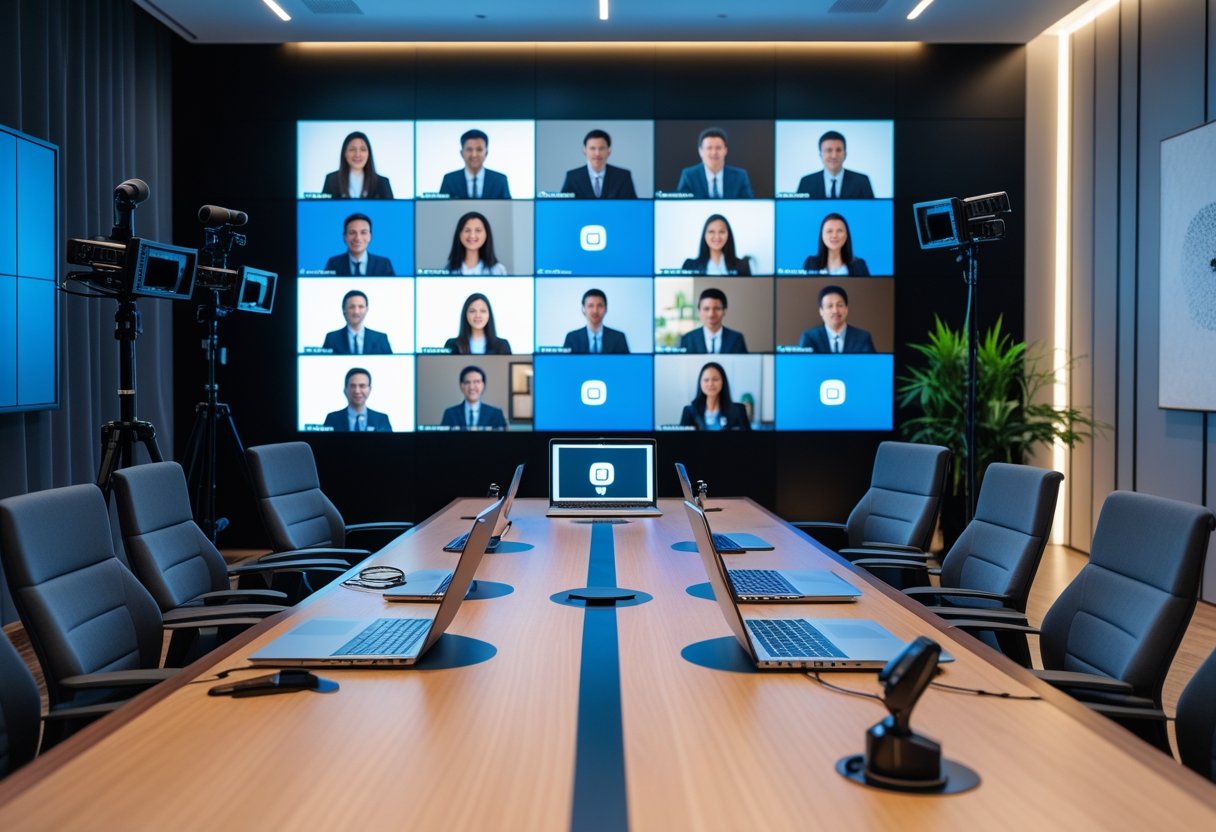
This section covers how to make meetings feel live for both room and remote attendees. It focuses on audio/video intelligence, fast content sharing, and tidy, reliable wireless setups that reduce friction during meetings.
AI and Intelligent Systems
AI-powered cameras and microphones automate framing and focus. Automatic framing and speaker tracking keep the active speaker centered without manual camera control. Voice recognition and noise suppression improve clarity so remote participants hear each speaker distinctly.
Sensors and occupancy sensors feed room management tools. They trigger lighting, start cameras, and update room booking status when people enter. AI can also generate meeting summaries and transcripts in real time, reducing note-taking and improving follow-up.
Security matters: choose systems with encrypted streams and role-based access. Ensure AI features run either on-prem or under approved cloud policies to match privacy needs. Test each AI feature in the actual room to confirm latency and accuracy meet expectations.
Collaboration and Content Sharing Tools
Real-time content sharing must be simple and device-agnostic. Use wireless presentation systems that support Windows, macOS, iOS, Android, and Chromebooks so any attendee can share with one tap. Digital whiteboards with multi-user annotation let remote users draw and edit alongside in-room participants.
Integrate meeting room booking and calendar systems so shared content links, agendas, and guest access appear automatically. Collaboration software like Zoom Rooms, Microsoft Teams Rooms, or Webex should connect directly to displays and whiteboards for one-button joins and screen control.
Prioritize user-friendly interfaces and compatibility with common video conferencing platforms. Also enable meeting summaries and searchable transcripts within the collaboration tools to boost meeting effectiveness and action-item tracking.
Wireless Connectivity and Cable Management
Wireless connectivity must be robust: plan for dual-band Wi‑Fi, sufficient bandwidth, and VLANs for AV traffic. Use wired backhaul for cameras and core devices when possible, and reserve wireless for presenter devices. Test network requirements for 4K displays and multiple simultaneous streams.
Adopt wireless presentation tools such as AirPlay, Chromecast, or dedicated enterprise systems to speed presentations and reduce adapter issues. Combine these with under-desk cable channels, grommets, and lockable panels to hide power and fixed AV cabling.
Maintain scalability and manageability through an admin portal that monitors device health, bandwidth use, and firmware updates. Good cable management and reliable wireless tools reduce setup time and make the room feel like a production set rather than a pile of equipment.