You ask for second person earlier but then require third person POV. Please clarify which POV you want.
Core Elements of Multi-Camera Corporate Event Broadcasts
This section lists the key technical choices and setup steps that shape a clean, professional broadcast. It focuses on camera selection, planned placement and shot types, practical lighting choices, and clear audio capture and mixing.
Choosing Professional-Grade Cameras and Camera Types
They should pick cameras that match the event size and output needs. For broadcast-grade livestreams, choose dedicated broadcast cameras or high-end mirrorless models with clean HDMI/SDI outputs. Using identical camera models or matching picture profiles keeps color and exposure consistent across close-ups, medium shots, and wide shots. PTZ cameras work well for remote angles and lower crew counts; mirrorless and DSLR cameras offer better shallow-depth looks for presenters.
Operators must ensure each camera supports the needed resolution and frame rate and has a tally light or monitor for live switching. Tripods with fluid heads provide smooth pans. A simple camera plot listing primary and secondary angles reduces confusion during roll calls.
Strategic Camera Placement and Shot Selection
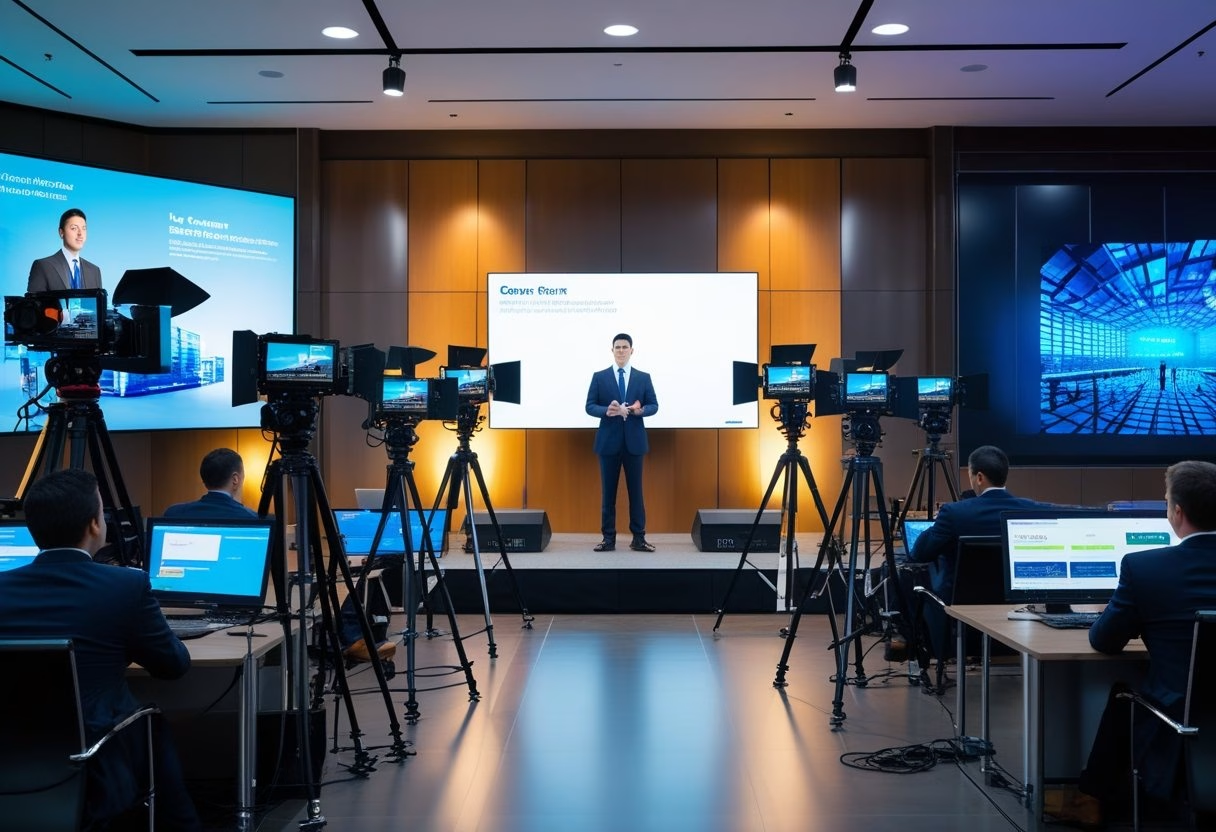
They should plan placements before setup and mark positions on the floor. Use a three-camera base for most talks: a main wide shot covering the stage, a tight close-up on the presenter for emotional beats, and a medium or secondary close-up for reaction shots or guest speakers. For panels, assign one camera per primary speaker plus one or two wides.
Keep all cameras on one side of the 180° line to protect eyelines. Place cameras on stable tripods at eye-to-chest height for natural framing. Use longer lenses for unobtrusive close-ups and wider lenses for audience or room coverage. Include a roaming operator or PTZ for cutaways to audience reactions.
Lighting Setup and Optimization for Multi-Camera Coverage
They should build even, controllable light that works for every camera angle. Start with a key, fill, and backlight plan, then add soft LED panel lights to remove harsh shadows across close-ups and wide shots. Balance color temperature and set white balance on each camera to the same Kelvin rating to avoid color shifts when switching cameras.
Flag or diffuse lights to prevent lens flares on certain angles. Use dimmable LEDs so operators can tweak exposure without changing camera settings. In larger rooms, add low-angle fill or audience lights so reaction shots stay visible without blowing out the presenter. Label lighting circuits and document settings for quick repeatability.
Audio Solutions and Mixing for Broadcast Clarity
They should capture clear, redundancy-built audio fed into a multi-channel audio mixer. Equip presenters with lavalier microphones for consistent speech levels. Use a shotgun on a boom for panel discussion backup and handhelds for audience Q&A. Route each mic into separate mixer channels and apply light compression and EQ to tighten speech clarity.
Record a safety mix on a separate recorder and monitor levels with headphones. Assign an audio operator to manage live gain changes and mute/unmute cues. Sync audio to video with timecode or slate at the start of recording to simplify post-production alignment.
Live Production Workflow: Switching, Graphics, and Streaming Integration
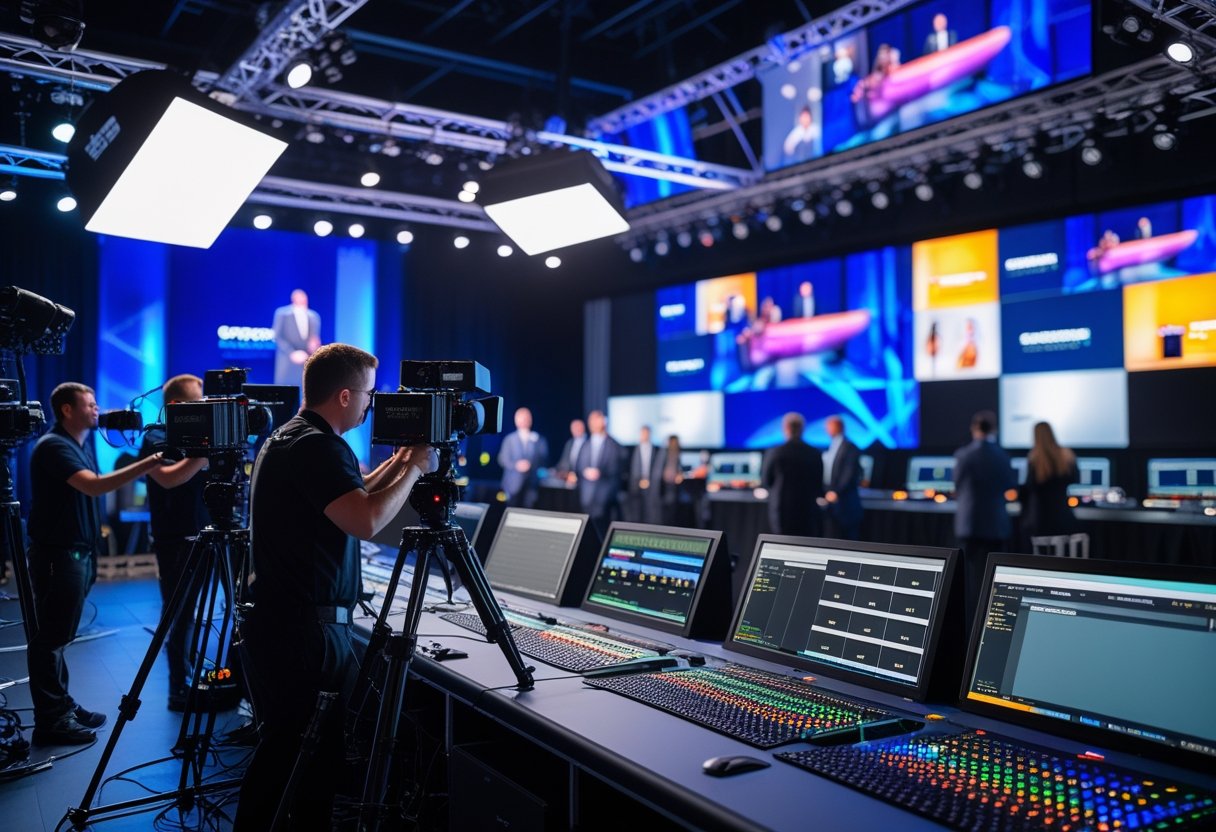
This section explains how camera feeds are switched, how graphics are added in real time, and how the final program is sent to streaming platforms. It focuses on gear choices, signal paths, and the real-world steps operators use during corporate live events.
Multi-Camera Workflow and Live Switching Techniques
They set up a clear signal path before the event: cameras into capture devices, then into the switcher or network. For small setups they use HDMI or SDI capture cards and a laptop running a software switcher. For larger productions they route SDI or NDI feeds into a hardware switcher and a dedicated multiview for monitoring.
Operators assign numbered inputs and label them on the multiview to avoid mistakes. They practice cueing shots and use tally lights or talkback to coordinate camera operators. Live switching relies on fast, predictable moves: hard cuts for speech, smooth dissolves for B-roll, and programmed macros for recurring sequences.
They also configure redundant paths: a backup encoder or a secondary switcher channel. Monitoring includes program and clean-feed outputs, plus isolated audio for mixing. This keeps multi-camera coverage steady, prevents dropouts, and maintains a professional look.
Switchers, Streaming Software, and Platform Integration
They choose a switcher based on channel count and workflow. Software switchers like OBS Studio or Wirecast suit small crews and offer NDI input and built-in encoders. Hardware switchers handle more inputs and lower latency for larger shows. Many teams combine both: a hardware switcher for live output and OBS for streaming-optimized overlays or recording. See an example of a browser-based multi-camera producer for cloud workflows TVU Producer.
Encoders take program output and push it to platforms (RTMP/SRT). They set bitrate and resolution to match the venue’s uplink. Integrations matter: some switchers stream natively to YouTube or Vimeo, others send to a dedicated encoder. Teams enable stream health monitoring and create a failover stream or record locally to avoid data loss.
Real-Time Graphics and Enhancing Audience Engagement
They use real-time graphics engines to add lower thirds, logos, timers, and picture-in-picture. Cloud and software tools let designers update data-driven graphics from a browser, which helps for schedules, speaker bios, and stats. For pixel-accurate results in broadcast-level work, teams rely on dedicated systems that support 4K and layered animations; for lean setups they use HTML-based graphics or the built-in graphic layers in OBS and Wirecast. Refer to a real-time motion graphics platform for high-end needs XPression.
Operators preload templates and map hotkeys or control panels to trigger graphics quickly. They test safe areas, alpha keys, and picture-in-picture layouts during rehearsal. Good graphics increase audience engagement by clarifying who is speaking and showing branded visuals without obscuring the main picture.