
by MLV Teknologi | Oct 4, 2026 | Article
Apa yang Menentukan Spesifikasi dan Posisi Layar?
Jarak pandang audiens, fungsi ruangan, dan pencahayaan menentukan posisi serta spesifikasi videotron indoor. Ukuran layar, pixel pitch, resolusi, dan brightness perlu dipilih sebagai satu rangkaian agar konten terbaca jelas dan proporsional terhadap ruangan. Posisi layar juga perlu memberi sudut pandang nyaman serta akses untuk perawatan.
Bagaimana Jarak Pandang Memengaruhi Pixel Pitch dan Resolusi?
Pixel pitch adalah jarak antara titik LED pada layar. Angka yang lebih kecil menghasilkan susunan piksel yang lebih rapat, sehingga detail terlihat lebih jelas dari jarak dekat.
Untuk ruang rapat, auditorium, atau kebutuhan digital signage dalam gedung, P2.5 sering menjadi pilihan ideal. Namun, tipe P3 dapat dipertimbangkan jika jarak audiens lebih jauh dan konten tidak menuntut detail visual yang terlalu padat.
Perhitungkan jarak audiens terdekat dan terjauh, tinggi pemasangan, serta posisi tempat duduk. Penentuan resolusi layar kemudian mengikuti dimensi serta susunan panel LED yang dirangkai.
Kebutuhan resolusi layar untuk presentasi teks kecil tentu berbeda dari pemutaran video grafis biasa. Anda dapat menggunakan konfigurator LED videotron untuk merancang konfigurasi awal, lalu menyesuaikannya dengan kondisi ruangan.
Apa Perbedaan Kebutuhan Layar Indoor dan Outdoor?
Videotron indoor dirancang untuk lingkungan dalam ruangan dengan jarak pandang yang relatif dekat. Pada instalasi videotron indoor, kejernihan led display perlu disesuaikan dengan sudut pandang audiens.
Kualitas visual panel LED pada led display ruangan juga memerlukan kerapatan piksel yang presisi. Berbeda dengan videotron outdoor yang berhadapan dengan cahaya luar dan cuaca ekstrem, kebutuhan brightness layar dalam ruangan jauh lebih moderat.
Karakteristik layar led pada instalasi indoor menuntut kalibrasi visual yang lebih halus. Hal ini penting agar mata audiens tetap nyaman saat memandang layar dalam durasi lama.
Berbeda dengan videotron outdoor yang membutuhkan ketahanan cuaca tinggi, layar indoor lebih berfokus pada ketenangan sistem pendingin dan estetika ruangan.
Untuk layar indoor, sesuaikan brightness dengan pencahayaan ruangan. Tingkat yang terlalu rendah mengurangi keterbacaan, sedangkan pengaturan yang terlalu tinggi bisa terasa menyilaukan. Refresh rate juga perlu diperiksa agar tampilan bergerak stabil, terutama saat layar direkam kamera. Pertimbangan ini membantu Anda menilai spesifikasi dan harga videotron indoor sesuai penggunaan, bukan semata membandingkan ukuran layar.
Bagaimana Proses Pemasangan dan Perhitungan Biayanya?

Pemasangan videotron indoor berjalan lebih terarah saat survei, konstruksi, kelistrikan, sistem kontrol, dan pengujian direncanakan sebagai satu pekerjaan. Memahami seluruh tahapan instalasi videotron indoor membantu memastikan kualitas visual maksimal dan keandalan sistem.
Setiap bagian dari proses instalasi videotron indoor memengaruhi tampilan visual, akses perawatan, dan efisiensi biaya. Kejelasan tahapan instalasi videotron indoor juga mempermudah penghitungan biaya instalasi videotron indoor secara transparan.
Prosedur pemasangan videotron indoor yang terencana meminimalkan kendala teknis selama pengerjaan. Ruang lingkup kerja yang jelas juga membantu Anda membandingkan penawaran jasa instalasi videotron indoor secara setara.
Apa yang Diperiksa Saat Survei Lokasi?
Pelaksanaan survey lokasi atau survei lokasi memeriksa dimensi area pemasangan, kondisi struktur dinding, posisi audiens, akses peralatan, serta sumber listrik. Tim teknis juga memetakan jalur kabel dan ruang maintenance yang memadai.
Hasil survey lokasi menjadi acuan penting dalam menentukan metode pemasangan videotron yang aman dan presisi. Hal ini memastikan seluruh kesiapan ruangan terpenuhi sebelum pekerjaan fisik dimulai.
Pastikan akses ke bagian depan atau belakang layar dibahas sejak awal. Pilihan akses tersebut berpengaruh pada konstruksi videotron dan kemudahan pemeliharaan videotron setelah sistem digunakan.
Bagaimana Konstruksi dan Modul LED Dipasang?
Konstruksi biasanya memakai rangka besi hollow yang dirakit presisi untuk menopang susunan cabinet LED. Bidang rangka harus benar-benar rata agar permukaan layar tidak bergelombang.
Pada pemasangan layar led di dinding sempit, sistem front service sering dipilih agar modul dapat dilepas dari depan tanpa membongkar rangka belakang. Setelah kabinet terpasang kokoh, modul LED disusun bertahap dengan sambungan yang presisi.
Metode pemasangan modul LED mengikuti desain kabinet dan kebutuhan akses teknisi. Ketepatan dalam pemasangan modul LED menjaga agar permukaan led display tetap rata tanpa celah antar-modul.
Untuk memahami unsur struktur dan ruang perawatan pendukung pemasangan videotron, lihat panduan rangka videotron indoor.
Apa Saja yang Diperiksa pada Kelistrikan dan Sistem Kontrol?
Instalasi kelistrikan mencakup pemeriksaan kapasitas daya, jalur kabel power, grounding, dan sistem distribusi daya yang seimbang antar-kabinet. Pengaturan daya yang tepat mencegah lonjakan arus dan menjaga umur pakai komponen.
Kabel data dan power perlu ditata serta diberi identifikasi agar mudah ditelusuri saat pemeriksaan. Pemasangan kabel data berkualitas tinggi juga mencegah distorsi sinyal antara prosesor dan receiving card.
Jalur kabel yang rapi mempermudah penanganan teknis dan perawatan di kemudian hari.
Pada sistem kontrol, receiving card menerima dan meneruskan data ke bagian layar, sementara video processor mengatur sumber dan format tampilan. Pastikan susunan perangkat sesuai konfigurasi layar dan sumber konten yang akan digunakan.
Bagaimana Pengujian, Kalibrasi, dan Pemeliharaan Dilakukan?
Dalam tahapan instalasi videotron, setiap bagian layar diuji secara menyeluruh untuk memastikan tidak ada dead pixel atau modul yang bermasalah. Pemeriksaan warna dasar seperti merah, hijau, biru, dan putih dilakukan guna menjamin keseragaman tampilan.
Proses kalibrasi warna menyelaraskan tingkat warna dan kecerahan antarbagian agar visual tampak konsisten di setiap panel LED. Pengujian ini juga perlu mencakup konten video yang sesungguhnya akan ditampilkan.
Pelaksanaan kalibrasi warna yang optimal merupakan bagian krusial dalam tahapan instalasi videotron indoor. Langkah ini memastikan kenyamanan mata audiens saat melihat layar dalam durasi lama.
Sebelum serah terima, minta panduan pengoperasian dan informasi akses servis. Jadwal pemeriksaan rutin membantu Anda menjaga koneksi kabel, kondisi modul, dan kebersihan area perangkat.
Faktor Apa yang Memengaruhi Biaya Instalasi dan Pemilihan Jasa?
Biaya instalasi videotron indoor mengikuti konfigurasi proyek, bukan satu tarif tetap. Pemilihan resolusi layar, tipe panel LED, dan tingkat kerumitan pemasangan videotron indoor akan memengaruhi rincian biaya.
Selain itu, kondisi lokasi, pekerjaan kelistrikan, panjang jalur kabel, perangkat kontrol, dan akses teknis turut menentukan biaya instalasi videotron indoor secara keseluruhan.
Reputasi penyedia jasa instalasi videotron juga patut diperhatikan sebelum memulai proyek. Memilih jasa instalasi videotron berpengalaman memastikan efisiensi biaya instalasi videotron dan hasil akhir yang sesuai standar.
Saat meminta penawaran, periksa apakah harga mencakup perangkat, konstruksi, instalasi, pengujian, dan konfigurasi. Pastikan spesifikasi serta ruang lingkup tiap pekerjaan dijelaskan agar Anda dapat membandingkan penawaran secara adil.
Jika mencari jual videotron sekaligus dukungan AV, MLV Teknologi menyediakan konsultasi, pasokan peralatan, dan dukungan implementasi; pelanggan juga menyoroti respons tim yang cepat dan pekerjaan yang rapi. Anda dapat mengonfigurasi ruang meeting untuk menyusun gambaran awal kebutuhan.
Perencanaan yang Matang Menjaga Kualitas Layar
Perencanaan yang menghubungkan jarak pandang, spesifikasi, kondisi lokasi, dan akses perawatan membantu Anda memperoleh layar yang sesuai fungsi ruangan. Tetapkan kebutuhan konten dan posisi audiens sebelum memilih pixel pitch, lalu pastikan survei menjadi dasar desain konstruksi serta kelistrikan. Dengan begitu, keputusan ukuran dan biaya berangkat dari keadaan lokasi yang nyata.
Untuk langkah awal, siapkan ukuran area pemasangan, jarak audiens, jenis konten, dan informasi sumber listrik. MLV Teknologi melayani konsultasi AV, pasokan, dan implementasi, dengan ulasan pelanggan yang menyebut timnya profesional serta responsif. Kunjungi website MLV Teknologi atau hubungi tim melalui WhatsApp yang tertera di website untuk membahas kebutuhan proyek Anda.
by MLV Teknologi | Oct 3, 2026 | Article
Perbedaan Fitur yang Paling Memengaruhi Pengalaman Rapat
Teams Rooms Pro menjadi pilihan yang lebih tepat untuk perusahaan dengan rapat hybrid intensif karena menambahkan audio-video cerdas, dual screen support, layout rapat lanjutan, serta pengelolaan perangkat jarak jauh. Microsoft Teams Rooms Basic tetap memadai untuk ruang rapat sederhana dengan perangkat Teams Rooms tersertifikasi dan kebutuhan kolaborasi inti.
Microsoft Teams Rooms Basic menyediakan one-touch join, proximity join, content sharing, panggilan, dan papan tulis kolaboratif. Solusi ini cocok untuk organisasi SMB yang mengadakan hybrid meetings di penataan single screen.
Bagi sektor SMB dengan anggaran terbatas, Microsoft Teams Rooms Basic memberikan titik awal yang sangat praktis. Lisensi ini tersedia tanpa biaya, dengan syarat menggunakan Teams Rooms devices tersertifikasi dan batas maksimal 25 lisensi dalam satu organisasi.
| Kriteria | Teams Rooms Basic | Teams Rooms Pro |
|---|
| Biaya | Gratis | USD$40 kamar/bulan, dibayar tahunan |
| Batas lisensi | 25 | Tidak terbatas |
| Gabung rapat | Satu sentuhan | Satu sentuhan dan fitur lanjutan |
| Audio-video cerdas | Tidak tersedia | Tersedia |
| Dual display | Tidak tersedia | Tersedia |
| Manajemen jarak jauh | Dasar | Lanjutan |
| Teams Panels | Tidak didukung | Didukung |
Fitur inti yang tersedia pada Teams Rooms Basic
Teams Rooms Basic mendukung jadwal rapat, one-touch join, wireless content sharing, end-to-end call encryption pada panggilan 1:1, dan kolaborasi Whiteboard. Anda juga dapat menggunakannya untuk Teams meetings harian, rapat Microsoft Teams, panggilan peer-to-peer, panggilan grup, serta Direct Guest Join untuk rapat Zoom dan Cisco Webex.
Kemampuan Direct Guest Join memudahkan peserta bergabung ke sesi Zoom maupun Webex langsung dari touch console tanpa perangkat tambahan. Fleksibilitas menghubungkan sesi rapat Cisco memastikan kelancaran komunikasi saat berinteraksi di luar ekosistem Teams meetings.
Berbeda dengan lisensi Pro, edisi Basic tidak mencakup Audio Conferencing untuk sambungan panggilan PSTN konvensional.
Bagi perusahaan yang memerlukan integrasi dengan infrastruktur telekonferensi pihak ketiga warisan, opsi Cloud Video Interop dapat dihubungkan ke sistem ruangan.
Sistem ini mengandalkan calendar integration dengan Exchange Online untuk menyederhanakan room booking. Melalui calendar processing otomatis, setiap undangan rapat langsung tampil pada touch console ruangan.
Keandalan calendar integration memastikan seluruh jadwal rapat tersinkronisasi tanpa risiko bentrok reservasi.
Lisensi MTR Basic ini cocok untuk huddle rooms dan ruang kecil dengan satu sistem Teams Rooms tersertifikasi. Setiap Teams Rooms license ini dikaitkan dengan resource account atau room resource account khusus di dalam Microsoft 365 tenant.
Konfigurasi room account yang tepat membantu sinkronisasi jadwal ruang dan memastikan perangkat selalu siap digunakan. Setiap perangkat memerlukan room account khusus agar sistem dapat mengelola hak akses dan perizinan ruang rapat dengan tertib.
Pengelolaan Teams Rooms license secara tepat memastikan setiap meeting rooms siap menerima panggilan kapan saja.
Jika satu resource account digunakan untuk masuk ke lebih dari satu sistem Teams Rooms dalam satu ruangan, Anda memerlukan Microsoft Teams Rooms Pro.
Kemampuan lanjutan yang ditambahkan oleh Teams Rooms Pro
Teams Rooms Pro menambahkan audio dan video berbasis AI, multi-camera support, speaker recognition, people recognition, tampilan panorama ruangan, serta noise suppression tingkat lanjut. Fitur intelligent audio memastikan ucapan tiap peserta di ruangan tertangkap jernih.
Teknologi IntelliFrame menyajikan pembingkaian video individual untuk setiap peserta di ruangan. Anda juga dapat memasang content camera cerdas untuk memproyeksikan papan tulis fisik secara digital ke rapat.
Berbagai AI meeting features ini membantu transkripsi otomatis mengenali kontribusi tiap peserta, sangat optimal saat dipadukan dengan Copilot. Fitur cerdas ini melengkapi pengalaman kolaborasi tingkat lanjut layaknya pada Teams Premium.
Melalui integrasi Copilot, ringkasan rapat cerdas dan daftar tindak lanjut dapat disusun secara otomatis dari rekaman diskusi.
Sistem ini juga menyediakan people counting untuk memantau kapasitas ruangan secara akurat. Data okupansi dari sensor ruangan dapat disinkronkan dengan Microsoft Places untuk mengukur room utilisation dan mempermudah tim fasilitas melakukan room audit.
Fitur rapatnya mencakup Front Row, Together Mode, Large Gallery hingga 50 video, meeting chat, dual screen support, Audio Conferencing, layout video inklusif, serta penyesuaian tampilan. Pengalaman kolaborasi ini menghadirkan fleksibilitas setara dengan solusi terkemuka seperti Zoom Rooms.
Penerapan Front Row layout menyejajarkan galeri video peserta jarak jauh setinggi pandangan mata dengan panel percakapan di samping.
Untuk tim TI, Pro menyediakan Pro Management Portal berbasis Microsoft Teams Rooms Pro Management dan integrasi Teams Admin Center. Fasilitas ini mempermudah remote configuration, peripheral health management, device analytics, kontrol akses berbasis Microsoft Entra Conditional Access, Microsoft Intune, dan Microsoft Endpoint Manager.
Portal ini menghadirkan proactive monitoring sepanjang waktu serta kapabilitas room management terpusat untuk menjaga kesiapan perangkat. Fitur Teams Rooms Pro Management ini mengotomatiskan automatic software updates, deteksi masalah, dan perbaikan insiden secara berkala.
Sistem dapat terhubung ke platform ITSM perusahaan untuk mempercepat eskalasi tiket perbaikan perangkat.
Mengapa audio-video cerdas, dual screen support, dan layout rapat penting
Audio-video cerdas membantu peserta jarak jauh mendengar pembicara dengan lebih jelas dan melihat interaksi di ruangan secara lebih alami. Fitur noise suppression cerdas secara aktif memblokir suara bising latar belakang agar percakapan tetap fokus.
Identifikasi pembicara dan dukungan multi-kamera juga mendukung rapat yang melibatkan banyak orang atau membutuhkan tampilan ruangan lebih luas.
Dual screen support memisahkan video peserta dari content sharing selama presentasi. Layout seperti Front Row dan Large Gallery membantu peserta di ruangan mengikuti percakapan tanpa kehilangan konteks visual. Fitur proximity join juga memudahkan koneksi perangkat pribadi saat memasuki ruangan.
Kombinasi kemampuan ini sangat berdampak pada boardrooms, ruang direksi, ruang konferensi, dan ruang pelatihan yang menjalankan agenda hybrid work secara rutin.
Di dalam boardrooms perusahaan besar, integrasi tampilan ganda dan audio premium memastikan diskusi strategis berjalan mulus bagi seluruh peserta tatap muka maupun jarak jauh.
Lisensi Mana yang Sesuai dengan Kebutuhan Perusahaan?
Pilih Teams Rooms Basic untuk ruang sederhana hingga 25 ruangan, sedangkan Teams Rooms Pro lebih sesuai ketika Anda membutuhkan skala, Teams Panels, keamanan terpusat, dan pengelolaan perangkat jarak jauh. Keputusan ini perlu mengikuti pola penggunaan ruang dan kapasitas tim TI Anda.
Dalam ekosistem Teams Rooms licensing saat ini, Teams Rooms legacy licenses seperti Teams Rooms Standard telah digantikan oleh Basic dan Pro. Transisi dari Teams Rooms Standard ini menyederhanakan pilihan lisensi menjadi dua tingkatan yang jelas.
Kebijakan Teams Rooms licensing yang baru memungkinkan administrator menentukan license type yang sesuai dan menetapkannya secara langsung melalui Microsoft 365 admin center.
Model lisensi ini terintegrasi erat dengan akun resource accounts serta ekosistem cloud Microsoft 365 organisasi.
Perusahaan dengan satu ruang rapat atau beberapa ruang kecil dapat memulai dari Basic jika perangkatnya tersertifikasi dan kebutuhan rapatnya masih inti. Lingkungan dengan banyak cabang, rapat eksternal, atau standar layanan yang konsisten membutuhkan kemampuan Pro untuk mengurangi pekerjaan manual dan menjaga kesiapan ruang.
Batas 25 ruangan dan ketentuan perangkat tersertifikasi pada Basic
Teams Rooms Basic tersedia tanpa biaya hingga 25 lisensi dalam satu organisasi. Setiap lisensi hanya dapat digunakan untuk satu sistem Teams Rooms tersertifikasi di satu ruangan.
Pilihan Teams Rooms devices tersebut dapat berupa modul komputasi Teams Rooms on Windows dengan touch console, perangkat Teams Rooms on Android dengan touch console, atau Surface Hub. Teams Rooms Basic hanya melisensikan sistem Teams Rooms; Teams Panels memerlukan Teams Rooms Pro.
Kapan manajemen perangkat jarak jauh dan keamanan tingkat enterprise diperlukan
Teams Rooms Pro relevan ketika tim TI perlu memantau kondisi perangkat, menerapkan remote configuration melalui Teams Admin Center, memberlakukan kebijakan akses, dan menganalisis gangguan secara terpusat. Kebutuhan ini meningkat saat ruang tersebar di banyak lokasi demi menjaga ritme hybrid work yang lancar.
Keamanan juga menjadi pertimbangan penting karena perangkat ruang rapat digunakan bersama. Pro menyediakan Microsoft Intune, Microsoft Entra ID P1, Microsoft Defender for Endpoint Plan 2, serta Conditional Access untuk mendukung kontrol keamanan perangkat tanpa terganggu konfigurasi MFA akun pengguna biasa.
Integrasi Intune memungkinkan tim TI menerapkan kebijakan kepatuhan perangkat dan isolasi ancaman secara otomatis di seluruh meeting rooms.
Dengan menerapkan Conditional Access, tim TI dapat membatasi akses perangkat ruang rapat hanya dari jaringan tepercaya atau lokasi yang telah ditentukan.
Penerapan security baseline melalui Microsoft Endpoint Manager memastikan perangkat selalu mematuhi standar perlindungan data perusahaan secara ketat.
Cara menilai biaya lisensi berdasarkan jumlah ruangan dan tingkat kompleksitas
Gunakan jumlah ruang sebagai titik awal. Basic memiliki batas 25 lisensi, sedangkan Pro tidak memiliki batas jumlah lisensi dan tercantum dengan harga USD$40 kamar/bulan, dibayar tahunan, sebelum pajak. Organisasi skala besar juga dapat memperoleh lisensi Pro melalui skema Enterprise Agreement.
Pemanfaatan Enterprise Agreement memberikan fleksibilitas harga volume serta kemudahan sentralisasi lisensi di seluruh divisi perusahaan.
Setelah itu, hitung beban operasional tim TI. Ruang dengan konfigurasi single screen dan rapat internal ringan dapat memakai Basic. Ruang dengan dual screen support, kamera tambahan, Teams Panels, rapat lintas organisasi, atau pemantauan via Pro Management Portal lebih selaras dengan Pro.
Pertimbangan implementasi perangkat Teams Rooms di ruang rapat
Lisensi perlu diputuskan bersama desain AV. Ukuran ruangan, posisi layar, akustik, jenis kamera, mikrofon, koneksi jaringan, dan alur penggunaan menentukan apakah fitur Pro dapat memberi manfaat nyata.
Perangkat tersertifikasi dari penyedia terpercaya seperti Logitech, Poly, dan Yealink membantu menjaga kompatibilitas dengan Teams Rooms. Kompatibilitas sistem dengan ekosistem perangkat Cisco juga memberikan keleluasaan bagi perusahaan dengan infrastruktur multi-vendor.
Solusi modular dari Logitech, video bar terpadu Poly, serta paket hardware Yealink dapat disesuaikan untuk berbagai ukuran meeting rooms.
MLV Teknologi dapat membantu menilai kebutuhan ruang, pemilihan Teams Rooms devices tersertifikasi, integrasi display, audio, kamera, dan pemasangan dengan gangguan operasional minimal. Tim yang profesional dan responsif juga membantu mempercepat koordinasi sejak konsultasi hingga implementasi.
Memilih Lisensi yang Mendukung Operasional Ruang Rapat
Teams Rooms Basic cocok untuk memulai ruang rapat sederhana, sedangkan Teams Rooms Pro mendukung operasional hybrid work yang lebih terukur, aman, dan mudah dikelola pada banyak ruang. Anda dapat menempatkan Microsoft Teams Rooms Basic di ruang dengan kebutuhan inti dan Pro di ruang yang menjadi pusat rapat penting atau berada dalam jaringan lokasi yang luas.
Gunakan Basic ketika jumlah ruang masih berada dalam batas 25 lisensi, perangkat sudah tersertifikasi, dan tim TI mampu menangani kebutuhan pengelolaan yang tersedia. Pertimbangkan Pro saat Anda memerlukan dual screen support, audio-video berbasis AI, Teams Panels, analitik perangkat, akses bersyarat, atau pengelolaan jarak jauh.
Sebelum membeli perangkat, petakan jenis ruang, frekuensi rapat hybrid, jumlah lokasi, dan standar keamanan perusahaan. Pilihan lisensi yang selaras dengan desain AV membantu menghindari konfigurasi yang tidak terpakai serta pekerjaan penyesuaian setelah pemasangan.
Untuk menyusun konfigurasi yang sesuai, kunjungi website MLV Teknologi di www.mlvteknologi.com dan hubungi langsung melalui nomor WhatsApp yang tertera di website kami untuk berdiskusi langsung dengan kami.
by MLV Teknologi | Oct 3, 2026 | Article
Memilih Kamera Berdasarkan Ukuran dan Tata Letak Ruang
Untuk small room, pilih kamera sudut lebar dengan audio terintegrasi; untuk medium room, gunakan kamera PTZ dengan auto-framing; sedangkan boardroom membutuhkan sistem multi-kamera agar peserta di setiap sisi meja tetap terlihat jelas. Pilihan ini mengikuti jarak peserta, bentuk meja, posisi layar, serta area yang harus ditangkap selama rapat.
Ukuran ruangan menjadi titik awal, tetapi tata letak menentukan hasil akhirnya. Anda perlu memeriksa jarak kamera ke kursi terdekat dan terjauh, jalur presenter, posisi papan tulis, serta kondisi cahaya dari jendela. Memilih camera video conference yang tepat memastikan setiap sudut ruang terjangkau. Kamera dengan resolusi tinggi tetap menghasilkan rapat yang kurang nyaman jika sudut pandangnya memotong peserta atau mikrofon tidak menjangkau ujung meja.
Small Room: Kamera Sudut Lebar dengan Audio Terintegrasi
Small room, ruang rapat kecil, dan huddle room membutuhkan perangkat video conference serta video conference camera dengan lensa wide angle. Lensa wide angle dengan wide field of view memastikan seluruh peserta tertangkap dari jarak dekat. Penggunaan USB video bar sangat ideal untuk small meeting rooms.
Model all-in-one seperti Poly Studio menghadirkan kejernihan visual dan audio prima dalam bentuk yang ringkas. Pengalaman panjang Polycom dalam teknologi komunikasi membuat lini Poly Studio sangat andal untuk ruang kolaborasi modern.
Selain video bar premium seperti seri Poly Studio, perangkat webcam kelas bisnis seperti OBSBOT Tiny AI-powered PTZ webcam dengan auto focus responsif juga sering dipakai untuk ruang huddle karena sangat praktis.
Kemudahan usb plug-and-play melalui kabel USB 2.0 atau port USB Type-C memudahkan peserta memulai meeting online tanpa konfigurasi rumit. Berkat standar driver UVC/UAC, fungsionalitas plug and play dapat berjalan mulus saat terhubung ke Google Meet maupun Skype.
Koneksi plug-and-play ini melengkapi opsi perangkat seperti JETE Mini Group atau JETE Mini 2 Group yang sudah memadukan kamera Full HD 1080p dan mikrofon berfitur noise reduction. Perangkat ini sanggup menyalurkan video HD yang jernih untuk percakapan harian tanpa membebani bandwidth jaringan.
Selain itu, penggunaan kamera 4K kompak yang dipadukan dengan speakerphone portabel juga menjadi alternatif menarik untuk small room.
Fitur noise cancellation terpadu sangat efektif menekan gangguan suara latar di ruang kerja yang ramai. Teknologi audio modern dengan echo cancellation, Acoustic Fence, serta AI noise cancellation juga membantu meredam gema dan suara bising ruangan secara otomatis.
Konsep all-in-one video bar seperti Logitech MeetUp cocok untuk ruang huddle dan meeting room kecil karena kamera, mikrofon, serta speaker berada dalam satu perangkat. Perangkat Logitech MeetUp menghadirkan solusi video conference yang ringkas dan rapi di atas meja.
Fitur auto-framing serta kecerdasan auto framing membantu menyesuaikan komposisi ketika jumlah peserta berubah. Anda tetap perlu menguji apakah suara dari kursi terjauh terdengar jelas.
Tempatkan kamera dekat ketinggian mata dan sejajarkan dengan layar utama. Posisi ini membantu menciptakan arah pandang yang lebih alami bagi peserta jarak jauh.
Medium Room: PTZ, Auto-Framing, dan Jangkauan Mikrofon
Untuk kebutuhan medium meeting room, diperlukan keseimbangan antara tampilan seluruh kelompok dan detail pembicara. Penggunaan PTZ camera dengan kapabilitas pan-tilt-zoom memudahkan operator atau pengguna mengarahkan sudut pandang ke berbagai sudut ruang rapat.
Perangkat kamera PTZ seperti JETE PTZ video conference, Logitech Group, atau paket JETE Group video conference memberikan fleksibilitas gerak mekanis. Seri JETE PTZ video conference memungkinkan pergerakan pan dan tilt yang mulus ke berbagai sudut meja rapat.
Anda dapat mengendalikan sudut bidik secara presisi memakai remote control nirkabel yang disertakan.
Pilihan solusi video conference modern seperti Yealink MeetingBar A50 juga menghadirkan sistem terpadu untuk ruangan sedang. Auto-framing menyusun peserta dalam satu tampilan, sedangkan speaker tracking mengarahkan kamera kepada orang yang sedang berbicara. Kombinasi AI framing ini mengurangi kebutuhan operator saat rapat berlangsung dinamis.
Gunakan kamera dengan fitur optical zoom, dukungan HD zoom, dan zoom optik untuk mempertahankan detail wajah dari kejauhan tanpa penurunan kualitas. Solusi lengkap seperti JETE Group 3 Pro menyatukan kamera bermotor, speakerphone, dan teknologi audio cerdas untuk kelancaran meeting online.
Kehadiran speakerphone berkualitas memastikan percakapan dua arah terdengar jernih tanpa terputus. Penerapan perangkat video conference terpadu ini sangat membantu produktivitas tim di ruangan berukuran sedang.
Jangkauan mikrofon harus mengikuti panjang meja dan jumlah kursi. Keberadaan teknologi microphone array dengan kemampuan beamforming dan mikrofon omnidirectional memastikan cakupan microphone pickup range merata di seluruh ruangan.
Dengan modul expansion mic tambahan, suara peserta yang duduk di ujung meja tetap terdengar jelas. Untuk meja rapat yang panjang, penambahan expansion mic atau mikrofon plafon sangat dianjurkan guna menjaga kualitas audio tetap stabil ketika peserta berada di luar area tangkap perangkat utama.
Dukungan expansion mic ini memastikan kualitas audio merata di setiap sudut tanpa membuat peserta harus berbicara terlalu keras.
Boardroom: Sistem Multi-Kamera untuk Peserta yang Lebih Banyak
Boardroom dan large room membutuhkan beberapa perspektif ketika meja panjang dan jumlah peserta membuat satu kamera depan tidak cukup. Penerapan sistem multi-kamera atau setup multi-camera, perangkat pintar seperti Studio E70, panorama meja Polycom CX5100, maupun PTZ camera mandiri sangat handal untuk large meeting rooms agar tampilan seluruh meja, pembicara aktif, serta presenter tertangkap sempurna.
Konfigurasi multi-camera memberikan fleksibilitas tinggi dalam menampilkan transisi visual antara meja rapat dan papan tulis secara dinamis.
Untuk kebutuhan pengadaan instansi pemerintah maupun BUMN di Indonesia, sertifikasi TKDN juga kerap menjadi pertimbangan penting dalam memilih perangkat konferensi video resmi.
Dukungan sensor modern menjaga kualitas video tetap prima meski menampilkan detail bagan dari kejauhan. Penggunaan kamera 4K dengan zoom optik membantu menangkap peserta di ujung meja dengan detail tajam, sedangkan kamera kedua dapat diarahkan ke area presentasi atau papan tulis.
Pengaturan preset mempercepat perpindahan tampilan, sedangkan speaker tracking menjaga fokus pada pembicara tanpa operator khusus. Integrasi dengan sistem Zoom Rooms dan Microsoft Teams Rooms juga memastikan koneksi rapat korporat berjalan otomatis.
Sebelum membeli unit camera video conference, petakan kursi terdekat, kursi terjauh, jalur presenter, dan lokasi layar. Integrasi kabel HDMI berkecepatan tinggi juga diperlukan untuk menghubungkan kamera dan display utama tanpa hambatan sinyal. Untuk kebutuhan video conference room yang rapi, site survey membantu menentukan titik kamera, jalur kabel, posisi mikrofon, serta integrasi display dan sistem kontrol.
Spesifikasi Apa yang Menentukan Kualitas Rapat Hybrid?
Kualitas rapat hybrid ditentukan oleh kesesuaian antara resolusi, field of view, fitur AI, audio, pencahayaan, platform, dan desain instalasi. Dalam mendukung tren kerja hybrid, Anda perlu menilai semua elemen berdasarkan posisi peserta dan tugas rapat yang benar-benar terjadi di ruangan.
Penerapan pola kerja hybrid yang efektif menuntut kolaborasi yang mulus antara tim di kantor dan rekan kerja jarak jauh.
Kamera yang baik membuat peserta jarak jauh melihat orang yang sedang berbicara dengan ukuran wajah yang nyaman. Pengujian perlu dilakukan dari laptop atau perangkat rapat lain agar Anda dapat menilai hasil yang diterima peserta remote, bukan hanya gambar pada monitor lokal.
Resolusi 1080p atau 4K: Kapan Masing-Masing Dibutuhkan?
Kualitas Full HD 1080p memadai untuk ruang kecil dengan jarak peserta yang dekat dan komposisi yang stabil. Pilihan webcam atau kamera kompak yang menghasilkan video HD standar umumnya sudah mencukupi kebutuhan rapat harian ini. Aliran video HD yang lancar membuat ekspresi wajah peserta tampak natural tanpa jeda frame yang mengganggu.
Penerapan resolusi 4K dan kamera 4K Ultra HD jauh lebih berguna pada medium room dan boardroom ketika kamera perlu melakukan digital zoom atau cropping digital. Sensor Ultra HD dengan resolusi 4k dan kemampuan 4K resolution memberi ruang untuk menjaga kualitas video tetap prima saat memperbesar tampilan peserta di ujung meja.
Keunggulan kamera 4K terlihat nyata pada ruang berukuran besar karena mampu mempertahankan kejernihan visual saat diperbesar secara digital.
Resolusi tinggi tidak mengatasi posisi kamera yang keliru. Pastikan dulu kamera mencakup area duduk, presenter, dan papan tulis yang dibutuhkan.
Field of View yang Tepat agar Semua Peserta Terlihat
Field of view atau bidang pandang menentukan lebar area yang masuk ke bingkai pada jarak tertentu. Dukungan wide field of view membantu mencakup kursi dekat kamera, sedangkan sudut lebih sempit menjaga wajah peserta jauh tetap terlihat lebih besar.
Ukur jarak kamera ke baris pertama dan peserta paling jauh. Periksa kedua ujung meja pada mode rapat terlebar. Jika peserta dekat terpotong atau wajah di belakang terlalu kecil, ubah titik pemasangan atau gunakan kamera dengan kombinasi wide-angle dan telephoto.
Kamera perlu ditempatkan pada ketinggian yang mendekati mata dan dekat dengan layar. Penempatan ini membantu menjaga arah pandang serta mengurangi sudut gambar yang terasa janggal.
AI Framing, Speaker Tracking, dan Zoom Optik
Kemampuan auto framing dan auto-framing menyesuaikan komposisi berdasarkan peserta yang berada di ruangan. Speaker tracking mengarahkan kamera kepada pembicara aktif, sementara presenter tracking mengikuti pergerakan saat seseorang berdiri atau berpindah di depan ruangan.
Teknologi cerdas seperti Poly DirectorAI menyempurnakan alur rapat lewat mode group framing untuk komposisi grup dan people framing untuk membingkai tiap individu. Fitur auto-framing ini menjaga keterlibatan peserta jarak jauh secara lebih dinamis.
Gunakan auto-framing untuk rapat kelompok dengan jumlah peserta yang berubah. Speaker tracking cocok untuk diskusi yang melibatkan banyak orang. Sementara itu, presenter tracking sangat berguna di ruang meeting bertipe training room maupun classroom dengan area presentasi yang luas.
Kemampuan optical zoom mempertahankan detail gambar murni saat Anda memperbesar subjek melalui mekanisme lensa fisik. Berbeda dengan digital zoom yang mengandalkan pembesaran piksel perangkat lunak, optical zoom menjaga kejernihan tanpa distorsi saat peserta duduk jauh dari video conference camera.
Gunakan remote control untuk menyimpan preset posisi kursi terjauh dan presenter. Hal ini memastikan proses framing dan perpindahan sudut berlangsung mulus selama meeting online.
Audio, Pencahayaan, serta Kompatibilitas Platform Meeting
Audio menentukan apakah peserta jarak jauh dapat mengikuti rapat tanpa meminta pengulangan. Fitur noise reduction terintegrasi membantu menyaring dengung AC, ketukan keyboard, dan kebisingan latar.
Cocokkan jangkauan mikrofon dengan panjang meja dan gunakan perangkat tambahan bila perlu. Pastikan pantulan suara dari dinding atau kaca diredam dengan baik demi kenyamanan audio.
Pencahayaan dari belakang peserta dapat membuat wajah terlihat gelap. Arahkan sumber cahaya ke wajah, kendalikan cahaya dari jendela, dan hindari pantulan langsung pada layar. Kamera dengan kemampuan penyesuaian gambar tetap membutuhkan kondisi cahaya yang tertata.
Pastikan perangkat mendukung platform meeting yang digunakan perusahaan, seperti Microsoft Teams, Zoom, Google Meet, Cisco Webex, hingga Skype for Business. Bagi korporasi yang mempertahankan sistem lama, integrasi dengan Skype for Business memastikan perangkat video conference dapat digunakan tanpa kendala lisensi. Fleksibilitas ini juga mencakup kompatibilitas dengan Skype versi standar untuk panggilan cepat antardivisi.
Layanan berbasis cloud seperti Google Meet kini banyak dipakai untuk kolaborasi lintas platform. Sementara itu, untuk ruang terdedikasi, kompatibilitas dengan ekosistem Microsoft Teams Rooms atau Zoom Rooms akan mempermudah kolaborasi satu sentuhan.
Sistem Microsoft Teams Rooms dan Zoom Rooms tersebut meminimalkan kebutuhan pengaturan manual sebelum rapat dimulai.
Dukungan perangkat audio seperti speakerphone eksternal juga menjamin komunikasi suara yang lantang dan bebas distorsi di seluruh sudut ruangan.
Banyak sistem juga mendukung output siaran langsung ke platform eksternal seperti YouTube dan Facebook untuk webinar atau town hall perusahaan.
Penyiaran melalui YouTube mempermudah distribusi materi rapat akbar ke audiens luas dengan latensi rendah. Sementara itu, integrasi ke Facebook membantu organisasi menjangkau komunitas daring dalam sesi bincang publik.
Periksa koneksi USB, integrasi kabel HDMI ke display, PC ruangan berbasis Windows, BYOM, codec, izin perangkat, serta format output sebelum instalasi permanen. Anda dapat melihat pendekatan sistem terintegrasi pada halaman video conference system untuk menyesuaikan kamera dengan audio, display, komputasi, dan kontrol ruangan.
Mengapa Desain Instalasi Menentukan Hasil Video Conference?
Desain instalasi menentukan sudut pandang, tinggi kamera, panjang kabel, posisi mikrofon, dan hubungan kamera dengan layar. Kamera yang diletakkan terlalu tinggi dapat mengurangi kesan kontak mata. Kamera yang terlalu dekat dengan meja dapat membuat kursi terdekat terlihat besar dan peserta jauh mengecil.
Buat uji adegan berdasarkan aktivitas rapat Anda: seluruh meja, pembicara aktif, presenter, papan tulis, dan berbagi konten. Periksa tampilan galeri serta tampilan pembicara dari host yang disetujui. Pastikan setiap perangkat mendeteksi kamera dan menyelesaikan panggilan tanpa mengubah jalur kabel secara manual.
Instalasi yang rapi juga mengurangi gangguan operasional. MLV Teknologi menyediakan konsultasi, pemasangan, serta dukungan AV untuk membantu Anda menata sistem meeting room dengan pekerjaan yang terkoordinasi dan minim gangguan aktivitas kantor.
Menentukan Sistem yang Sesuai dengan Cara Tim Berkolaborasi
Sistem kamera yang sesuai mengikuti pola kolaborasi tim: percakapan kelompok membutuhkan cakupan luas, diskusi dengan banyak pembicara membutuhkan tracking, dan rapat pimpinan dengan presentasi membutuhkan beberapa perspektif. Hubungkan pilihan kamera dengan jumlah peserta, jarak duduk, frekuensi presentasi, serta cara tim menggunakan platform meeting.
Mulailah dengan memetakan tiga jenis adegan utama:
- Diskusi kelompok: seluruh peserta terlihat dengan komposisi seimbang.
- Pembicara aktif: kamera mengikuti orang yang sedang berbicara tanpa operator.
- Presentasi dan demonstrasi: presenter, layar, papan tulis, atau produk tetap masuk dalam cakupan.
Untuk small room, pilih video bar dengan sudut lebar, audio terintegrasi, dan auto-framing. Untuk medium room, gunakan PTZ atau kamera dengan kombinasi tampilan grup dan close-up, lalu lengkapi jangkauan mikrofon sesuai panjang meja.
Untuk boardroom, siapkan integrasi multi-camera, preset, zoom optik, serta sistem audio yang menjangkau seluruh zona duduk guna mempertahankan kualitas audio dan video terbaik.
Penerapan solusi video conference yang tepat akan menyatukan seluruh elemen ruang meeting menjadi satu kesatuan yang efisien.
Perhatikan juga cara tim bergabung ke rapat. BYOM melalui laptop memerlukan jalur USB yang stabil. Ruang dengan PC khusus atau codec membutuhkan pengelolaan perangkat dan integrasi platform yang sesuai. Pengaturan kalender, kontrol ruangan, display ganda, serta berbagi konten perlu diuji bersama kamera.
Jika Anda menyiapkan ruang rapat hybrid di Jakarta atau area sekitarnya, MLV Teknologi dapat membantu site survey, pemilihan perangkat, dan instalasi sistem AV yang rapi. Kunjungi website MLV Teknologi dan hubungi langsung melalui nomor WhatsApp yang tertera di website kami untuk berdiskusi langsung dengan kami.
by MLV Teknologi | Oct 2, 2026 | Article
Data apa yang perlu diukur untuk keputusan ruang kerja?
Untuk keputusan ruang kerja yang akurat, Anda perlu menggabungkan data okupansi aktual, pemesanan ruang, serta pengalaman karyawan dalam satu analisis. Kombinasi ini membantu Anda melihat perbedaan antara ruang yang dipesan, ruang yang benar-benar digunakan, dan kualitas pengalaman saat bekerja di dalamnya.
Dalam era hybrid work, penggunaan workplace analytics software membantu manajemen melacak tren office occupancy secara objektif. Dinamika hybrid teams dan distributed teams membuat kebutuhan ruang berubah setiap hari.
Perbedaan attendance patterns antar divisi menuntut ketersediaan area kerja yang lebih adaptif.
Bagi hybrid teams yang bekerja secara fleksibel, visibilitas atas ketersediaan area kerja menjadi kunci kenyamanan kolaborasi.
Optimalisasi space utilization menjadi prioritas penting dalam model hybrid work. Penerapan space utilization analytics yang terintegrasi memudahkan penyesuaian kapasitas, tata ruang, perangkat AV, dan kebijakan kerja hibrida.
Keberhasilan implementasi hybrid work sangat bergantung pada ketersediaan data yang mencerminkan kebutuhan tim secara akurat.
Manajer fasilitas, tim IT, HR, dan pengelola gedung dapat memakai hasil analisis tersebut untuk menentukan apakah sebuah ruang perlu dikonfigurasi ulang atau dilengkapi teknologi tambahan.
Bagi pengelola enterprise real estate dan tim corporate real estate, workplace intelligence semacam ini krusial untuk mengevaluasi efisiensi aset.
Keputusan terkait portfolio strategy korporat memerlukan data empiris yang membuktikan pemanfaatan setiap meter persegi gedung.
Melalui cost analysis yang mendalam, pengelola dapat menghitung rasio biaya per meja terhadap tingkat penggunaan nyata.
Platform workplace management dan sistem IWMS modern memadukan data operasional gedung dengan kebutuhan harian karyawan.
Wawasan ini juga mempermudah lease administration serta menentukan masa depan kontrak sewa kantor secara tepat.
Perbedaan antara okupansi aktual, data pemesanan, dan data pengalaman karyawan
Okupansi aktual menunjukkan jumlah orang yang benar-benar berada di meja, ruang rapat, atau zona kerja pada waktu tertentu.
Penerapan occupancy tracking melalui pengumpulan occupancy data membantu memetakan workspace usage secara menyeluruh sepanjang hari kerja.
Metode occupancy measurement yang andal memastikan metrik kepadatan dihitung tanpa bias perkiraan manual.
Pemanfaatan teknologi occupancy sensing memberikan space-level measurement yang sangat akurat hingga ke tingkat meja kerja individu maupun bilik fokus.
Pemahaman mendalam mengenai occupancy data memungkinkan tim fasilitas mengidentifikasi zona yang kurang dimanfaatkan.
Melalui occupancy analytics yang terstruktur, Anda dapat melihat kepadatan, jam sibuk, area kosong, serta mendeteksi passive occupancy seperti barang bawaan di meja tak berpenghuni.
Di sisi lain, booking data merekam rencana penggunaan dari sistem room booking maupun desk booking. Anda dapat melihat siapa yang memesan ruangan, kapan jadwalnya, durasi reservasi, dan frekuensi pembatalan untuk membaca permintaan awal.
Pemantauan booking data secara berkala memperjelas apakah kebutuhan harian lebih didominasi oleh desk booking atau room booking antar tim.
Data pengalaman karyawan melengkapi dua sumber tersebut melalui survei, penilaian kepuasan, wawancara, dan umpan balik singkat. Karyawan dapat melaporkan masalah seperti ruang rapat yang sulit ditemukan, kualitas audio yang kurang baik, kebisingan, atau ketersediaan meja pada hari padat.
Anda dapat menghubungkan ketiganya dengan metrik utilisasi ruang yang menyatukan badge, booking, dan occupancy agar keputusan tidak bertumpu pada satu sinyal.
Sumber data: sensor, Wi-Fi, akses kartu, kalender, dan check-in
Setiap sumber memiliki fungsi dan tingkat ketelitian yang berbeda.
- Sensor okupansi berupa perangkat occupancy sensors mendeteksi keberadaan orang di meja atau ruang untuk memantau density ruangan. Pemasangan occupancy sensors di ruang fokus dan meja fleksibel menangkap keberadaan pengguna secara instan.
Pendekatan sensor-based occupancy dengan radar-based sensors membaca real-time occupancy secara akurat. Penggunaan radar sensors menjaga privasi tanpa kamera, sementara sensor data yang stabil dan sensor-based occupancy mendukung people counting yang presisi.
Selain itu, radar-based sensors mampu membedakan manusia dari objek statis dengan tingkat presisi tinggi. Sensor ini juga dapat memantau dwell time di bilik fokus untuk memastikan penggunaan ruang yang optimal.
- Wi-Fi memberi sinyal kehadiran perangkat yang terhubung ke jaringan. Analisis WiFi data membantu memetakan kepadatan zona kerja secara anonim. Pemanfaatan WiFi data secara berkala juga mempermudah pelacakan mobilitas harian tanpa infrastruktur baru.
- Akses kartu dan visitor management merekam badge data saat karyawan maupun tamu memasuki gedung. Koneksi ke access control systems modern seperti HID Global memperkuat data kehadiran umum, meski belum merinci penggunaan ruang rapat. Sinkronisasi data dari access control systems di pintu putar atau lobi utama memberikan baseline kehadiran gedung. Pemeriksaan badge data harian ini membantu memvalidasi volume dasar orang di gedung.
Melalui sistem visitor management, perusahaan dapat memantau pergerakan tamu dan kontraktor secara real-time. Data ini melengkapi gambaran arus orang harian bersama sensor data dan pencatatan akses gedung.
- Data kepegawaian dari sistem HRIS data membantu menghubungkan attendance patterns dengan departemen atau fungsi tim kerja.
- Kalender dan sistem booking mencatat rencana penggunaan ruang rapat, meja, atau area bersama.
- Check-in mengonfirmasi bahwa reservasi mulai digunakan. Jika terhubung dengan sensor, Anda dapat membandingkan reservasi dengan keberadaan fisik.
- Survei dan wawancara menangkap alasan di balik pola penggunaan serta hambatan pengalaman kerja.
Pilih sumber berdasarkan keputusan yang ingin Anda buat. Jika Anda ingin mengubah jumlah ruang rapat, ukur okupansi dan durasi penggunaan. Jika Anda ingin meningkatkan kenyamanan, gabungkan data ruang dengan umpan balik karyawan.
Mengapa data booking saja belum tentu mencerminkan penggunaan ruang
Data booking menunjukkan niat memakai ruang, sedangkan sensor, check-in, atau observasi menunjukkan pemakaian yang terjadi. Perbedaan ini terlihat dari reservasi yang tidak digunakan, durasi rapat yang lebih singkat, serta ruangan besar yang dipesan untuk kelompok kecil.
Ruang yang penuh di kalender dapat tetap kosong secara fisik. Sebaliknya, area kerja yang sering dipakai tanpa reservasi tidak akan terlihat dalam laporan booking.
Kondisi ini membuat proses capacity planning dan keputusan alokasi ruang berisiko keliru jika hanya bersandar pada reservasi kalender.
Mulailah dengan membandingkan empat angka: jumlah reservasi, tingkat check-in, durasi aktual, dan kapasitas ruang.
Membandingkan booking dengan occupancy data yang terkumpul memberi gambaran akurat tentang rasio no-show.
Langkah ini memperjelas dinamika workspace usage harian di seluruh departemen.
Integrasi booking analytics dengan pemantauan desk utilization dan room utilization harian membantu tim memahami efisiensi meja maupun ruangan sekaligus membaca space demand secara riil.
Evaluasi menyeluruh terhadap room utilization mencegah pemborosan ruang rapat besar yang sering kali hanya dipakai segelintir orang.
Informasi ini sangat berharga untuk space planning dan move management jangka panjang. Analisis space utilization yang cermat juga mendukung predictive planning untuk mengantisipasi kebutuhan ekspansi ruang.
Dengan space planning berbasis bukti, penataan meja dan partisi dapat disesuaikan menurut intensitas kolaborasi tim. Akurasi booking data membantu memvalidasi apakah rencana penataan ulang tersebut sejalan dengan kebutuhan nyata.
Melalui penerapan scenario modeling, tim dapat menyempurnakan workplace design sebelum melakukan perubahan fisik pada denah ruang. Keputusan space planning yang terukur mencegah pemborosan biaya sewa dan renovasi yang tidak diperlukan.
Padukan juga temuan tersebut dengan pola aktivitas seperti rapat hibrida, panggilan privat, kerja fokus, dan kolaborasi informal.
Cara mengevaluasi platform sesuai kebutuhan kantor
Platform yang tepat adalah platform yang menghasilkan data valid untuk keputusan Anda, menjaga privasi, terhubung dengan sistem kantor, dan menghasilkan tindakan operasional yang terukur. Anda dapat menilai pilihan melalui sumber data, kualitas integrasi, beban implementasi, serta kemampuan tim dalam memakai hasil analitik.
Jangan menilai alat hanya dari jumlah dashboard. Tanyakan bagaimana setiap angka dikumpulkan, siapa yang dapat melihatnya, dan keputusan apa yang dapat dibuat setelah laporan tersedia.
Tingkat scalability perangkat lunak sangat menentukan apakah solusi ini dapat digunakan saat organisasi berekspansi ke gedung lain.
Kualitas integration API juga menentukan seberapa mulus data okupansi dapat dibagikan ke sistem otomasi gedung lainnya.
Kapan memilih analitik berbasis booking, sensor, atau data multi-sumber
Analitik berbasis booking sesuai untuk kantor yang sudah memiliki sistem reservasi dan ingin mengetahui pola permintaan ruang. Perangkat lunak seperti Robin, Gable, Kadence, maupun Condeco memudahkan tim mengelola meja dan ruang kerja hibrida. Hasilnya membantu membaca jam sibuk, ruang favorit, pembatalan, dan kapasitas yang sering dipesan.
Sensor lebih sesuai ketika Anda perlu mengukur penggunaan aktual dan menjalankan real-time people counting presisi. Berbagai occupancy analytics platforms modern kini menghadirkan occupancy intelligence yang komprehensif.
Solusi modern berbasis IoT seperti Density, Butlr berbasis sensor panas, serta XY Sense atau VergeSense banyak digunakan untuk kebutuhan tersebut.
Perangkat dari VergeSense memanfaatkan analitik spasial untuk mengukur space utilization di meja kerja. Platform VergeSense juga mengolah data spasial untuk membantu tim fasilitas memahami kebiasaan kolaborasi spontan.
Wawasan dari VergeSense memberi kejelasan mengenai area mana yang paling sering digunakan sepanjang minggu.
Sementara itu, sensor Butlr mendeteksi radiasi panas tubuh tanpa menangkap gambar visual, menjadikannya pilihan tepat untuk area yang sensitif privasi.
Di sisi lain, XY Sense menawarkan pemantauan area terbuka dengan frekuensi pembaruan tinggi guna membaca pemanfaatan meja secara langsung. Pengukuran dwell time dari platform ini memudahkan evaluasi durasi kerja fokus karyawan.
Teknologi radar-based sensors makin diminati karena kemampuannya mendeteksi pergerakan mikro tanpa perlu menangkap citra optik. Berbagai tipe occupancy sensors kini dapat disesuaikan dengan arsitektur plafon dan tata letak perabot kantor.
Sensor Density juga mampu membaca density ruangan secara presisi tanpa melanggar privasi pengguna gedung.
Beberapa sistem canggih mengandalkan computer vision dan large spatial model guna meningkatkan occupancy detection secara akurat tanpa merekam identitas pengguna. Ketika sensor data digabungkan dengan analitik reservasi, pengelola gedung dapat melihat pola pemakaian secara objektif.
Untuk alternatif non-sensor, platform seperti Basking memanfaatkan koneksi jaringan nirkabel untuk membaca pola lalu lintas ruangan. Analisis dari Basking membantu memetakan pemanfaatan lantai kantor tanpa instalasi perangkat keras tambahan.
Sementara itu, aplikasi seperti Envoy menyatukan alur kerja reservasi, sistem desk booking, dan kehadiran.
Envoy mempermudah manajemen pengunjung dan integrasi visitor management dengan alur reservasi meja kerja. Fitur dari Envoy juga membantu mengelola kapasitas harian kantor secara otomatis.
Kombinasi workplace analytics software dengan sistem room booking yang handal memastikan seluruh fasilitas kantor terkelola secara optimal.
Untuk skala korporasi yang lebih kompleks, platform seperti Eptura dengan modul terintegrasi seperti Atlas, serta OfficeSpace, menyediakan integrasi data multi-sumber yang lengkap.
Penggunaan OfficeSpace mempermudah visualisasi denah lantai interaktif dan alokasi tempat duduk secara fleksibel.
Ekosistem Eptura menghubungkan aset fisik, pemeliharaan fasilitas, dan data hunian dalam satu tampilan terpadu. Perangkat lunak Eptura memberikan fleksibilitas bagi korporasi besar dalam menyusun strategi ruang jangka panjang.
Solusi workplace management atau sistem IWMS semacam ini menawarkan scalability tinggi untuk portofolio gedung yang luas.
Pendekatan multi-sumber ini sangat cocok untuk keputusan besar seperti penggabungan lantai atau restrukturisasi area kerja.
Akurasi, privasi, dan tingkat implementasi yang perlu dipertimbangkan
Akurasi occupancy measurement bergantung pada lokasi perangkat, interval pengukuran, kualitas jaringan, serta definisi metrik. Standarisasi protokol occupancy measurement pada seluruh lantai membantu menghasilkan perbandingan data yang setara.
Tetapkan arti “terisi”, “check-in”, dan “no-show” agar occupancy reporting tetap konsisten.
Privasi perlu dirancang sejak awal untuk menjawab privacy concerns karyawan. Pastikan sistem tidak merekam atau menyimpan personally identifiable information.
Kalibrasi berkala pada occupancy sensors memastikan data yang dikirimkan ke dashboard analitik tetap presisi.
Kepatuhan terhadap standar seperti GDPR memastikan bahwa pemantauan hanya memproses aggregated data yang sepenuhnya anonim.
Tingkat implementasi juga memengaruhi nilai platform. Strategi sensor deployment yang terencana membantu menjaga kestabilan jaringan, pemetaan ruang, dan kemudahan pemeliharaan.
Aspek scalability arsitektur cloud menjamin penambahan sensor atau lokasi baru tidak memperlambat kinerja sistem analitik.
Dukungan standar keamanan seperti sertifikasi ISO 27001, kepatuhan SOC 2, dan integrasi SSO juga penting agar akses akun karyawan tetap aman dan mudah dikelola tim IT.
Penerapan protokol SSO mempermudah manajemen identitas terpusat sekaligus menjaga standar keamanan perusahaan.
Integrasi dengan sistem ruang rapat, AV, dan pengelolaan gedung
Interoperabilitas menentukan apakah data dapat dipakai lintas sistem. Tingkat integration yang fleksibel dengan kalender perusahaan, platform booking, panel informasi ruangan, kontrol akses, dan sistem konferensi sangat krusial bagi operasional harian.
Kemudahan integration antara sensor ruang rapat dan sistem pemesanan kalender mencegah terjadinya rapat bayangan (ghost meetings).
Konektivitas antara platform dan access control systems mempermudah verifikasi otentikasi karyawan saat memasuki area kerja spesifik.
Ruang rapat perlu dibaca sebagai satu lingkungan kerja. Data okupansi dapat membantu mengatur pencahayaan, pendingin ruangan, tampilan informasi, dan kesiapan perangkat konferensi. Integrasi AV juga memungkinkan Anda menghubungkan masalah pengalaman dengan kondisi teknis, seperti kualitas mikrofon atau koneksi video.
Pengelolaan fasilitas melalui workplace management modern memungkinkan otomatisasi alur kerja pembersihan dan perawatan ruangan secara efisien.
MLV Teknologi dapat membantu menerjemahkan kebutuhan analitik menjadi desain dan implementasi ruang rapat yang praktis. Timnya menyediakan konsultasi AV, instalasi rapi, koordinasi responsif, serta pekerjaan dengan gangguan minimal terhadap operasional kantor.
Metrik yang membantu keputusan kapasitas, tata ruang, dan investasi teknologi
Gunakan utilization metrics yang terkait langsung dengan keputusan operasional. Beberapa metrik yang relevan meliputi:
- Tingkat okupansi meja dan ruang berdasarkan hari serta jam kerja.
- Perhitungan utilization rate ruang rapat berdasarkan perbandingan waktu terpakai dan waktu tersedia.
- Rasio booking terhadap check-in.
- Tingkat no-show dan pembatalan reservasi.
- Durasi aktual dibandingkan durasi reservasi awal.
- Tingkat dwell time atau durasi menetap karyawan di area kolaborasi dan meja kerja.
- Kesesuaian kapasitas ruang dengan jumlah peserta rapat.
- Kepadatan dan peak occupancy pada jam tersibuk.
- Skor kepuasan terhadap kenyamanan, kebisingan, dan kualitas AV.
- Waktu penyelesaian gangguan ruang atau perangkat.
Gunakan tren mingguan dan bulanan agar keputusan tidak dipengaruhi satu hari yang tidak biasa. Menganalisis occupancy trends membantu manajemen membaca ritme kerja tim secara berkala.
Data historis yang memperlihatkan occupancy trends bulanan menjadi acuan penting dalam mengevaluasi kebijakan kerja fleksibel.
Jika mengelola multi-site portfolios, gunakan portfolio analytics untuk membandingkan efisiensi ruang antar gedung secara menyeluruh.
Langkah ini menjadi fondasi penting dalam menentukan portfolio strategy jangka panjang, cost analysis operasional, dan efisiensi belanja sewa properti.
Perencanaan portfolio strategy yang matang membantu pimpinan perusahaan merampingkan sewa properti tanpa mengorbankan produktivitas.
Anda dapat mengubah ruang besar yang jarang terisi menjadi beberapa ruang kecil jika pola penggunaan menunjukkan kebutuhan tersebut secara konsisten.
Menguji nilai bisnis melalui proyek percontohan dan target keberhasilan
Proyek percontohan membantu Anda menguji kualitas data sebelum memasang platform di seluruh kantor. Pilih satu lantai, beberapa ruang rapat, atau satu zona meja dengan pola penggunaan yang mudah dibandingkan.
Tentukan periode pengukuran, pemilik keputusan, sumber data, dan target keberhasilan sejak awal. Contohnya, Anda dapat menargetkan peningkatan rasio check-in, penurunan no-show, berkurangnya waktu mencari ruang, atau perbaikan skor pengalaman rapat.
Bandingkan data sebelum dan sesudah implementasi. Catat juga biaya perangkat, waktu instalasi, kebutuhan dukungan, dan respons pengguna. Setelah periode uji selesai, lanjutkan hanya jika data dapat dipercaya dan tim mampu mengubah temuan menjadi tindakan.
Memilih data yang tepat untuk ruang kerja yang lebih efektif
Mulailah dari keputusan bisnis yang ingin Anda ambil, lalu pilih sumber data yang paling mampu menjawabnya dengan privasi dan tingkat akurasi yang sesuai. Booking membantu membaca permintaan, sensor memperjelas penggunaan aktual, sedangkan survei menjelaskan pengalaman di balik angka.
Buat peta sederhana yang menghubungkan keputusan, metrik, sumber data, dan tindakan. Keputusan tentang jumlah meja membutuhkan okupansi per hari dan jam. Keputusan tentang ruang rapat membutuhkan rasio booking, check-in, durasi, kapasitas, dan kualitas perangkat AV.
Dalam operasional hybrid office, lakukan pengukuran secara berkala karena pola kehadiran dapat berubah setelah kebijakan, struktur tim, atau jadwal kolaborasi diperbarui.
Memantau attendance patterns secara konsisten membantu tim fasilitas memprediksi lonjakan pengunjung mingguan. Pemahaman atas workspace usage yang akurat mempermudah penyesuaian tata letak kantor.
Tinjau kembali definisi metrik agar laporan antarperiode tetap konsisten.
Pengolahan occupancy data secara berkelanjutan memudahkan tim menyesuaikan kapasitas ruang secara proaktif.
Kombinasi antara booking data dan sensor data memberikan landasan yang kuat bagi efektivitas hybrid work di setiap lantai kantor.
Pilih mitra implementasi yang mampu menghubungkan analitik dengan kondisi ruang fisik. MLV Teknologi mendukung kebutuhan audio visual, konsultasi, rental, instalasi, serta solusi ruang rapat dari kantor di Komplek Golden Plaza Fatmawati, Jakarta Selatan. Kunjungi website MLV Teknologi di www.mlvteknologi.com dan hubungi langsung melalui nomor WhatsApp yang tertera di website untuk berdiskusi mengenai kebutuhan ruang Anda.
by MLV Teknologi | Oct 2, 2026 | Article
Cara Kerja, Kebutuhan Teknologi, dan Pengalaman Peserta
Sebagai bentuk telekonferensi dan teleconference modern, audio conference dan video conference sama-sama menghubungkan peserta dari lokasi berbeda secara real-time. Pemilihan format yang tepat membantu perusahaan meningkatkan efisiensi biaya dan produktivitas kerja harian.
Perbedaan audio dan video conference terletak pada jenis informasi yang dikirim, perangkat yang dibutuhkan, beban jaringan, serta efektivitas komunikasi virtual yang ingin Anda bangun.
Apa yang Dimaksud dengan Audio Conference?
Audio conference, atau dikenal juga sebagai audio conferencing dan konferensi audio, adalah rapat jarak jauh yang mengandalkan transmisi suara. Panggilan konferensi ini dapat memanfaatkan jaringan telepon, teknologi VoIP berbasis internet, maupun aplikasi seperti Skype.
Peserta dapat berbicara dan mendengarkan secara langsung tanpa kamera atau tampilan visual. Kualitas audio yang jernih didukung keandalan VoIP menjadi prioritas utama agar setiap instruksi kerja tersampaikan tanpa distorsi.
Format ini sesuai untuk pembaruan operasional, koordinasi singkat, diskusi rutin, dan rapat yang pesertanya sudah saling mengenal. Kebutuhan perangkatnya relatif ringkas: komputer desktop atau laptop, headset atau speakerphone, mikrofon yang jernih, serta koneksi yang stabil.
Keterbatasannya terlihat ketika pembahasan membutuhkan ekspresi wajah, pengamatan facial expressions, demonstrasi produk, dokumen visual, atau pembacaan bahasa tubuh.
Dalam konferensi audio dengan jumlah peserta yang cukup besar, peran host sangat penting. Host perlu mengatur giliran bicara dan mengelola audio peserta agar komunikasi tetap tertib.
Apa yang Dimaksud dengan Video Conference?
Video conference atau video conferencing menggabungkan suara, gambar, dan koneksi internet untuk menghadirkan komunikasi tatap muka digital. Peserta dapat melihat lawan bicara, berbagi layar melalui screen sharing, berbagi dokumen kerja, memanfaatkan whiteboard digital, membuat anotasi langsung pada slide, serta memperkuat kolaborasi tim melalui chat.
Berbeda dari video call personal biasa, sistem konferensi video skala bisnis dirancang untuk interaksi yang lebih kompleks. Presentasi klien, wawancara, pelatihan, sesi brainstorming kreatif, peninjauan desain, hingga webinar dan seminar online interaktif menjadi lebih jelas ketika peserta dapat melihat materi serta ekspresi pembicara.
Sistem ini memanfaatkan perangkat seperti webcam atau kamera konferensi, mikrofon, speaker, layar, dan aplikasi rapat seperti Zoom, Microsoft Teams dalam ekosistem Microsoft 365, Cisco Webex, atau Google Meet. Aplikasi modern ini juga kerap terhubung dengan platform CRM untuk sinkronisasi jadwal dan riwayat rapat klien.
Platform seperti Zoom, Webex, Microsoft Teams, dan Google Meet memudahkan tim melakukan kolaborasi lintas perangkat secara fleksibel. Seluruh perangkat dapat dihubungkan ke komputer ruang rapat maupun jaringan komputer kantor agar pertukaran data berjalan stabil tanpa hambatan teknis.
Pemanfaatan video conferencing kini telah menjadi standar komunikasi modern. Integrasi audio dan video yang mulus memungkinkan peserta terhubung secara efektif dari berbagai lokasi melalui jaringan internet.
Perbandingan Audio, Video, Bandwidth, Perangkat, dan Interaksi
Untuk kebutuhan bisnis yang menuntut kolaborasi visual, video conference menjadi pilihan yang lebih kuat; audio conference lebih efisien untuk koordinasi suara yang singkat dan terarah.
| Aspek | Audio Conference | Video Conference |
|---|
| Media komunikasi | Suara | Audio dan video |
| Bandwidth | Lebih rendah | Lebih tinggi dan stabil |
| Perangkat | Headset atau speakerphone | Kamera, mikrofon, speaker, layar |
| Interaksi | Berbasis suara | Visual dan suara |
| Kebutuhan ruang | Akustik dasar | Akustik, pencahayaan, framing kamera |
| Contoh rapat | Update operasional | Presentasi, pelatihan, negosiasi |
Bandwidth adalah kapasitas jaringan untuk mengirim data dalam waktu tertentu. Video membutuhkan kapasitas lebih besar karena sistem mengirim gambar bergerak selain suara.
Koneksi internet yang stabil sangat dibutuhkan untuk menjaga kelancaran video conferencing. Latensi yang tinggi dapat menimbulkan jeda percakapan, sehingga kualitas jaringan internet kantor harus selalu diperhatikan.
Dari sisi pengalaman peserta, audio membantu menjaga rapat tetap ringan dan fokus demi efisiensi waktu komunikasi. Video memberi konteks tambahan melalui ekspresi wajah, gestur, serta materi yang tampil di layar.
Jika rapat memerlukan aktivitas berbagi dokumen, whiteboard virtual, atau demo produk, konferensi video dengan kamera dan layar terintegrasi membantu peserta mengambil keputusan dengan tepat.
Kapan Bisnis Sebaiknya Menggunakan Masing-Masing Format?
Pemilihan format rapat perlu mengikuti tujuan, jumlah peserta, lokasi, tingkat kolaborasi visual, dan kesiapan ruang. Anda dapat menghemat waktu serta biaya perjalanan ketika format yang dipilih sesuai dengan beban komunikasi rapat.
Sejak pandemi Covid-19 mendorong fleksibilitas kerja, pemanfaatannya kini meluas di berbagai sektor bisnis, industri korporasi, hingga pembelajaran jarak jauh di institusi pendidikan.
Di dunia pendidikan, metode ini mendukung kegiatan perkuliahan daring interaktif. Di berbagai sektor industri, perusahaan memanfaatkan rapat virtual untuk mempercepat pengambilan keputusan strategis.
Sebagai contoh, tim kantor pusat di Jakarta dapat berkoordinasi langsung dengan perwakilan proyek di Bali secara instan tanpa kendala jarak.
Situasi yang Lebih Efektif Menggunakan Audio Conference
Audio conference efektif untuk rapat yang berfokus pada pembaruan informasi dan keputusan sederhana. Format ini sangat cocok untuk routine check-ins, penyampaian status updates proyek, panggilan darurat, serta diskusi yang mengedepankan efisiensi operasional.
Pemanfaatan audio juga menjaga produktivitas tim yang membutuhkan koordinasi cepat tanpa persiapan visual. Dengan beban data VoIP yang lebih rendah, percakapan suara tetap berjalan lancar saat peserta berada di lokasi dengan koneksi terbatas.
Keunggulan lain dari konferensi audio adalah kemampuannya menampung jumlah peserta yang banyak tanpa menghabiskan bandwidth internet. Host pertemuan dapat membagikan tautan atau nomor panggilan dengan praktis.
Tetapkan agenda dan giliran bicara agar rapat tidak melebar. Setiap peserta perlu memperkenalkan diri ketika bergabung, menggunakan headset di lingkungan ramai, serta menyebutkan nama sebelum menyampaikan tanggapan.
Rapat yang Memerlukan Video Conference
Video conference lebih tepat untuk rapat yang membutuhkan demonstrasi, interaksi visual, atau relationship building yang kuat dengan klien. Tindak lanjut prospek penting yang tercatat dalam sistem CRM umumnya berjalan jauh lebih efektif lewat tatap muka visual.
Agenda seperti brainstorming sessions tim, presentasi proposal, negosiasi, evaluasi desain, hingga webinar interaktif memerlukan informasi visual yang mendalam. Fitur whiteboard interaktif mempermudah peserta memetakan ide dan mendiskusikan konsep proyek secara langsung.
Konferensi video membantu Anda membaca ekspresi wajah lawan bicara dan menjaga keterlibatan dalam rapat hybrid. Kemudahan berbagi layar dan berbagi dokumen memungkinkan semua pihak menelaah materi yang sama secara transparan.
Siapkan kamera dengan sudut pandang luas, mikrofon yang menangkap suara secara merata, speaker bebas gema, serta layar yang mudah dilihat peserta di ruangan. Pengaturan pencahayaan dan akustik ikut menentukan kenyamanan rapat.
Penggunaan webcam berkualitas tinggi memastikan sinkronisasi audio dan video berlangsung jernih. Hal ini jauh lebih profesional dibandingkan sekadar mengandalkan video call di ponsel pintar saat berhadapan dengan mitra bisnis.
Bagaimana Menilai Kesiapan Ruang Rapat Hybrid?
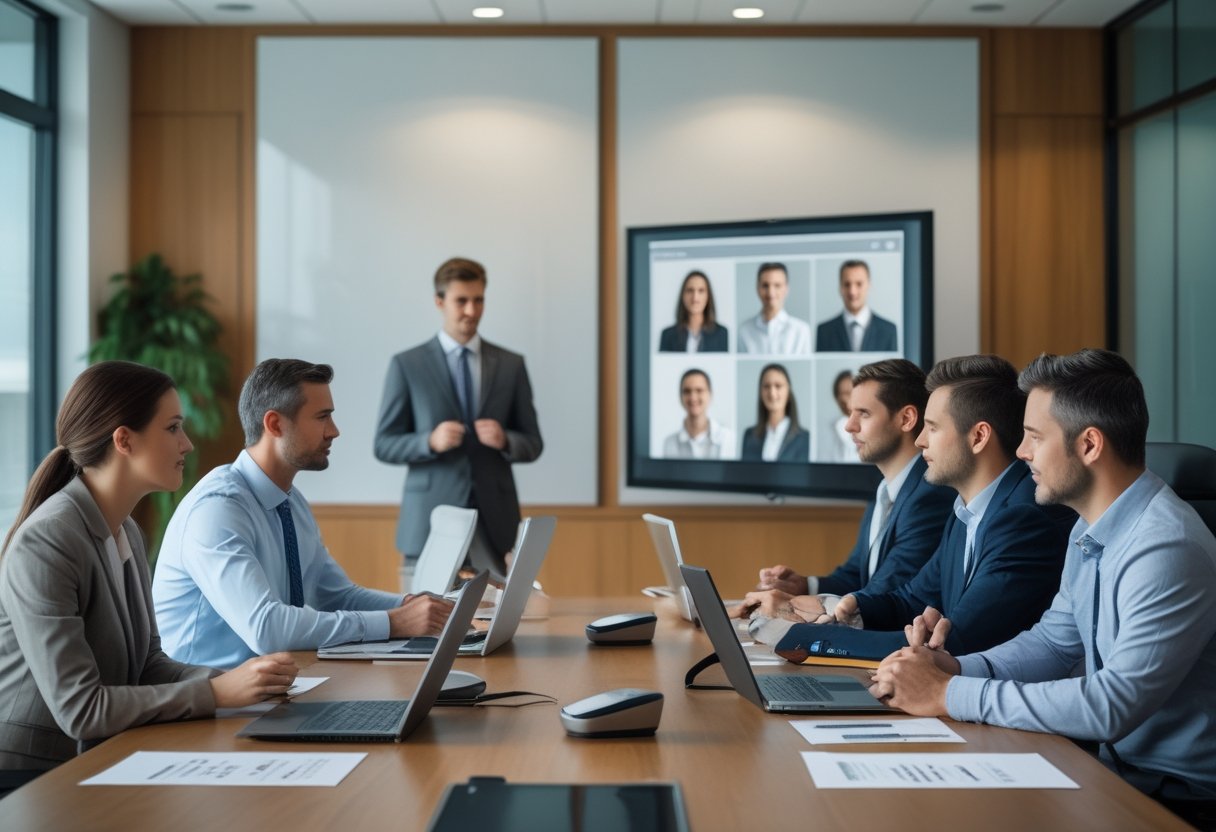
Ruang rapat hybrid siap digunakan ketika peserta di dalam dan di luar kantor dapat mendengar, melihat, serta berbagi materi dengan jelas. Pemeriksaan dimulai dari posisi kamera, jangkauan mikrofon, arah speaker, ukuran layar, pencahayaan, akustik, dan kualitas jaringan.
Perhatikan juga alur penggunaan. Peserta perlu dapat menghubungkan komputer dengan mudah, memilih sumber kamera, membagikan layar, dan mengakhiri rapat tanpa konfigurasi teknis yang rumit. Pengujian suara dari beberapa titik meja membantu menemukan area yang kurang terjangkau mikrofon.
Untuk ruang yang digunakan setiap hari, integrasi perangkat akan mengurangi langkah manual dan mempercepat persiapan rapat. Meeting room hybrid untuk kerja remote dapat menjadi referensi saat Anda menata kebutuhan peserta lokal dan remote dalam satu ruang.
MLV Teknologi dapat membantu Anda menilai kebutuhan ruang, mengintegrasikan kamera, mikrofon, layar, speaker, dan solusi video conference yang andal. Perencanaan serta instalasi yang rapi membantu pekerjaan berlangsung dengan gangguan minimal terhadap operasional kantor.
Memilih Format Rapat yang Selaras dengan Tujuan Bisnis
Anda sebaiknya memilih audio conference untuk koordinasi suara yang ringkas dan video conference untuk rapat yang membutuhkan visual, kolaborasi, atau keterlibatan peserta yang lebih tinggi.
Mulailah dari hasil rapat yang ingin dicapai. Jika peserta hanya perlu menyampaikan status singkat, audio conference meningkatkan efisiensi proses kerja. Jika peserta perlu meninjau materi atau membaca ekspresi wajah klien, konferensi video memberi konteks yang jauh lebih lengkap guna mendongkrak produktivitas.
Gunakan empat pertanyaan saat menentukan format:
- Apakah rapat memerlukan presentasi visual, webinar interaktif, atau kemudahan berbagi dokumen?
- Berapa estimasi jumlah peserta dan bagaimana kesiapan host dalam memoderasi pertemuan?
- Apakah kondisi akustik dan jaringan mendukung komunikasi yang stabil?
- Apakah rapat berlangsung rutin sehingga membutuhkan sistem ruang yang mudah digunakan?
Untuk rapat dengan kebutuhan audio dan visual yang saling terhubung, integrasi perangkat membantu mengurangi masalah suara, gambar, dan pengoperasian. Anda dapat membaca referensi tentang manfaat integrasi sistem audio visual untuk ruang rapat modern sebelum menentukan perangkat.
Kunjungi website MLV Teknologi di www.mlvteknologi.com dan hubungi langsung melalui nomor WhatsApp yang tertera di website kami untuk berdiskusi langsung dengan kami.



Recent Comments