
by Melvin Halpito | Apr 24, 2026 | News Update
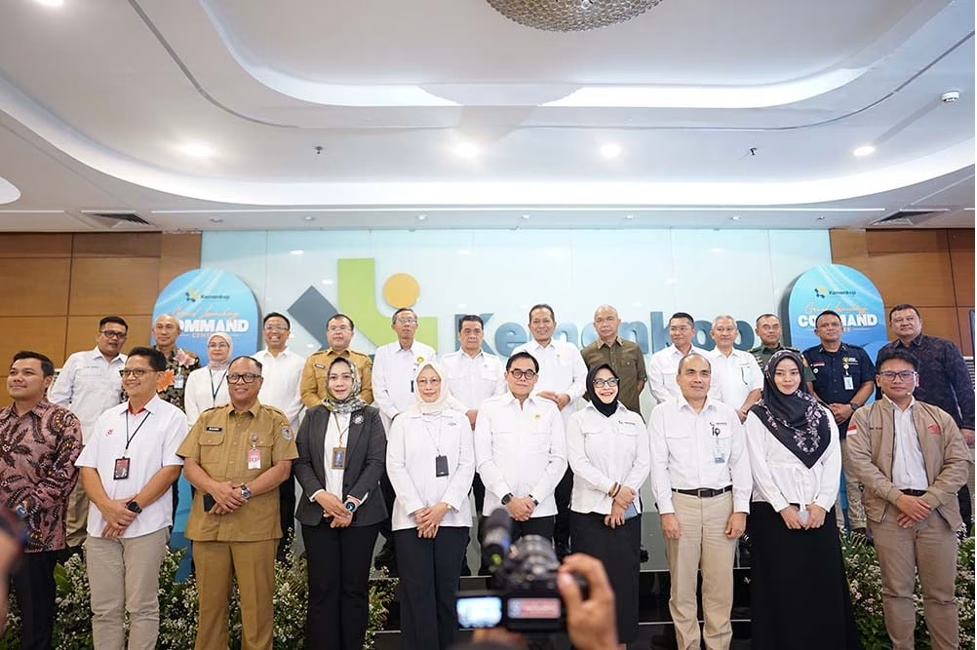
Kementerian Koperasi dan UKM meresmikan command center baru pada Desember 2025 sebagai pusat pengawasan koperasi nasional berbasis data real-time. Langkah ini mendapat sorotan positif dari berbagai media sebagai pendorong percepatan digitalisasi koperasi, terutama dalam program Kopdes Merah Putih. Dengan memercayakan solusi Audio Visual kepada MLV Teknologi, ruang kendali ini dibangun menggunakan AVoIP Chazy Turtle AV, Camera PTZ Aver CAM570, dan DSP Extron. Teknologi tersebut memungkinkan visualisasi data multi-sumber, koordinasi hybrid, serta pengambilan keputusan yang lebih cepat dan transparan. MLV Teknologi menegaskan komitmennya untuk mendukung transformasi digital pemerintah Indonesia. Informasi lebih lanjut tersedia di www.mlvteknologi.com, www.LinkedIn.com/company/mlvteknologi.com, dan Instagram @mlv.teknologi.com.

Perkuat Pengawasan Koperasi, Kemenkop Percayakan Teknologi AV Command Center kepada MLV Teknologi
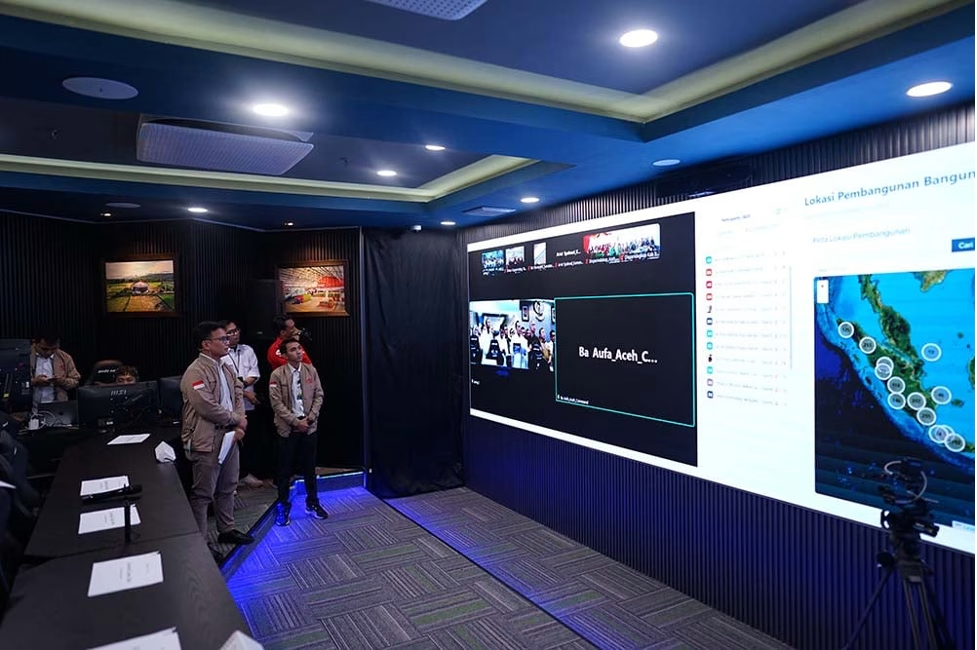
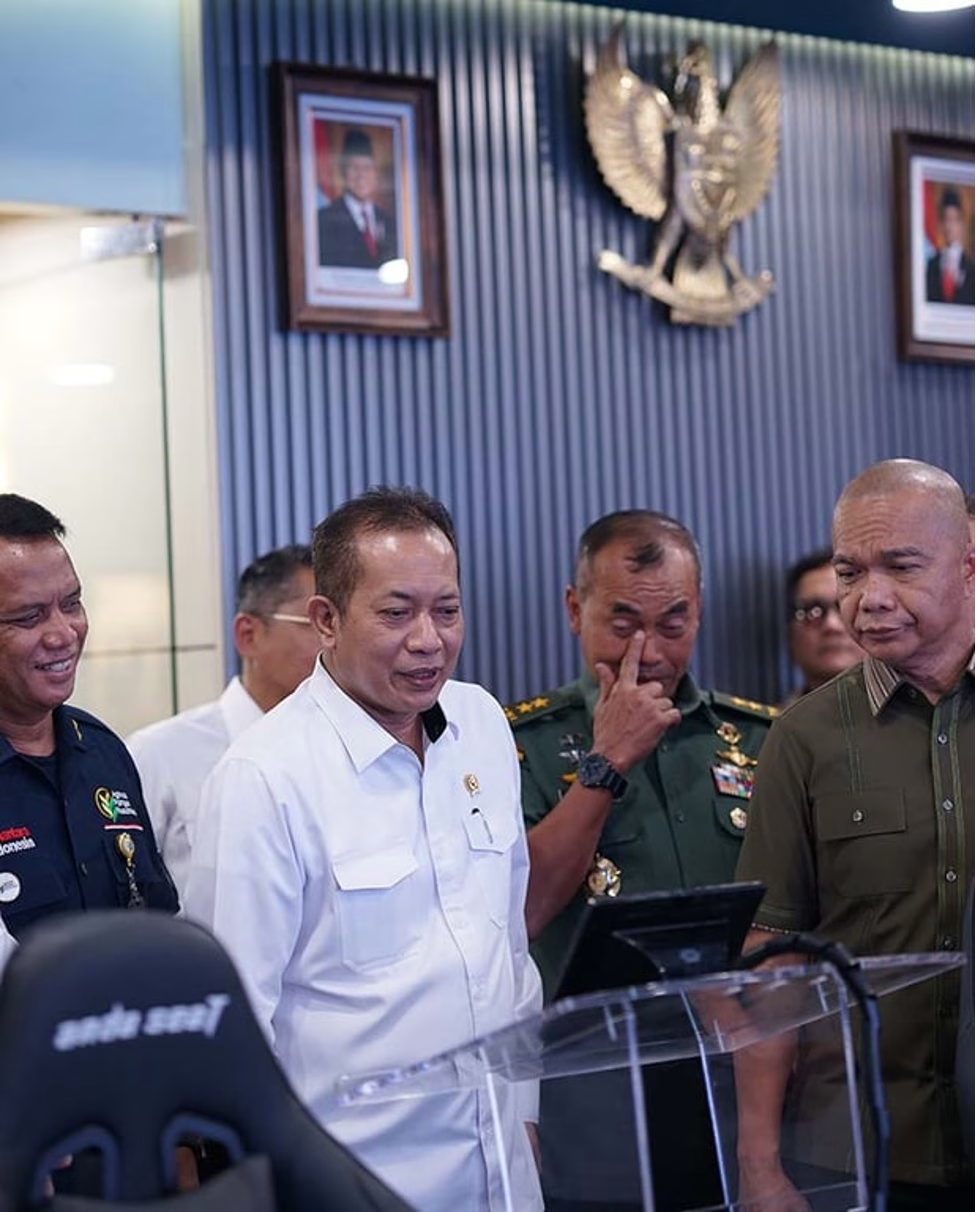
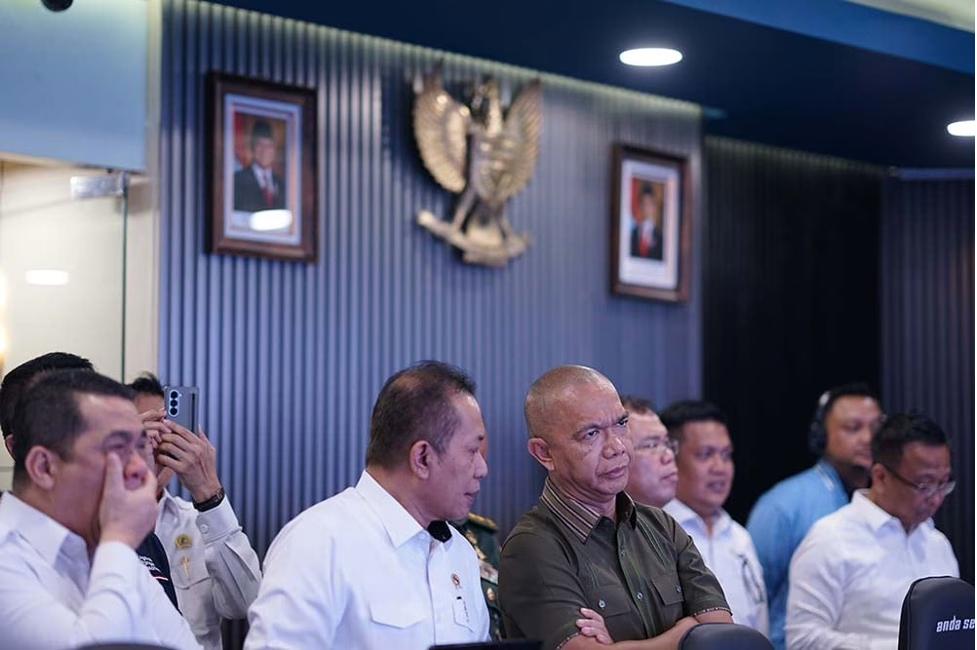
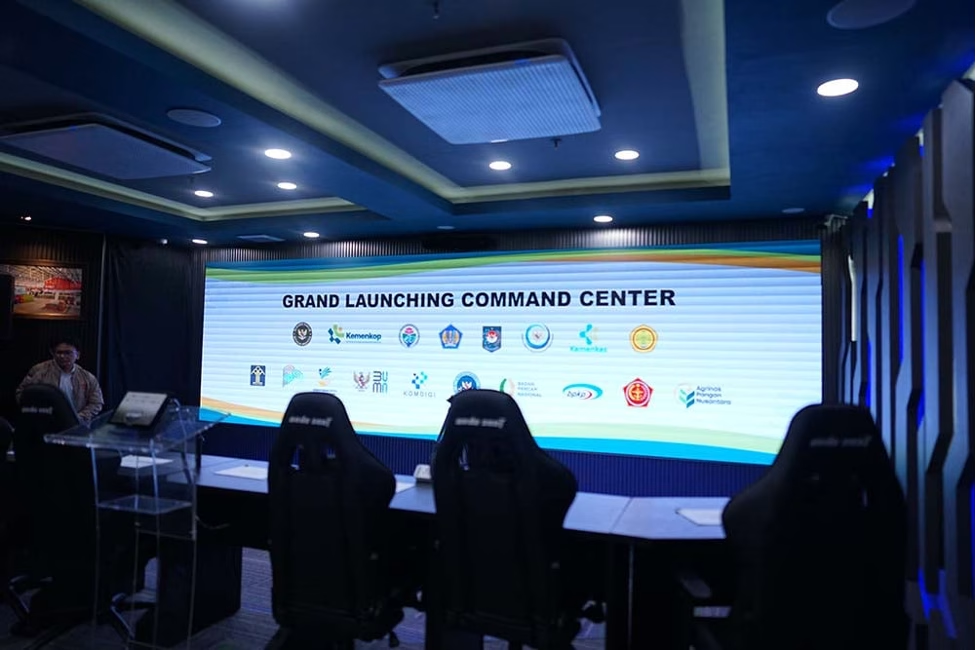
JAKARTA, Desember 2025 — Kementerian Koperasi dan UKM resmi membuka babak baru pengawasan koperasi nasional dengan meresmikan command center modern yang menghadirkan pemantauan real-time, visualisasi data komprehensif, dan kolaborasi lintas lembaga dalam satu ruangan. Berbagai media nasional menilai langkah ini sebagai lompatan besar menuju digitalisasi pengawasan koperasi di Indonesia, terutama terkait percepatan program strategis Koperasi Desa/Kelurahan (Kopdes/Kel) Merah Putih.
Di balik keberhasilan ini, MLV Teknologi menjadi aktor penting dalam memastikan command center tersebut bukan hanya indah secara visual, tetapi juga mampu bekerja 24/7 sebagai pusat kendali berbasis data. Perusahaan integrator Audio Visual (AV) dan IT ini dipercaya merancang infrastruktur digital yang menjadi tulang punggung kinerja ruangan, termasuk integrasi AVoIP Chazy Turtle AV, Camera PTZ Aver CAM570, dan DSP Extron sebagai fondasi utama sistem.

Membawa Pengawasan Koperasi ke Era Data Real-Time
Selama bertahun tahun, pengawasan koperasi di Indonesia bergantung pada laporan manual yang sering terlambat dan tidak lengkap. Laporan Panennews menyoroti bahwa kondisi ini membuat data koperasi “pasif”, sulit diverifikasi, dan tidak bisa digunakan untuk pengambilan keputusan cepat. Kini, command center Kemenkop mampu memantau ribuan koperasi secara simultan melalui dashboard digital dengan pembaruan real-time.
Beberapa fungsi strategis command center yang kini berjalan optimal:
- Monitoring status ribuan koperasi exitsting secara live.
- Pelacakan progres pembangunan fasilitas Kopdes Merah Putih dari gudang hingga gerai UMKM.
- Pelaporan aktivitas usaha koperasi desa secara lebih cepat dan akurat.
- Integrasi dengan Kemendes, Kejaksaan Agung, dan BLU untuk pengawasan lintas lembaga yang lebih kuat.
Transformasi dari data statis ke data real time ini menjadikan command center sebagai “mata dan telinga digital” Kemenkop dalam membangun koperasi yang lebih tangguh dan transparan.
Teknologi AV Modern sebagai “Mesin Visual” Ruang Kendali
Ruang kendali Kemenkop bukan hanya ruang kerja, tetapi ruang eksekusi strategis. Untuk itu, MLV Teknologi membangun ekosistem AV yang memungkinkan visualisasi multi-sumber, koordinasi hybrid, hingga analisis situasional cepat.
Teknologi yang digunakan meliputi:
1. AVoIP Chazy Turtle AV
Distribusi sinyal visual berbasis IP, memastikan data dapat ditampilkan fleksibel ke video wall dan berbagai display.
2. Camera PTZ Aver CAM570
Kamera konferensi dengan kemampuan tracking dan kualitas gambar tinggi untuk mendukung komunikasi hybrid ke seluruh Indonesia.
3. DSP Extron
Digital sound processor yang menghadirkan audio rapat yang bersih, jernih, dan stabil.
Semua perangkat ini dikendalikan melalui sistem kontrol terpusat sehingga operator dapat mengelola tampilan data dan sesi koordinasi tanpa hambatan. Hasilnya adalah ruang kendali yang responsif, intuitif, dan siap menghadapi dinamika pekerjaan kementerian.
Kutipan dari MLV Teknologi
Melvin Halpito, Managing Director MLV Teknologi, menyampaikan bahwa proyek ini adalah representasi nyata bagaimana teknologi AV mampu mengubah cara pemerintah bekerja.
“Command center ini lebih dari sekadar ruang penuh layar—ini adalah ruang keputusan. Dengan AVoIP Chazy Turtle AV, AVoIP Turtle AV, Camera PTZ Aver CAM570, dan DSP Extron, kami memastikan Kemenkop memiliki ruang kendali yang future-ready dan mudah dioperasikan. Kami bangga menjadi bagian dari transformasi digital ekosistem koperasi Indonesia,” ujar Melvin.
by Melvin Halpito | Apr 23, 2026 | News Update
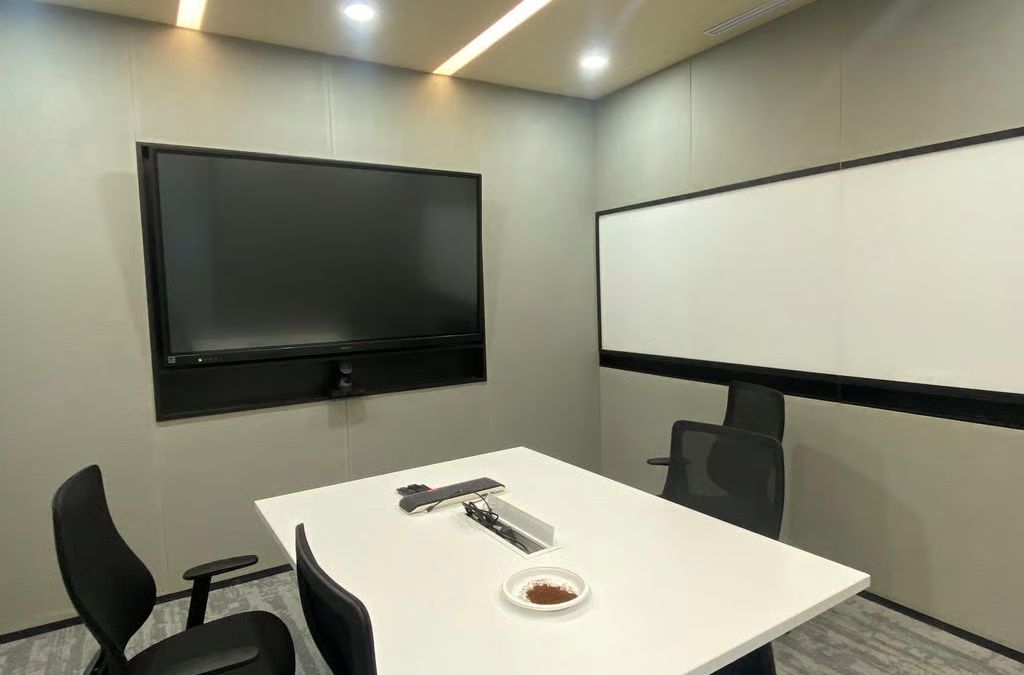
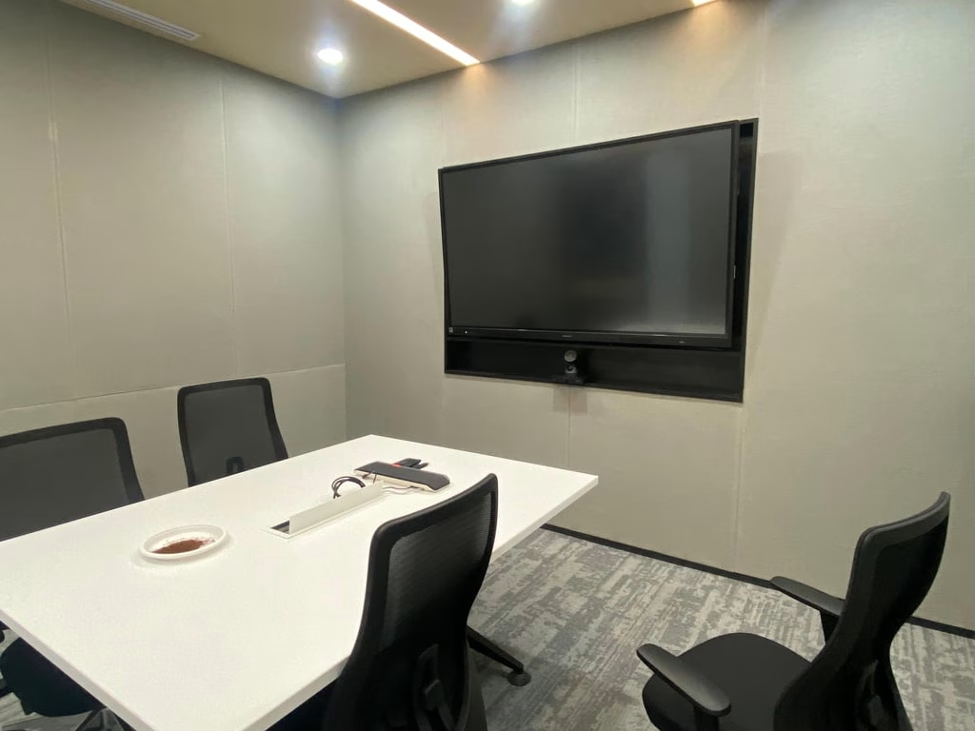
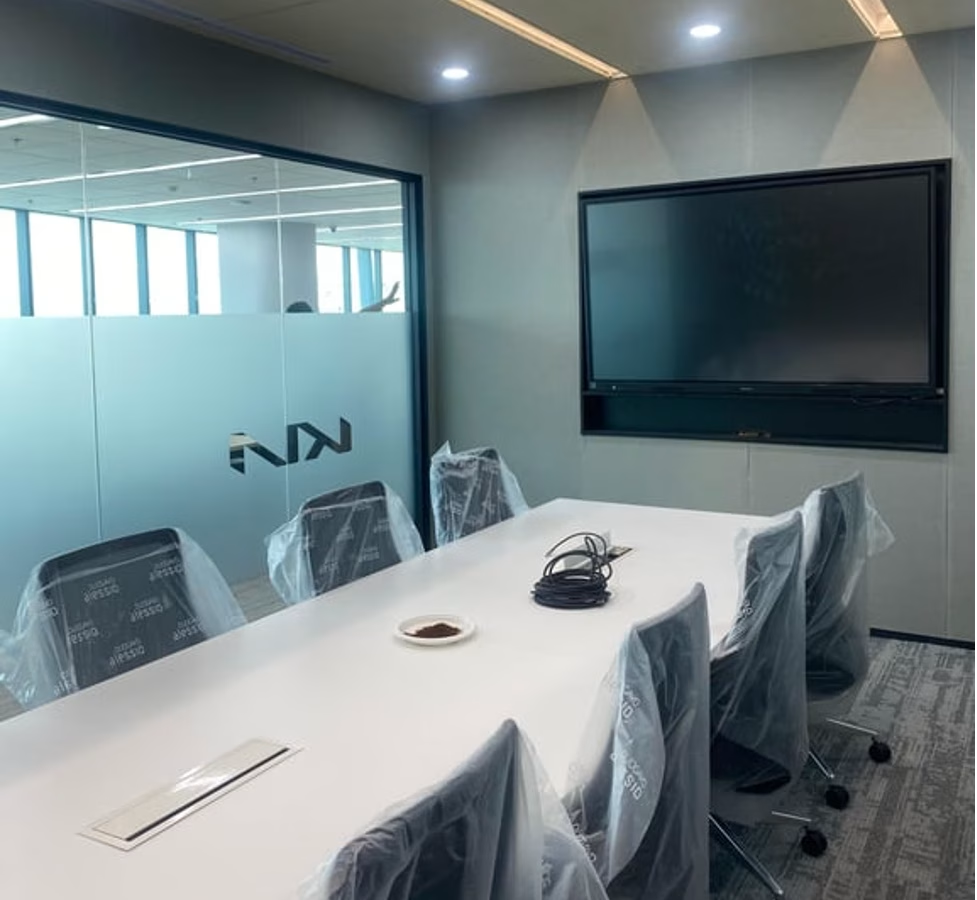
MLV Teknologi berhasil menghadirkan ruang meeting modern untuk PT KIA Sales Indonesia di RDTX Place, Jakarta. Proyek ini mencakup integrasi solusi video conference pada tiga ruang meeting serta tujuh interactive display untuk mendukung kolaborasi hybrid yang lebih efektif. Ruang meeting dilengkapi Samsung 85” QBC Series 4K Display dan Interactive Display (QB85C), HP Thunderbolt 4 Ultra Dock, Poly Studio E60 4K MPTZ Camera, dan Poly Sync 60 Speakerphone. Bekerja sama dengan Canary Design, MLV Teknologi berhasil menggabungkan teknologi canggih dan desain modern, menetapkan standar baru smart office bagi KIA.
Jakarta, Indonesia (24 Desember 2025) – MLV Teknologi, penyedia solusi Audio Visual (AV) dan Information Technology terkemuka di Indonesia, mengumumkan keberhasilan implementasi sistem kolaborasi modern untuk PT KIA Sales Indonesia di lantai 43 RDTX Place, Jakarta. Proyek ini menjadi bagian penting dari upaya transformasi ruang kerja perusahaan, menghadirkan fasilitas meeting berteknologi tinggi yang mendukung efisiensi, profesionalisme, dan produktivitas lintas tim
Sebagai bagian dari peningkatan infrastruktur kolaborasi, MLV Teknologi mengintegrasikan solusi video conference pada tiga ruang meeting serta menyediakan tujuh unit interactive display untuk memastikan kegiatan komunikasi berjalan lebih seamless, intuitif, dan berstandar global. Kehadiran sistem kolaborasi ini memungkinkan tim KIA menjalankan rapat internal, sesi hybrid lintas negara, hingga presentasi strategis dengan kualitas audio‑visual yang tajam, stabil, dan dapat diandalkan.

Untuk mendukung performa terbaik, MLV Teknologi memilih rangkaian perangkat profesional yang telah terbukti unggul di segmennya. Ruang meeting kini dilengkapi Samsung 85” QBC Series 4K Signage Display (QB85C) sebagai display utama, menghadirkan visual yang cerah, presisi, dan ideal untuk presentasi harian. Selain itu, Samsung 85” QBC Series 4K Interactive Display (QB85C) digunakan sebagai interactive collaboration board yang memudahkan brainstorming, anotasi langsung pada dokumen, dan kolaborasi kreatif secara real‑time. Perangkat ini menjadi salah satu elemen penting dalam mendukung gaya kerja dinamis KIA di lingkungan modern.

Dari sisi konektivitas, HP Thunderbolt 4 Ultra 280W G6 Dock diterapkan sebagai penghubung utama yang memudahkan pengguna mengintegrasikan laptop atau perangkat kerja lainnya dengan cepat dan stabil. Untuk kebutuhan video conference berkualitas tinggi, MLV Teknologi mengimplementasikan Poly Studio E60 Smart Camera 4K MPTZ dengan 12x Optical Zoom, yang mampu melakukan smart framing, menangkap gambar dengan ketajaman tinggi, dan memberikan fleksibilitas maksimal untuk ruang meeting menengah hingga besar. Kualitas audio diperkuat oleh Poly Sync 60 USB/Bluetooth®️ Smart Speakerphone, memastikan suara jernih, noise reduction optimal, dan jangkauan mikrofon yang luas sehingga seluruh peserta—baik di dalam ruangan maupun secara virtual—dapat berkomunikasi dengan jelas.
Kombinasi Teknologi dan Desain Interior yang Saling Melengkapi
Dalam proyek ini, MLV Teknologi berperan sebagai sistem integrator, melaksanakan instalasi teknis, integrasi perangkat, konfigurasi sistem, serta pengujian menyeluruh untuk memastikan seluruh perangkat berfungsi optimal sejak hari pertama digunakan. MLV Teknologi bekerja berdampingan dengan Canary Design, yang menangani desain interior ruang meeting. Sinergi ini menghasilkan ruang yang bukan hanya fungsional secara teknologi, tetapi juga estetis, profesional, dan mencerminkan identitas korporasi PT KIA Sales Indonesia.
Dengan desain interior yang bersih, modern, dan selaras dengan perangkat berteknologi tinggi, ruang meeting ini menghadirkan pengalaman bekerja yang nyaman, produktif, dan sesuai dengan tuntutan lingkungan kerja modern.
Komitmen MLV Teknologi untuk Smart Office di Indonesia
Melvin Halpito, Managing Director MLV Teknologi, menyampaikan apresiasinya atas proyek ini:
“Ruang meeting modern harus mampu menggabungkan kenyamanan, efisiensi, dan teknologi yang intuitif. Kami bangga dapat mendukung PT KIA Sales Indonesia melalui solusi yang tidak hanya modern, tetapi juga benar‑benar meningkatkan kualitas kolaborasi mereka. Dengan kombinasi video conference canggih, interactive display, dan perangkat berstandar global, kami menghadirkan ruang meeting yang siap menjawab kebutuhan bisnis masa kini.”
Melvin menambahkan bahwa MLV Teknologi akan terus menjadi mitra strategis bagi perusahaan yang ingin meningkatkan ruang kerja mereka dengan teknologi AV & IT yang scalable, future‑ready, dan mudah dioperasikan.
Membentuk Standar Baru Ruang Meeting Korporasi
Implementasi ini menunjukkan bagaimana teknologi yang tepat, ketika dipasangkan dengan desain ruang yang terencana, dapat membawa dampak signifikan terhadap produktivitas perusahaan. Sistem yang diintegrasikan membantu PT KIA Sales Indonesia mempercepat pengambilan keputusan, meningkatkan fleksibilitas kerja, dan memudahkan komunikasi lintas tim maupun lintas negara. Solusi ini sekaligus menjadi benchmark bagi perusahaan lain yang ingin bergerak menuju konsep smart office di Indonesia.
by Melvin Halpito | Apr 23, 2026 | Article
You want office strategy that goes beyond buying gear and patching systems. MLV helps you scale the human side of experience—how people work, connect, and feel—so physical space, IT systems, and design all pull in the same direction. When MLV anchors your strategy, you get consistent experiences across real estate, technology, and design that drive better collaboration and operational efficiency.
They blend practical AV and workplace tools with strategic planning to make spaces work for your goals, not just your budget. By focusing on experience over equipment, MLV helps you avoid one-off fixes and build a repeatable approach that scales across offices and teams.
Key Takeaways
by Melvin Halpito | Apr 22, 2026 | Article
You asked for conflicting instructions: second person and third person. Choose one and I will follow it. AI meeting intelligence turns meeting outputs into usable, time‑bound work. It makes notes actionable, shortens the time to decide, and keeps teams aligned on who does what and by when.
From Note-Taking to Action-Oriented Outcomes
AI moves beyond verbatim meeting notes to highlight commitments and next steps. It tags phrases like “I will,” “deliver by,” and “owner:” and groups them into an action list with owners and due dates. This reduces the chance that vague notes become missed obligations.
It also standardizes task language. When different speakers use varied phrasing, AI normalizes items (e.g., “follow up on budget” → “Prepare Q2 budget brief — Dana — due Apr 15”). Teams see clear tasks instead of long free‑text minutes, which improves productivity and handoffs.
Reducing Delays with Real-Time Transcription and Summaries
Real‑time transcription captures spoken decisions as they happen. That prevents loss from memory lag and recency bias, so choices made at the start aren’t forgotten by the end.
Live summaries surface decisions and blockers immediately. Participants receive concise decision lines and key facts during or right after the meeting, which cuts the wait time for follow‑up. Systems that flag uncertainty (e.g., “decision tentative”) keep stakeholders from acting on incomplete information. This lowers decision latency and reduces the need for redundant check‑in meetings.
Accelerating Action Item Completion and Decision Tracking
AI meeting assistants track action items across meetings and channels. They link tasks to calendar events, update status when owners report progress, and remind people before due dates. This reduces follow‑up churn caused by missed deadlines and unclear ownership.
They also create an audit trail of decisions and changes. When a decision gets revised, AI shows the original context and who approved the change. That clarity speeds rework and prevents duplicate work. Integration with project tools and email cuts manual copy‑paste, further increasing action item completion rates and improving overall meeting intelligence.
Core Capabilities and Best Practices of AI Meeting Assistants

AI meeting assistants speed meeting prep, capture decisions accurately, and connect outcomes to task systems. They combine speech recognition, smart summaries, action tracking, and analytics so teams spend less time chasing follow-ups and more time acting.
Workflow Integration for Seamless Meeting Management
They plug into calendars, conferencing platforms, and task tools to automate steps before, during, and after meetings. For meeting preparation they pull relevant past summaries and linked documents into the invite so attendees arrive with context. During meetings, real-time speech recognition tags speakers and creates chaptered transcripts that feed into task creation.
Post-meeting workflows assign action items automatically to people and push them to project systems. Typical integrations include calendar apps, Slack, Jira, and CRMs. Teams should map a simple rule set: who gets auto-assigned, which tags trigger task creation, and which meetings auto-record. That reduces manual handoffs and follow-up churn.
Enhancing Accountability and Compliance
AI meeting assistants make responsibility visible and measurable. They extract action items, deadlines, and owners from speech and attach them to the meeting record. Meeting analytics show completion rates, overdue items, and participation trends to help managers reduce decision latency.
For regulated work, the assistant timestamps decisions and keeps an audit trail linked to project records. Organizations should require owner confirmation for high-impact tasks and enable status reminders until tasks close. Sentiment analysis can flag heated discussions for review, helping compliance teams spot risks without reading every transcript.
Security, Privacy, and Enterprise-Grade Protection
Enterprise adoption demands data controls, encryption, and admin oversight. Meeting assistants must offer end-to-end encryption, role-based access, and options for on-prem or regional data residency. Vendors like those integrated into major platforms provide enterprise-grade controls suitable for sensitive discussions.
Privacy best practices include clear consent banners, the ability to exclude recordings per meeting, and configurable retention policies. IT teams should verify SOC/ISO certifications and confirm third-party data processing terms. Strong logging and admin dashboards let security teams audit access and configuration changes.
by Melvin Halpito | Apr 22, 2026 | Article
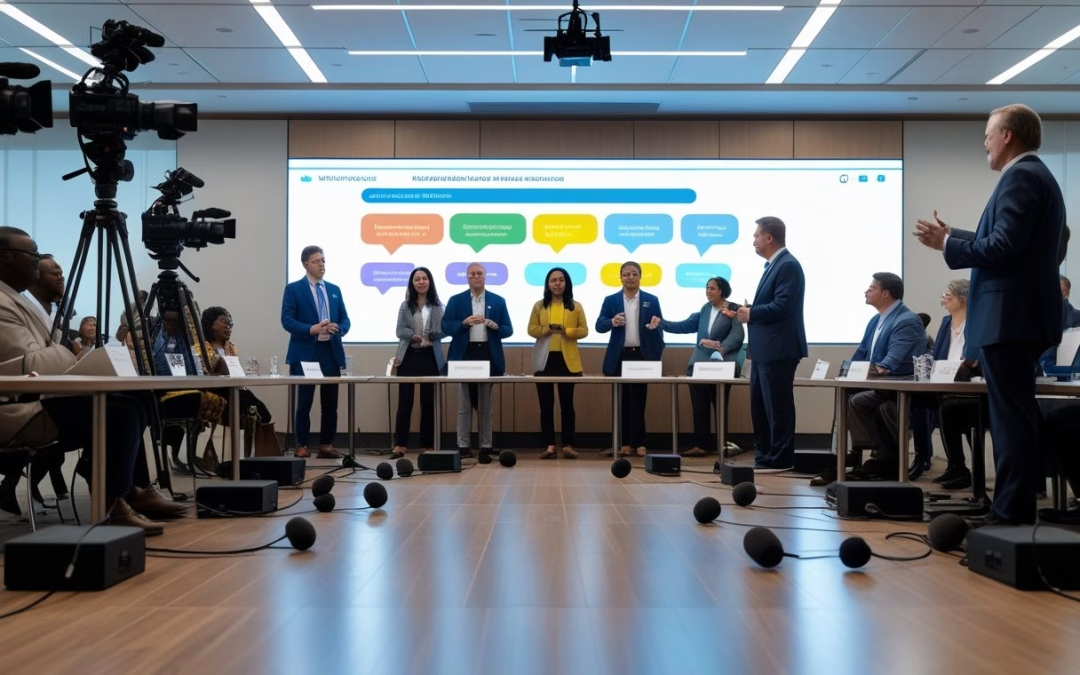
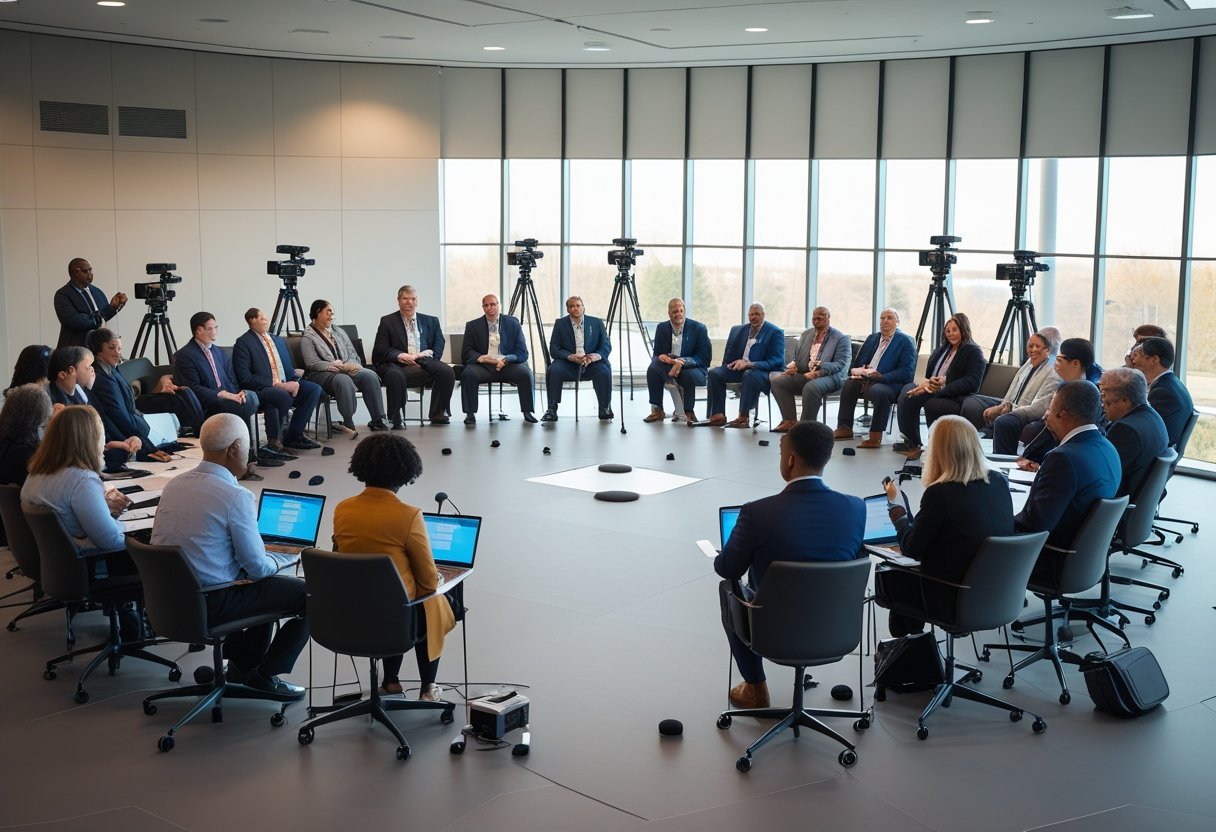
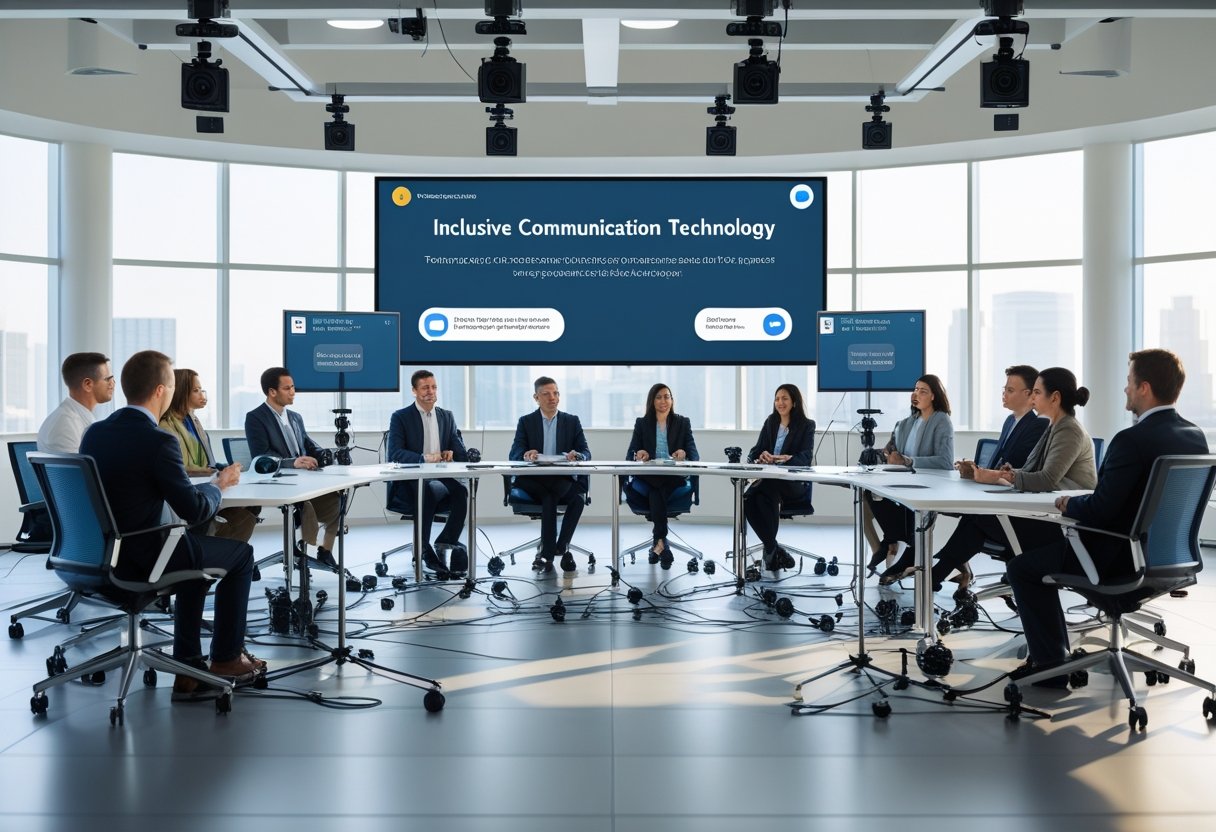
You want townhalls where everyone feels seen and heard. Use multiple camera angles, floor mics, and a clear chat plan so people on-site and remote can join the same conversation. Set up the room and tools so voices are equal — good visuals, distributed mics, and a moderated chat make participation simple and fair.
They’ll notice the difference when people speak naturally, questions get answered, and the session runs without endless technical pauses. This guide explains practical AV choices and chat rules that boost engagement for town halls and all-hands meetings so every employee can take part.
Key Takeaways
- Design the space and camera coverage to show who is speaking.
- Place floor mics and mix audio so both on-site and remote voices are clear.
- Use a moderated, participatory chat to surface meaningful questions.
Core Concepts of Inclusive Townhalls
Inclusive townhalls require clear sightlines, reliable audio, and low-friction digital participation so everyone—remote or in-room—can see, hear, and be heard. The design choices below show how to place cameras, mics, and chat tools to boost fairness and engagement.
Multi-Camera Grammar for Audience Visibility
Multi-camera grammar means using camera placement and switching rules that show speakers, audience reactions, and important visuals without bias. A typical setup uses three camera roles: a wide stage camera, a presenter close-up, and an audience/roving camera. The wide camera establishes context. The presenter close-up captures facial expressions and slides. The audience camera scans hands raised, body language, and signage to include diverse attendees.
Operators or automated systems should follow a simple shot list: wide for introductions, presenter for prepared remarks, audience for Q&A and applause. For hybrid town hall streaming to Zoom, Microsoft Teams, or Google Meet, feed the program mix into the conferencing platform and record isolated camera tracks for post-event editing.
Camera framing must respect sightlines: eye-level or slightly above presenters, lower angles avoided. PTZ or robotic cameras help cover multiple zones without obstructing view. Matching color balance and exposure between cameras reduces jarring cuts. Use captions and slide capture alongside video to help remote viewers and for event recording.
Optimizing Floor Microphones and High-Quality Audio
Floor mics and whole-room audio must capture questions without amplifying noise or feedback. Use ceiling or beam-forming arrays for even coverage and reserve wired or wireless handhelds for formal Q&A. Floor microphones can work in open-floor formats but require careful placement and soft acoustics to limit echo.
Set up an audio chain: mic → mixing desk (or digital console) → DSP for gating/eq → conferencing output and PA. Enable echo cancellation for hybrid streams and route a clean mix to the recorder for event recording and live streaming. Use lavalier or headset mics for presenters to keep vocal levels steady.
Test signal flow and latency before the meeting. Keep spare batteries and channels for wireless microphones. Tune room acoustics with absorption panels or carpets to reduce reverberation. Use assistive-listening options and closed captions to improve accessibility for hearing-impaired participants.
Facilitating Participatory Chat and Real-Time Interaction
Participatory chat must feel equal to speaking from the floor. Choose a single chat hub that integrates with the live stream and moderator tools so questions are triaged quickly. For virtual town halls on Zoom, Teams, or Google Meet, enable moderated Q&A and live polling to surface top issues and prevent chat overload.
Assign moderators to these tasks: one to group similar chat items, one to escalate top questions to the mic queue, and one to watch accessibility flags. Use clear rules: how to submit a question, how votes work, and expected response time. Display top chat items on-screen during audience-camera shots so both in-room and remote attendees see the same cues.
Enable multi-language captions or translation when needed and record the chat transcript with the event recording for follow-up. Integrate chat with audience engagement tools like live polls and reaction emojis to capture sentiment without interrupting speakers.
AV Technology and Best Practices for Multi-Format Townhalls
Townhalls need reliable audio, clear visuals, and easy tools for live interaction. Systems should make presenters sound natural, let remote staff join without friction, and let operators switch scenes fast.
Selecting and Integrating AV Equipment
They should choose certified, interoperable gear to reduce last-minute failures. Prioritise a DSP-driven sound system with separate PA and program mixes, lapel mics for presenters, and floor mics for audience Q&A. Ceiling or beamforming mics can fill gaps, but plan mic placement to avoid feedback and preserve clarity.
For visuals, prefer active LED walls or high-brightness projectors with confidence monitors for presenters. Provide multiple HDMI inputs and a reliable switcher or matrix for content sharing from laptops, media players, and remote feeds. Multi-camera PTZs offer preset shots (podium, wide, audience) to automate cuts.
Engage an AV integration partner for wiring, control system programming, and on-site tuning. Include managed services or a support contract to handle firmware updates and network health. Acoustic treatment matters: add absorptive panels or banners where reverberation hurts speech intelligibility.
Managing Hybrid and Virtual Town Hall Platforms
They must pick platforms that support cloud recording, captions, and easy join links. Use certified room kits so in-room devices and the UC platform behave predictably. Run a pre-event tech check for green room guests and remote presenters to confirm audio levels, camera framing, and bandwidth.
Design the run-of-show like a broadcast: pre-program camera presets, lighting scenes, and content layouts. Route separate mixes to the streaming encoder to avoid echo. Use managed streaming or a dedicated encoder with dual uplinks for redundancy. For Teams webinar-style events, configure roles (presenter, producer, attendee) and test screen share from multiple HDMI sources ahead of time.
Provide an operator-friendly control surface so non-technical staff can trigger scenes, roll video, and mute mics. Keep a simple backup plan: a single laptop and USB audio interface that can take program feed if the main switcher fails.
Enhancing Accessibility, Control, and Engagement
They should bake accessibility into every townhall. Offer live captions, cloud transcripts, and recorded VOD with searchable chapters. Provide multi-language translation when needed and ensure keyboard navigation for platform controls.
Use interactive tools to hold attention: timed polls, moderated chat threads, and upvoted Q&A that tie to the town hall agenda. Route audience questions from chat to on-stage moderators and the AV operator so floor mics or lavs can be cued for live answers. Include employee recognition segments with lower-thirds and slides to spotlight winners.
Implement role-based control for stage managers, AV techs, and presenters. Train a small crew on green room workflows and a clear escalation path. These steps make townhalls smoother, fairer, and more engaging for both in-room and virtual participants.


Recent Comments