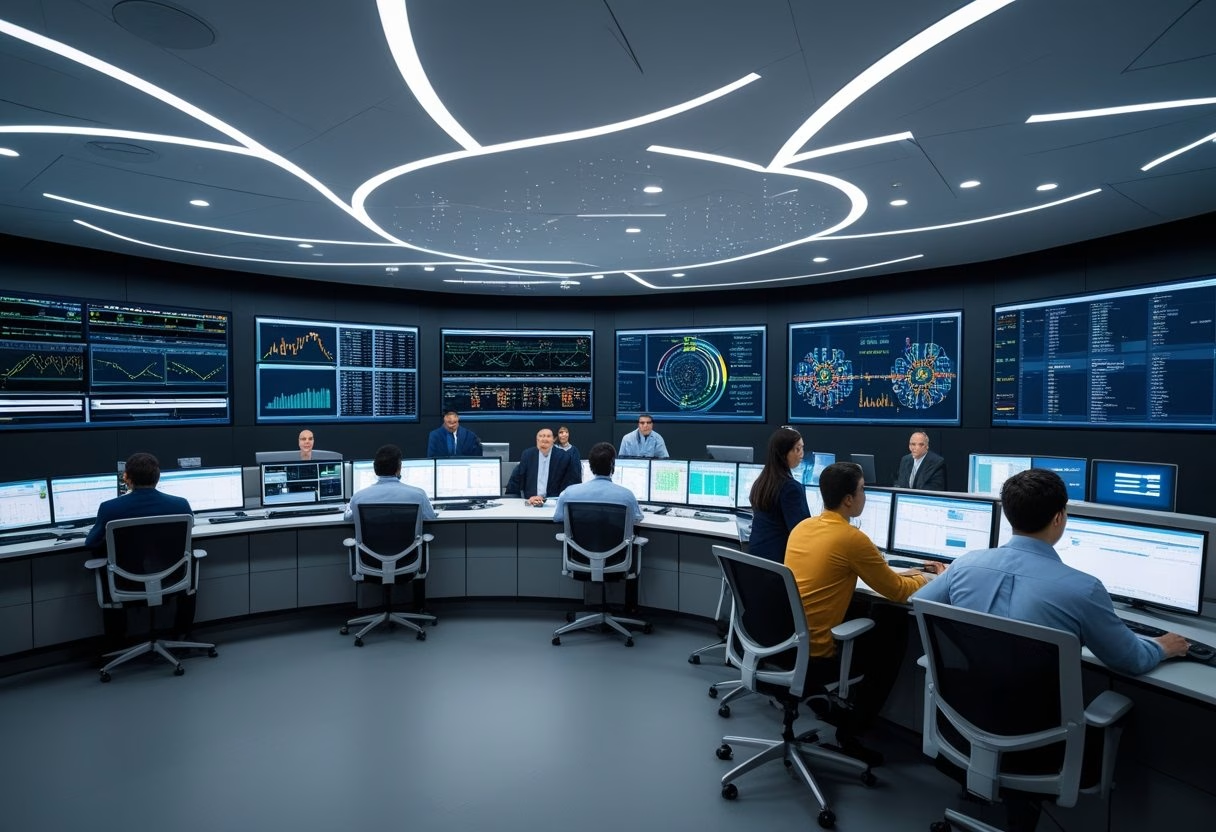
You step into a control room expecting clarity and find clutter. Screens multiply, alarms blare, and the signal you need hides in noise. This article shows how to reorganize space, tech, and workflow so operators spot the right information fast and act with confidence.
Design decision-grade control rooms by cutting noise and delivering the right signals to the right person at the right time. Practical changes to interfaces, alarm logic, and console layout turn crowded displays into focused tools that support better, faster decisions.
They will learn simple steps to move from “more screens” to “more signal,” plus ergonomic choices that keep teams alert and effective during long shifts. Expect clear examples you can apply to your control room planning and upgrades.
Key Takeaways
- Focus on delivering clear, actionable signals rather than more displays.
- Align interfaces and alarm logic to reduce operator workload.
- Design console layouts and environments that support sustained performance.
Moving Beyond ‘More Screens’: Enabling Decision‑Grade Signal
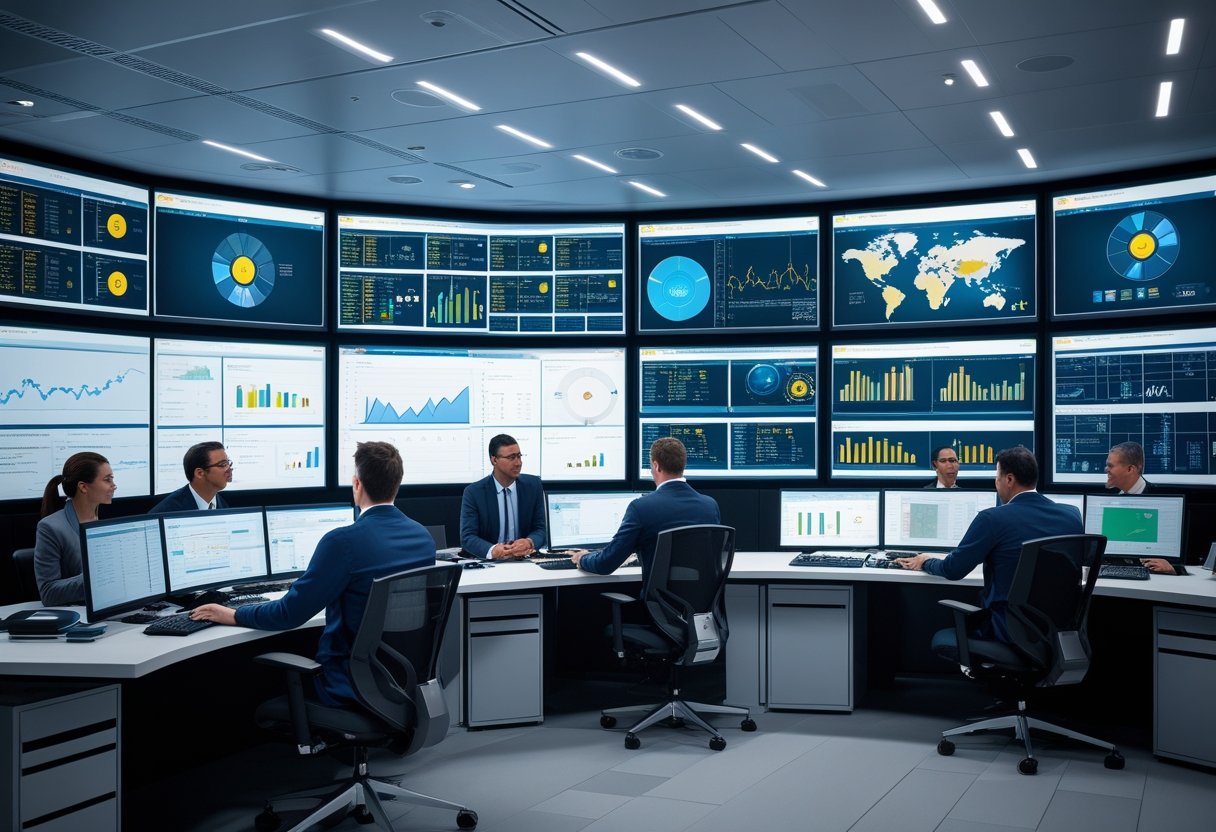
Control rooms must feed clear, prioritized signals to operators so they can make fast, accurate decisions. Focus on workflow, focused displays, readable graphics, and fewer but higher‑quality alerts to cut noise and fatigue.
Workflow-Centric Control Room Design Principles
Designers should map tasks to the control room layout so operators see the right information when they need it. Group consoles by function—process monitoring, alarms, and diagnostics—so specialists can sit where their core tasks are centered. Use task-driven layouts to reduce context switching and to support centralized control of mission-critical processes.
Define clear roles and handoffs. Assign primary and secondary operators for each subsystem and show role-specific dashboards in the GUI. Standardize procedure steps and display them as stepwise, clickable actions to support situational awareness and reduce errors.
Measure and tune with objective metrics like response time, error rate, and NASA‑TLX scores. Iterate the layout based on real SCADA logs and operator workflow traces.
Integrating Advanced Display Technologies and Video Walls
Choose video walls for shared, high‑impact information: trend overviews, cross‑unit anomalies, and escalation status. Use high resolution and high contrast to keep text and graphs legible at distance.
Configure video walls as intelligent canvases: partition them into persistent zones (critical alarms), dynamic zones (ongoing incidents), and reference zones (procedures, schematics). Allow operators to push or pull panels from the wall to individual workstations to maintain continuity in decision-making.
Match display resolution and contrast to viewing distance and font sizes. Calibrate color and brightness so alarms remain visible without causing glare. Ensure redundancy and independent control paths so a wall failure does not blind the room.
Optimizing Human-Machine Interface (HMI) and GUI for Clarity
Design GUIs around decision tasks, not data dumps. Prioritize data by decision impact: show values that directly affect safety or throughput first, then supporting context. Use consistent iconography, clear labels, and numeric precision appropriate for the task.
Provide layered views: summary tiles for quick situation assessment and drill‑down panels for root cause analysis. Make interactive elements large enough for quick selection and place frequently used controls within two clicks or taps. Integrate SCADA alarms with procedural guidance so the HMI links a triggered alarm to the exact corrective steps.
Include performance-aware features: adaptive layouts that highlight out‑of‑tolerance variables and timelines that replay operator actions for training and incident review.
Reducing Noise, Fatigue, and Alarm Overload
Limit alarms to actionable events by tuning thresholds, grouping related alerts, and using suppression rules during planned operations. Replace redundant alarms with consolidated messages that state the root problem and the recommended action.
Design visual alarms with graded severity, distinct tones, and spatial anchoring so operators can localize issues without scanning all screens. Introduce calm‑time periods and schedule non‑critical notifications outside peak workload windows.
Address ergonomics to reduce fatigue: adjustable seating and displays, proper tilt and distance, and ambient lighting set to reduce glare and preserve contrast. Track operator workload with objective measures and adapt alarm routing or take automated support when cognitive load exceeds safe limits.
Human Factors and Ergonomics for High-Performance Control Rooms
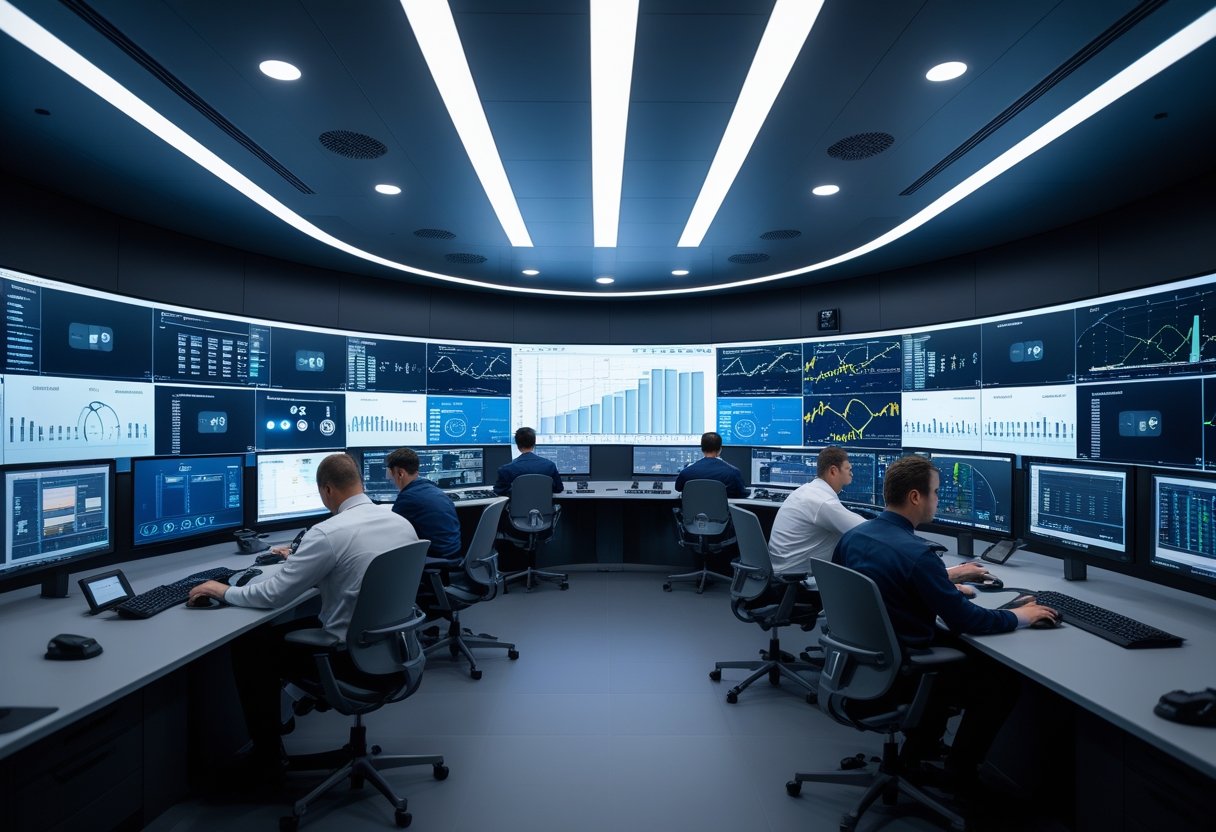
Design choices should reduce operator fatigue, cut error risk, and keep attention on the signal. Practical standards, layout, and furniture decisions drive those results.
Applying ISO 11064 and Ergonomic Design Standards
Teams should use ISO 11064 to structure control room design phases: functional requirements, layout, and workstation design. It guides task analysis, visibility needs, and control placement so that operators reach and view controls without awkward postures.
Perform workload and task-timing studies to set alarm limits, console counts, and staffing. These studies reveal when automation should filter low-value alerts and when tasks require human decision-making.
Use anthropometric data to size consoles and screen heights for the operator population. Apply human factors methods like cognitive walkthroughs and participatory design with operators to validate assumptions.
Address noise and shift work by specifying acoustic treatments and scheduling practices that reduce fatigue. For nuclear or high-consequence facilities, integrate HFE early and document how design choices map to ISO 11064 clauses and risk controls.
Workstation Placement and Control Room Layout
Place workstations so sightlines to key screens, displays, and windows remain unobstructed. Arrange consoles in arcs or shallow U-shapes to keep primary displays within a 15–30 degree horizontal field for each operator.
Cluster related tasks together to limit cross-room travel and handoffs. Position supervisory stations slightly raised or centrally located to maintain shared situation awareness without blocking operator views.
Allow 1.0–1.2 m clear aisle in front of each console for movement and emergency egress. Set screen distance at 50–70 cm for 24–27” displays, and calibrate font and contrast for low-glare viewing.
Plan redundancy for backup displays and power while keeping the number of visible screens per operator manageable. Use simulation or mock-ups to test layout choices before final installation.
Control Room Furniture, Lighting, and Cable Management
Select height-adjustable consoles and chairs to accommodate the full operator range and reduce musculoskeletal strain. Choose materials that resist glare and have rounded edges to prevent contact injuries.
Provide footrests and arm supports where tasks require fine manual input. Use cable channels under consoles and raised floor panels to route power and data away from walkways and work surfaces.
Design layered lighting: general ambient, task lighting at consoles, and dimmable scene lighting for large displays. Specify 300–500 lux for task areas and lower levels for display viewing to prevent eye strain.
Implement acoustic panels, floor treatments, and sealed cable trays to cut reverberation and mechanical noise. Label cable runs clearly and lock down connections to reduce downtime from accidental disconnection.