
by Melvin Halpito | Oct 1, 2026 | Article
Menentukan Kebutuhan dan Standar Kerja Hibrida
Hybrid Work Setup untuk Perusahaan dimulai dari pemetaan pola kerja, kebutuhan kehadiran, dan standar pengalaman yang setara bagi peserta di kantor maupun jarak jauh. Keputusan ini membantu Anda menentukan ruang, teknologi, serta kebijakan yang sesuai dengan cara tim mengambil keputusan dan berkolaborasi.
Penerapan model kerja hybrid perlu mengikuti fungsi setiap tim. Adanya fleksibilitas kerja antara kerja di kantor dan bekerja dari rumah terbukti menciptakan work-life balance yang lebih sehat.
Langkah ini mendorong kepuasan karyawan sekaligus memperkuat retensi karyawan dalam jangka panjang. Riset McKinsey menunjukkan bahwa transisi menuju hybrid workplace membuka akses ke talent pool yang lebih luas tanpa sekat geografis.
Penerapan sistem kerja fleksibel memberi kebebasan dalam menetapkan jadwal kerja fleksibel atau pola berbasis aktivitas. Gunakan data kehadiran, jenis pekerjaan, kebutuhan pelanggan, dan hasil evaluasi kinerja sebagai dasar keputusan.
Model kerja hybrid mana yang paling sesuai dengan pola kerja tim?
Model berbasis jadwal tetap cocok ketika tim membutuhkan hari kolaborasi yang konsisten. Model fleksibel memberi ruang bagi karyawan untuk memilih lokasi kerja sesuai tugas, sedangkan model berbasis aktivitas mengatur kehadiran berdasarkan kebutuhan seperti lokakarya, presentasi klien, atau pengambilan keputusan.
Anda dapat memulai dengan satu pola untuk tiap kelompok kerja, lalu meninjau hasilnya setelah periode uji coba. Catat dampaknya terhadap produktivitas, efisiensi biaya operasional, keterlibatan karyawan, dan kesejahteraan karyawan.
Kesejahteraan karyawan yang terjaga dengan baik akan berdampak langsung pada kepuasan karyawan dalam menjalankan tugas harian.
Inisiatif pendukung seperti program kesehatan turut menjaga kebugaran fisik dan mental tim sekaligus mencegah risiko burnout.
Penyesuaian ini juga membentuk budaya organisasi yang adaptif dan berorientasi pada hasil. Penerapan nilai-nilai bersama secara konsisten memperkuat budaya perusahaan meski anggota tim bekerja dari lokasi berbeda.
Peran, aktivitas, dan momen kolaborasi apa yang tetap memerlukan kehadiran di kantor?
Aktivitas kerja di kantor paling bernilai untuk agenda yang membutuhkan interaksi cepat, fasilitas khusus, atau keputusan lintas fungsi. Agenda pelatihan dan pengembangan, workshop desain, negosiasi, onboarding, serta penguatan budaya perusahaan memerlukan ruang yang mendukung percakapan intensif.
Tetapkan kriteria yang jelas agar kehadiran tidak berubah menjadi kewajiban tanpa tujuan. Setiap agenda kantor perlu memiliki hasil yang ingin dicapai, peserta yang relevan, dan ruang yang sesuai dengan cara kerja tim.
Dengan begitu, hari-hari saat anggota tim bekerja dari rumah tetap berjalan efektif tanpa mengurangi kualitas koordinasi. Pembagian jadwal yang seimbang ini memberikan fleksibilitas kerja yang optimal bagi semua pihak.
Standar pengalaman kerja seperti apa yang harus sama bagi peserta di kantor dan jarak jauh?
Staf yang menjalankan kerja jarak jauh maupun kerja dari rumah harus dapat mendengar percakapan, melihat materi, berbicara tanpa jeda, serta mengakses keputusan rapat. Standar ini memerlukan koneksi jaringan stabil, audio jernih, kamera bersudut pandang tepat, dan kelancaran komunikasi tim secara menyeluruh.
Tetapkan aturan seperti penggunaan mikrofon, giliran bicara, pencatatan keputusan, serta distribusi dokumen setelah rapat.
Standar perangkat kerja yang memadai dan koneksi internet yang stabil memastikan karyawan remote tetap produktif tanpa kendala teknis. Fasilitas tersebut sangat krusial untuk menjaga produktivitas selama menjalankan kerja dari rumah.
Selain infrastruktur, evaluasi kinerja berbasis pencapaian objektif juga perlu diterapkan. Hal ini memastikan staf yang bekerja dari rumah mendapatkan penilaian yang adil dan transparan.
Untuk kesiapan peserta jarak jauh, perusahaan juga perlu menetapkan standar perlengkapan kerja melalui panduan infrastruktur home office yang efektif.
Membangun Operasi yang Setara antara Kantor dan Jarak Jauh
Operasi kerja hybrid berjalan konsisten ketika perangkat, ruang, kebijakan, dan kebiasaan pengguna dirancang sebagai satu sistem. Anda perlu menghubungkan keputusan HR dengan kebutuhan IT, facility, procurement, dan pemilik proses agar setiap rapat memiliki alur yang mudah dijalankan.
Mulailah dari rapat yang paling sering dilakukan. Petakan jumlah peserta, durasi, jenis materi, kebutuhan berbagi layar, serta tingkat kerahasiaan informasi. Hasil pemetaan ini menjadi dasar untuk menentukan kelas ruang, standar perangkat, dan prosedur penggunaannya.

Teknologi rapat apa yang diperlukan agar komunikasi hybrid tetap jelas dan andal?
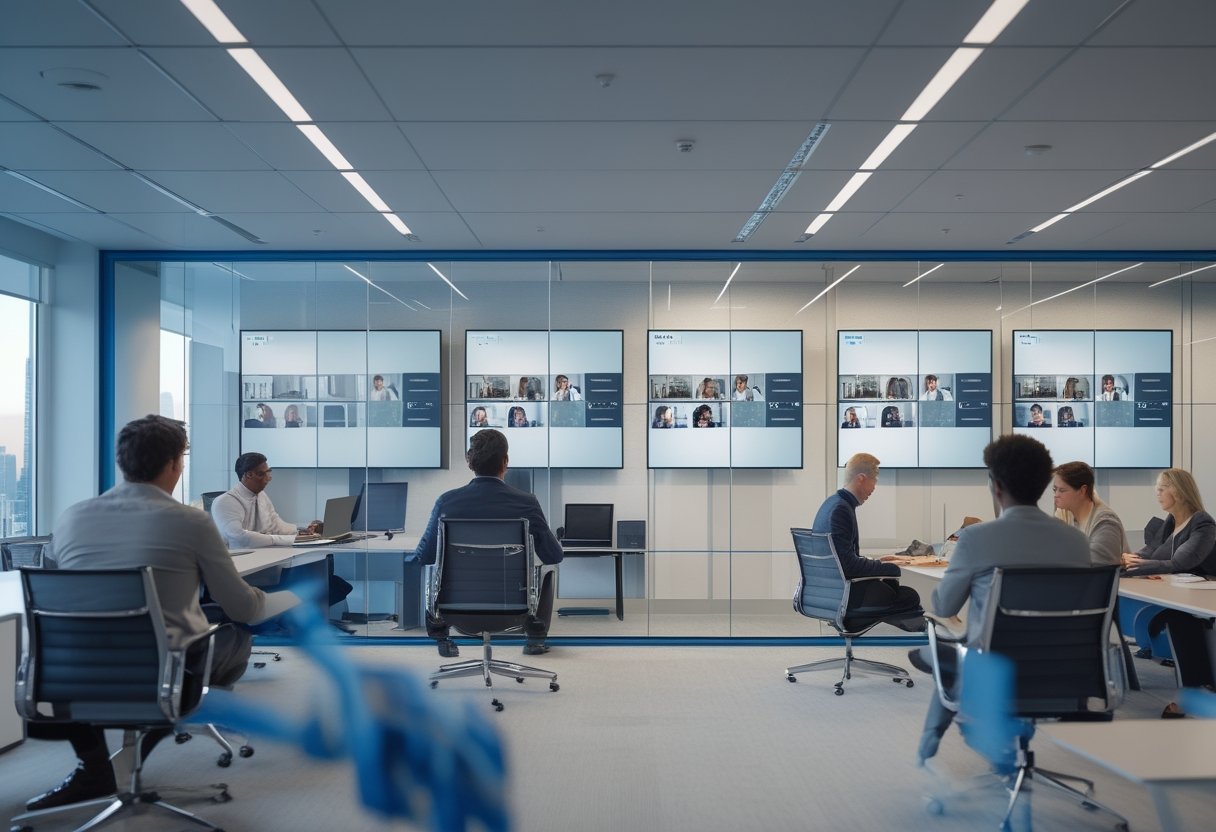
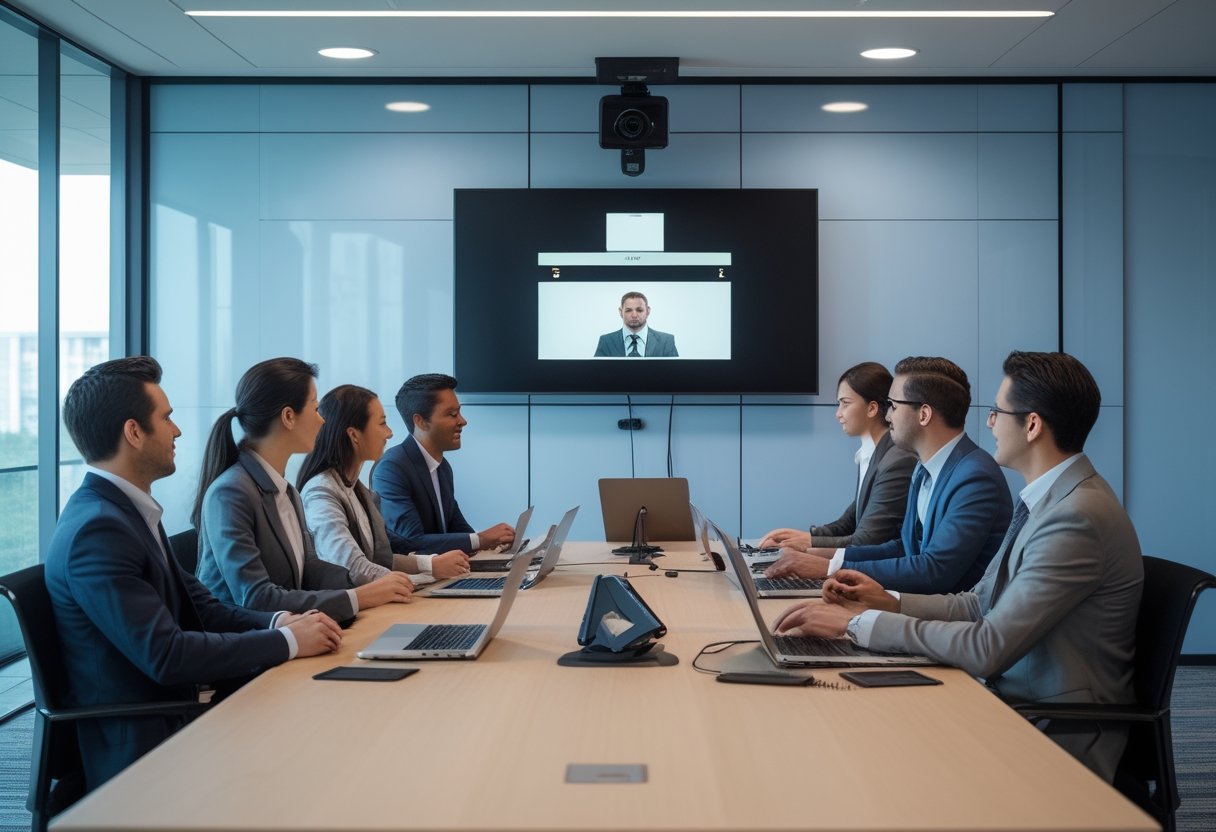
Ruang rapat hybrid memerlukan kamera, mikrofon, speaker, layar, sistem presentasi, dan platform konferensi video yang saling terhubung. Mikrofon dengan noise cancellation membantu mengurangi suara latar, sedangkan beamforming meningkatkan fokus pada suara pembicara. Kamera auto tracking mendukung rapat dengan beberapa pembicara.
Gunakan platform komunikasi yang andal dan sudah dipahami tim, seperti Zoom atau Microsoft Teams dari ekosistem Microsoft, lalu sederhanakan proses bergabung dan screen sharing.
Platform seperti Microsoft Teams membantu menyatukan panggilan video, obrolan, dan file rapat dalam satu antarmuka yang rapi.
Kombinasi platform kolaborasi seperti Google Workspace mempermudah sinkronisasi dokumen kerja secara real-time. Kehadiran platform kolaborasi yang andal menjamin alur pertukaran informasi antaranggota tetap lancar.
Kebutuhan kolaborasi tim harian juga dapat disinkronkan dengan aplikasi pesan instan seperti Slack agar koordinasi tim berlangsung cepat.
Pemanfaatan Slack melalui kanal terorganisir memungkinkan komunikasi lintas departemen tetap mengalir tanpa hambatan. Pola ini mempermudah komunikasi tim dalam membagikan pembaruan proyek harian secara transparan.
Panel kontrol terpusat membantu pengguna mengatur volume, kamera, input display, dan preset ruangan tanpa bantuan teknis setiap kali rapat dimulai.
Bagaimana ruang rapat perlu dirancang untuk kolaborasi tatap muka dan virtual?
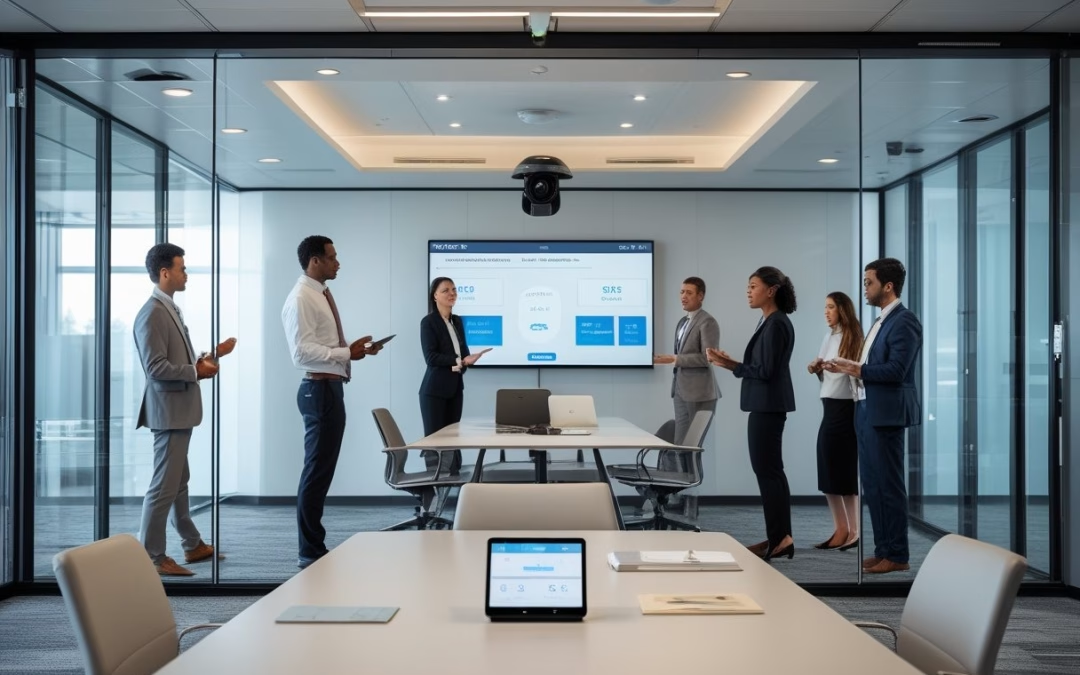
Desain ruang harus mengikuti fungsi rapat dan jumlah peserta aktif. Huddle room cocok untuk diskusi kecil, ruang rapat formal mendukung agenda terstruktur, sedangkan smart meeting room sesuai untuk rapat rutin dengan banyak peserta jarak jauh atau presentasi eksternal.
Letakkan kamera menghadap area pembicara dan layar peserta virtual sejajar dengan pandangan peserta di kantor. Meja yang terlalu panjang dapat menyulitkan kamera dan mikrofon menangkap peserta, sehingga bentuk meja, jarak kursi, akustik, pencahayaan, serta posisi layar perlu diperiksa bersama. Referensi cara mendesain meeting room modern yang mendukung kolaborasi hybrid dapat membantu Anda menyusun kebutuhan ruang.
Kebijakan apa yang mencegah ketidakjelasan jadwal, akses informasi, dan akuntabilitas?
Kebijakan kerja hybrid tertulis perlu merumuskan rencana komunikasi yang mencakup jadwal kehadiran, pemesanan ruang, dan jam kolaborasi. Penataan ini mempermudah koordinasi tim lintas departemen agar tetap sinkron. Seperti halnya perusahaan teknologi Shopify, penerapan prinsip digital by default menjaga transparansi informasi bagi seluruh tim.
Manajemen yang efektif juga membutuhkan kepemimpinan hybrid yang berfokus pada hasil nyata, baik saat WFH maupun di kantor. Pelaksanaan remote work yang tertib mencegah kebingungan ritme kerja harian.
Dukung pelaksanaan tugas dengan software manajemen proyek dan platform manajemen tugas seperti ClickUp, Asana, atau Trello agar pembagian tanggung jawab tetap transparan.
Penggunaan sistem manajemen proyek yang terstruktur membantu memantau tenggat waktu pekerjaan sekaligus mendukung fleksibilitas kerja tim.
Selain pertemuan langsung, biasakan komunikasi asynchronous untuk pembaruan rutin dan bangun komunikasi terbuka di setiap divisi.
Langkah ini menjaga keharmonisan komunikasi tim serta mempererat budaya perusahaan dalam lingkungan kerja fleksibel.
Standar keamanan data harus ditegakkan melalui kewajiban penggunaan VPN korporat saat mengakses data sensitif dari luar kantor. Semua peserta dapat mengakses dokumen dan rekaman secara aman, sementara kalender bersama membantu mengatur kapasitas ruang.
Penerapan enkripsi jaringan melalui VPN dan kebijakan keamanan data yang ketat meminimalkan risiko ancaman siber terhadap sistem perusahaan.
Bagaimana melakukan uji coba, pelatihan pengguna, dan evaluasi berkelanjutan?
Mulailah dengan pilot pada satu atau dua ruang yang mewakili pola rapat utama. Uji kualitas suara, tampilan peserta, screen sharing, koneksi platform, pencatatan keputusan, dan prosedur bantuan ketika terjadi gangguan.
Latih pengguna melalui simulasi singkat sebelum sistem dipakai luas. Setelah pilot berjalan, ukur waktu persiapan rapat, jumlah kendala teknis, tingkat pemakaian ruang, dan umpan balik peserta.
Lakukan evaluasi kinerja operasional ruang secara berkala guna mengukur tingkat kepuasan karyawan terhadap fasilitas teknologi yang digunakan. MLV Teknologi dapat membantu konsultasi, penyediaan, serta instalasi solusi AV dengan pelaksanaan yang rapi, responsif, dan dirancang untuk meminimalkan gangguan terhadap operasional kantor.
Kesiapan Hibrida Dimulai dari Pengalaman Rapat yang Konsisten
Pengalaman rapat yang konsisten menjadi penghubung antara kebijakan kerja hybrid dan adopsi karyawan sehari-hari. Ketika peserta jarak jauh dapat mendengar, melihat, dan berkontribusi dengan lancar, keputusan rapat lebih mudah diteruskan ke pekerjaan berikutnya.
Kelancaran interaksi rapat secara virtual memperkuat produktivitas harian karyawan yang bertugas di kantor maupun yang menjalankan kerja dari rumah.
Jadikan setiap ruang memiliki standar penggunaan yang mudah dipahami. Sediakan panduan satu halaman untuk memulai rapat, menghubungkan perangkat, berbagi layar, mengatur kamera, dan meminta dukungan teknis. Standar yang seragam juga memudahkan IT memelihara perangkat serta membantu facility manager merencanakan kapasitas ruang.
Evaluasi pengalaman peserta secara berkala melalui survei singkat dan catatan insiden. Periksa apakah peserta jarak jauh berbicara lebih sedikit karena audio kurang jelas, apakah materi sulit dibaca, atau apakah proses bergabung terlalu panjang. Untuk perusahaan yang ingin memperluas pendekatan ini, meeting room hybrid untuk kerja remote dapat menjadi rujukan dalam menyelaraskan fungsi ruang, kapasitas, teknologi, dan kebiasaan kerja.
Dukungan teknologi terpadu, mulai dari integrasi platform kolaborasi seperti Microsoft Teams dan Slack hingga keandalan koneksi VPN, memastikan seluruh alur kerja berjalan mulus.
Penerapan alat manajemen proyek yang tepat serta perlindungan keamanan data yang kuat tidak hanya menjaga kelangsungan bisnis, tetapi juga memelihara kesejahteraan karyawan secara menyeluruh.
Kunjungi website MLV Teknologi di www.mlvteknologi.com dan hubungi langsung melalui nomor WhatsApp yang tertera di website kami untuk berdiskusi mengenai kebutuhan ruang rapat hybrid Anda.
by Melvin Halpito | Oct 1, 2026 | Article
Memahami Lisensi yang Melekat pada Perangkat Ruang Bersama
Setiap perangkat ruang meeting bersama memerlukan lisensi Microsoft Teams Rooms Basic atau Pro yang ditetapkan pada sistem ruang tersebut. Lisensi Microsoft 365 per pengguna tidak menggantikan lisensi ruang.
Memahami strategi Teams Rooms licensing sejak awal membantu menentukan jumlah ruang rapat, jenis perangkat, dan tata kelola akun secara tepat.
Mengapa lisensi per pengguna tidak dapat menggantikan lisensi ruang
Berbeda dengan ruang BYOD di mana pengguna membawa laptop pribadi, perangkat bersama di ruang rapat memerlukan lisensi Teams Rooms khusus. Lisensi suite Microsoft 365 per pengguna tidak diperuntukkan bagi perangkat meeting bersama.
Bahkan lisensi tambahan seperti Teams Premium tetap berfokus pada pengguna individu dan tidak dapat dialokasikan ke perangkat ruang. Ruang rapat bersama tetap membutuhkan lisensi sistem tersendiri.
Perencanaan lisensi per ruang rapat membantu menjaga kepatuhan dan kelancaran kolaborasi antar tim. Di samping itu, kolaborasi interaktif di ruang kerja modern menuntut kesiapan sistem MTR yang selalu terhubung.
Setiap ruang yang memakai Teams Rooms devices atau Surface Hub perlu memperoleh Teams Rooms license yang sesuai agar fitur one-touch join selalu dapat diandalkan oleh peserta rapat.
Peran akun sumber daya dan perangkat Teams Rooms tersertifikasi
Akun sumber daya atau resource accounts adalah akun khusus berupa room mailbox yang mewakili ruang rapat. Administrator dapat membuat resource account atau room account melalui Microsoft 365 admin center atau Exchange Online PowerShell dengan perintah New-Mailbox, lalu mengaktifkan AutoAccept menggunakan cmdlet Set-CalendarProcessing.
Konfigurasi kalender di Exchange Online memastikan sinkronisasi jadwal ruang rapat berjalan lancar tanpa bentrok jadwal.
Pengaturan lisensi akun ruang ini juga dapat ditinjau langsung di Microsoft 365 admin center untuk memastikan kesiapan operasional Exchange Online dan Teams.
Akun tersebut digunakan oleh perangkat MTR agar pengguna dapat memesan ruang, melihat jadwal, lalu memulai rapat melalui one-touch join pada touch console atau konsol sentuh.
Sistem yang dapat digunakan mencakup compute module Teams Rooms on Windows dengan konsol sentuh, perangkat Microsoft Teams Rooms on Android maupun Teams Rooms on Android terpadu, serta Surface Hub.
Untuk kebutuhan ruangan dengan fleksibilitas periferal audio visual modular, Teams Rooms on Windows sering menjadi pilihan utama. Pilih perangkat tersertifikasi sesuai kebutuhan mulai dari huddle room, focus room, hingga boardroom berkapasitas besar.
Di area penting seperti boardroom, integrasi mikrofon meja dan speaker berkualitas tinggi menjamin setiap peserta terdengar jernih.
Satu lisensi Basic berlaku untuk satu sistem Teams Rooms dalam satu ruang. Jika satu akun sumber daya harus masuk ke lebih dari satu sistem di ruang yang sama, Anda memerlukan Microsoft Teams Rooms Pro.
Kemampuan inti yang tersedia melalui Teams Rooms Basic
Sebagai opsi tingkat pemula, Microsoft Teams Rooms Basic menyediakan kemampuan inti tanpa biaya tambahan untuk organisasi SMB yang membeli sistem Teams Rooms tersertifikasi. Anda memperoleh kemudahan bergabung satu sentuhan, panggilan, dan papan tulis interaktif.
Fitur content sharing nirkabel maupun kabel juga didukung, bersama Direct Guest Join untuk rapat Zoom dan Webex, serta keamanan dasar. Kehadiran Microsoft Teams Rooms Basic memfasilitasi kolaborasi ruang rapat tanpa konfigurasi lisensi yang rumit.
Batasnya adalah maksimal 25 lisensi Teams Rooms Basic dalam satu organisasi. Basic juga hanya melisensikan sistem Teams Rooms, bukan Teams Panels. Untuk portofolio kecil dengan satu perangkat tersertifikasi di setiap ruang dan kebutuhan pengelolaan dasar, Basic dapat menjadi titik awal yang tepat.
Kapan Organisasi Membutuhkan Teams Rooms Pro?
Microsoft Teams Rooms Pro sesuai untuk organisasi dengan lebih dari 25 ruang, kebutuhan pengalaman rapat tingkat lanjut, atau beban pengelolaan perangkat terpusat. Lisensi ini memperluas kapabilitas ruang sekaligus menyediakan manajemen jarak jauh, analitik, dan kontrol keamanan tingkat perusahaan.
Perbandingan Teams Rooms Basic vs Pro untuk skala, pengalaman rapat, dan pengelolaan
| Kriteria | Teams Rooms Basic | Teams Rooms Pro |
|---|
| Jumlah lisensi | Maksimal 25 | Tidak terbatas |
| Biaya publik Microsoft | Gratis | USD$40/kamar/bulan, dibayar tahunan |
| Pengalaman inti rapat | Ya | Ya |
| Audio dan video berbasis AI | Tidak | Ya |
| Manajemen jarak jauh dan analitik | Dasar | Lanjutan |
| Keamanan tingkat lanjut | Dasar | Conditional Access dan layanan keamanan terkait |
Basic mendukung bergabung ke rapat, content sharing, video langsung, papan tulis, serta pemantauan dasar. Microsoft Teams Rooms Pro menambahkan Front Row, Together Mode, Large Gallery hingga 50 video, serta dual screen support.
Tata letak Front Row menghadirkan video peserta sejajar pandangan mata agar interaksi terasa setara. Selain itu, mode Large Gallery memudahkan pemantauan puluhan peserta jarak jauh secara bersamaan.
Lisensi Pro juga menghadirkan Audio Conferencing, intelligent cameras untuk pembingkaian dinamis, dukungan content camera untuk menangkap papan tulis fisik, intelligent audio untuk identifikasi pembicara, serta people counting di dalam ruang rapat.
Dalam model hybrid work, penggunaan pro license memberikan fleksibilitas penuh untuk menciptakan kolaborasi yang adil dan inklusif bagi peserta remote.
Batas 25 ruang pada Basic dan dampaknya pada ekspansi
Basic dapat digunakan untuk hingga 25 sistem Teams Rooms dalam organisasi. Ketika jumlah sistem melampaui angka tersebut, lisensi tambahan perlu menggunakan Teams Rooms Pro.
Karena itu, hitung ruang yang direncanakan dalam fase berikutnya, bukan hanya ruang yang sudah aktif. Standardisasi lintas lokasi atau penataan tempat kerja modern dengan Microsoft Places dapat mempengaruhi kebutuhan lisensi.
Portofolio 18 ruang hari ini dapat segera memerlukan Pro jika ekspansi kantor baru atau ruang eksekutif sudah masuk rencana operasional. Peningkatan ke pro license memastikan ruang prioritas seperti boardroom selalu memiliki fitur terlengkap.
Bagi korporasi, pengadaan pro license dapat dimasukkan ke dalam skema Enterprise Agreement untuk mempermudah konsolidasi billing tahunan.
Nilai manajemen jarak jauh, analitik perangkat, dan keamanan tingkat perusahaan
Pro memberikan akses ke manajemen perangkat yang lebih luas melalui Microsoft Teams Rooms Pro Management, Pro Management Portal, dan Teams admin center. Layanan ini menyediakan deteksi masalah otomatis dan integrasi ITSM untuk alur tiket gangguan.
Melalui Pro Management Portal, tim IT mendapatkan wawasan analitik mendalam serta pembaruan otomatis untuk seluruh perangkat MTR. Dasbor pada Pro Management Portal juga mendeteksi insiden hardware secara proaktif.
Sementara itu, Teams admin center mempermudah penerapan profil konfigurasi dan pemantauan status perangkat secara real-time.
Lisensi Pro juga mendukung Microsoft Entra Conditional Access, penyesuaian MFA perangkat, serta Microsoft Intune untuk menerapkan compliance policy. Pengelolaan lewat Intune memastikan seluruh sistem ruang meeting terlindungi dan selalu patuh pada standar keamanan enterprise.
Keamanan perangkat ini selaras dengan perlindungan data rapat yang disiapkan penyelenggara menggunakan Teams Premium. Dengan demikian, kolaborasi terlindungi secara menyeluruh mulai dari tingkat perangkat keras hingga sesi rapat daring.
Cara menyelaraskan lisensi dengan desain ruang dan kebutuhan perangkat AV
Mulailah dengan inventaris ruang berdasarkan kapasitas, tata letak, akustik, dan efektivitas hybrid meeting dalam mendukung hybrid work. Setelah itu, cocokkan perangkat audio dan video tersertifikasi dengan kebutuhan kamera, mikrofon, speaker, layar, dan konsol sentuh.
Ruang kecil dengan konfigurasi single screen dan pengelolaan sederhana dapat memakai Basic. Sebaliknya, area boardroom yang membutuhkan dual screen support, kamera cerdas, speaker bertenaga, atau pemantauan terpusat lebih sesuai dengan Pro.
Penerapan pro license pada ruangan tersebut mengoptimalkan pengalaman kolaborasi di era hybrid work yang menuntut interaksi tanpa hambatan.
MLV Teknologi dapat membantu menghubungkan keputusan lisensi dengan penyediaan Teams Rooms devices, desain AV, instalasi rapi, dan dukungan teknis responsif.
Lisensi yang Tepat Mendukung Ruang Meeting yang Siap Berkembang
Pilih Teams Rooms Basic untuk portofolio hingga 25 ruang dengan kebutuhan inti, lalu gunakan Teams Rooms Pro ketika skala, pengalaman rapat, keamanan, atau pengelolaan jarak jauh menjadi prioritas. Keputusan ini perlu dibuat bersama desain perangkat dan rencana operasi ruang, karena biaya lisensi hanya satu bagian dari kesiapan meeting room.
Gunakan daftar keputusan berikut sebelum pengadaan:
- Catat jumlah ruang aktif dan target ekspansi.
- Pastikan setiap ruang menggunakan perangkat Teams Rooms device tersertifikasi.
- Tetapkan satu akun sumber daya untuk setiap ruang sesuai desain sistem.
- Pisahkan kebutuhan dasar dari kebutuhan seperti dua layar, Front Row, audio AI, dan analitik.
- Tentukan siapa yang memantau perangkat dan menangani gangguan.
- Pastikan jaringan, daya, akustik, layar, kamera, speaker, serta mikrofon mendukung konfigurasi yang dipilih.
- Lakukan test call untuk memastikan kualitas audio dan video sebelum ruang digunakan secara resmi.
Dengan pendekatan tersebut, Anda dapat menghindari perubahan lisensi yang terburu-buru ketika jumlah ruang bertambah. Untuk menyelaraskan kebutuhan lisensi dengan perangkat AV, desain ruang, dan pelaksanaan instalasi, kunjungi website MLV Teknologi: www.mlvteknologi.com dan hubungi langsung melalui nomor WhatsApp yang tertera di website kami untuk berdiskusi langsung dengan kami.
by Melvin Halpito | Sep 30, 2026 | Article
Cara Agentic AI Mengelola Siklus Operasional Ruang Rapat
AI Agent untuk meeting room paling bermanfaat ketika berperan sebagai penghubung antara booking, perangkat AV, platform rapat, dokumentasi, dan tindak lanjut dalam satu alur kerja. Sebagai penerapan kecerdasan buatan tingkat lanjut, teknologi ini memiliki pemahaman konteks mendalam.
Agentic AI dapat merencanakan langkah, memilih tools digital yang tepat, dan act mengeksekusi instruksi pada sistem yang terhubung dengan aman. Kemampuan untuk act secara mandiri ini membedakan kecerdasan buatan generasi baru dengan automasi konvensional.
Perbedaannya dengan AI pada perangkat ruang rapat terlihat dari ruang lingkup kerja. Auto-framing memilih sudut kamera, beamforming membantu menangkap suara pembicara, dan noise reduction mengurangi gangguan audio. Agentic AI mengatur proses yang lebih luas dengan memanfaatkan data kalender, status ruangan, agenda, transkrip, serta sistem tugas.
Apa yang Dilakukan Agen AI Sebelum Rapat Dimulai
Sebelum rapat, agen AI membaca data kalender dan sistem workspace reservation untuk mengenali jumlah peserta, agenda, serta durasi. Karyawan juga dapat berinteraksi via chatbot internal dengan tone of voice yang ramah untuk memesan ruangan secara praktis.
Pada ruang rapat berbayar atau fasilitas bersama, sistem bahkan dapat memfasilitasi verifikasi pembayaran secara instan sebelum jadwal dikunci. Sistem kemudian menyiapkan rekomendasi ruangan, memeriksa konflik jadwal, serta mengaktifkan konfigurasi perangkat yang sesuai.
Setelah jadwal terkonfirmasi, sistem mengirimkan rincian akses dan agenda melalui email ke setiap peserta.
Untuk rapat direksi, konfigurasi dapat memprioritaskan privasi tampilan peserta. Pada sesi hybrid, agen memastikan kamera, mikrofon, speaker, dan platform meeting seperti Microsoft Teams, Google Meet, atau Zoom siap digunakan.
Jika ditemukan masalah teknis atau ruangan belum siap, agen segera mengirimkan notifikasi kepada tim fasilitas atau helpdesk.
Akurasi tahap ini bergantung pada kualitas kalender, data booking, jaringan, sensor okupansi, dan aturan akses. Workflow yang jelas membuat agen bekerja dalam batas kewenangan yang dapat diaudit.
Bagaimana Agen AI Mendukung Rapat yang Sedang Berlangsung
Saat rapat berjalan, agen AI berfungsi layaknya AI companion yang memantau status perangkat dan mendampingi jalannya diskusi. Dengan dukungan RAG untuk mengakses data perusahaan, agen membantu merangkum poin penting dan mempercepat pengambilan keputusan.
Metode RAG memastikan Large Language Model merujuk pada dokumen bisnis yang akurat saat menjawab pertanyaan. Dengan demikian, LLM dapat memberikan konteks relevan tanpa mengalami halusinasi informasi.
Agen juga menyusun catatan rapat dan notulen rapat secara otomatis dan terstruktur agar seluruh peserta memperoleh catatan yang seragam.
Fitur meeting intelligence ini mempermudah pembuatan minutes serta action items dari percakapan yang direkam sesuai kebijakan perusahaan.
Agen juga dapat memberi peringatan ketika durasi rapat mendekati batas, mendeteksi gangguan koneksi, atau mengarahkan pengguna ke prosedur bantuan. Tindakan otomatis perlu mengikuti izin peserta, kebijakan perekaman, dan tingkat sensitivitas pembahasan.
Kualitas hasil tetap dipengaruhi akustik ruangan, posisi mikrofon, kebisingan, kualitas jaringan, serta kejelasan pembicara. Karena itu, perangkat AI dan agentic AI perlu dirancang sebagai satu pengalaman kerja hybrid. Anda dapat melihat pendekatan ini dalam pembahasan meeting intelligence untuk menghasilkan action items dan minutes secara otomatis.
Mengubah Keputusan Rapat Menjadi Tindak Lanjut yang Terukur
Setelah rapat, agen AI mengubah keputusan menjadi tugas terstruktur lengkap dengan penanggung jawab dan tenggat waktu. Agen dapat membagikan draf pembaruan melalui email serta platform kolaborasi, lalu mengirim pengingat berkala.
Dibantu automasi RPA, data dapat dipindahkan ke sistem lama tanpa kendala. Bagi tim customer service maupun penjualan, agen meneruskan ringkasan ke sistem CRM seperti Mekari Qontak serta memperbarui sistem ERP perusahaan.
Pemanfaatan agentic AI Mekari Qontak dalam alur ini membuat koordinasi tim layanan pelanggan lebih gesit sehingga mendorong peningkatan kepuasan pelanggan secara berkesinambungan.
Pembaruan otomatis pada CRM dan modul ERP mengurangi beban administrasi tim layanan pelanggan. Notifikasi rangkuman juga dapat dikirimkan langsung lewat email kepada manajer terkait.
Anda perlu menetapkan aturan untuk membedakan keputusan final dan percakapan informal. Setiap action item sebaiknya memiliki konteks asal dan disimpan ke knowledge base perusahaan agar mudah ditelusuri.
Pengukuran kinerja dapat mencakup waktu mulai rapat, tingkat pemakaian ruangan, jumlah gangguan teknis, penyelesaian tugas, dan pemakaian ulang ruang setelah pembatalan. Data tersebut membantu facility management memperbaiki kapasitas serta membantu pimpinan melihat dampak workflow secara nyata.
Infrastruktur, Integrasi, dan Tata Kelola untuk Implementasi
Implementasi agentic AI membutuhkan fondasi AV, data, integrasi, dan tata kelola yang dirancang bersama sejak awal. Kunci keberhasilannya bergantung pada integrasi sistem yang rapi serta kesiapan skalabilitas saat jumlah ruangan terus bertambah.
Keandalan Large Language Model (LLM) dalam memproses dialog rapat tetap membutuhkan data yang sinkron dan audio berkualitas tinggi.
Model kecerdasan buatan tetap menghasilkan keputusan yang lemah jika perangkat tidak optimal, API tidak tersedia, atau hak akses tidak tertata.
Penerapan LLM modern membutuhkan integrasi yang aman ke pusat data organisasi. Dengan arsitektur RAG yang tepat, sistem dapat menghubungkan transkrip audio dengan catatan CRM secara instan.
Anda perlu memulai dari alur kerja ruang rapat yang paling berulang. Petakan pemicu, tindakan yang diizinkan, titik persetujuan, kondisi eskalasi, serta bukti yang harus tersimpan pada setiap langkah.
Perangkat AV dan Data Apa yang Dibutuhkan Agar Agen AI Bekerja Akurat
Perangkat dasar mencakup kamera konferensi, mikrofon array atau ceiling microphone, speaker, display, panel booking, sensor okupansi, sistem kontrol ruang, dan jaringan yang stabil. Penempatan kamera menentukan kualitas framing, sedangkan akustik dan posisi mikrofon menentukan ketepatan transkrip serta identifikasi pembicara.
Data yang dibutuhkan meliputi jadwal kalender, status booking, kapasitas ruangan, agenda, profil akses, status perangkat, dan log gangguan. Data sensor sebaiknya digunakan secara proporsional, dengan preferensi pada data agregat untuk analisis utilisasi.
Standarisasi perangkat membantu Anda mengurangi variasi konfigurasi antar ruang. Commissioning perlu menguji audio, video, berbagi layar, kontrol perangkat, koneksi platform meeting, dan skenario pemulihan sebelum ruangan dipakai.
Integrasi dengan Kalender, Sistem Booking, dan Platform Kolaborasi
Agen AI memperoleh nilai operasional ketika terhubung melalui API atau konektor resmi ke kalender, sistem booking, platform meeting, helpdesk, dan aplikasi tugas. Integrasi mulus dengan Microsoft Teams serta Zoom memudahkan karyawan bergabung ke sesi tatap muka virtual tanpa hambatan.
Alurnya dapat dimulai dari undangan kalender, pemilihan ruang, dan pengaturan perangkat hingga sinkronisasi data ERP. Jika sistem internal belum menyediakan API terbuka, skrip RPA dapat menjadi jembatan integrasi yang efisien.
Integrasi perlu memiliki identitas sistem yang jelas, batas akses, mekanisme retry, pencatatan aktivitas, dan jalur pemulihan saat layanan gagal. Anda juga perlu menentukan sistem mana yang menjadi sumber data utama untuk jadwal, kapasitas ruang, dan status tugas.
Pengalaman pengguna harus konsisten di seluruh ruangan. Panel sentuh, tata letak kabel, cara memulai rapat, dan prosedur bantuan sebaiknya mengikuti standar yang sama. Untuk perencanaan desain, Anda dapat merujuk pada integrasi AV dan IoT sebagai pilar smart office modern.
Mengapa Privasi, Hak Akses, dan Eskalasi Manusia Tetap Penting
Rekaman, transkrip, data okupansi, dan metadata peserta dapat memuat informasi pribadi atau rahasia perusahaan. Anda perlu menetapkan tujuan penggunaan, masa simpan, hak akses berbasis peran, enkripsi, pemberitahuan kepada peserta, dan prosedur penghapusan sesuai kebijakan serta UU PDP.
Agen tidak boleh memiliki kewenangan yang lebih luas dari tugasnya. Pembuatan draf tugas dapat berjalan otomatis, namun tindakan berisiko tinggi wajib menerapkan mekanisme human-in-the-loop untuk persetujuan manusia.
Audit log harus mencatat data yang digunakan, tindakan yang dilakukan, waktu pelaksanaan, hasil, serta pengguna atau sistem yang menyetujui. Eskalasi perlu aktif ketika data tidak lengkap, keyakinan sistem rendah, integrasi gagal, atau permintaan berada di luar aturan.
MLV Teknologi dapat membantu dari konsultasi dan site survey hingga pengadaan, instalasi, serta integrasi AV. Tim yang responsif dan pekerjaan yang rapi membantu penerapan berlangsung dengan gangguan minimal terhadap operasional kantor.
Ruang Rapat yang Lebih Siap Mendukung Kerja Hibrida
Ruang rapat yang mendukung kerja hybrid membutuhkan kombinasi audio-video yang konsisten, workflow agentic AI yang terhubung, serta tata kelola yang mudah dijalankan. Peserta di lokasi dan jarak jauh perlu memperoleh akses yang setara terhadap suara, gambar, materi, keputusan, dan tindak lanjut.
Mulailah dari satu atau dua ruang dengan pola penggunaan tinggi. Tetapkan indikator seperti waktu persiapan, keberhasilan perangkat, utilisasi ruangan, jumlah tiket bantuan, kualitas dokumentasi, dan penyelesaian action item. Hasil pilot membantu Anda memperbaiki akustik, penempatan kamera, konfigurasi kontrol, serta aturan akses sebelum perluasan.
Desain ruang juga perlu mendukung berbagai mode kerja: presentasi, diskusi, wawancara, rapat eksekutif, dan kolaborasi dengan peserta remote. Kamera dengan framing yang tepat, mikrofon yang sesuai ukuran ruangan, layar yang mudah dilihat, dan koneksi jaringan yang stabil membentuk dasar pengalaman tersebut.
Pemanfaatan kecerdasan buatan berbasis Large Language Model menjamin seluruh interaksi di ruang rapat terkelola efektif. Kesiapan ini mempermudah kolaborasi antar divisi dan mempercepat respons operasional kantor.
Jika Anda sedang menyiapkan transformasi ruang rapat, solusi ruang meeting modern untuk kantor dapat menjadi rujukan untuk menyusun kebutuhan perangkat dan integrasi. Kunjungi website MLV Teknologi di www.mlvteknologi.com dan hubungi langsung melalui nomor WhatsApp yang tertera di website untuk berdiskusi tentang kebutuhan ruang rapat Anda.
by Melvin Halpito | Sep 30, 2026 | Article
Arsitektur Terpadu untuk Ruang Kerja yang Responsif
Gedung kantor cerdas bekerja melalui hubungan antara AV sebagai antarmuka kolaborasi, jaringan IT sebagai tulang punggung, sensor sebagai sumber data, dan kontrol pusat sebagai penggerak respons ruang. Sebagai bagian dari transformasi digital pada gedung perkantoran modern, konsep smart building ini memastikan setiap lapisan berbagi data melalui jaringan yang aman.
Tindakan otomatis diselaraskan dengan kondisi nyata, seperti keberadaan pengguna, jadwal rapat, suhu, dan kualitas udara. Pendekatan ini mendukung target keberlanjutan sekaligus mempermudah operasional gedung secara menyeluruh.
Bagaimana AV, jaringan IT, sensor, dan kontrol pusat saling terhubung?
Perangkat AV mengelola pengalaman rapat melalui layar, kamera, mikrofon, speaker, dan sistem konferensi. Jaringan IT membawa data perangkat, kalender, identitas pengguna, serta dashboard pengelolaan.
Berbagai sensor ruangan, seperti sensor lingkungan dan sensor suhu, memberi informasi tentang kondisi ruang secara langsung.
Kontrol pusat menerima data tersebut, lalu menjalankan aturan yang telah ditetapkan melalui building automation system (BAS). Saat rapat dimulai, sistem dapat mengaktifkan display dan perangkat konferensi.
Ketika ruang kosong, sistem pencahayaan otomatis dan HVAC atau unit AC beralih ke mode hemat daya.
Interoperabilitas berarti perangkat dan aplikasi dari sistem berbeda mampu bertukar data melalui protokol seperti BACnet dan Modbus, maupun API yang sesuai.
Melalui integrasi API terbuka, data dari berbagai subsistem gedung perkantoran dapat diolah secara terpadu oleh platform analitik.
Penerapan Internet of Things (IoT) dan integrasi IoT memastikan sistem reservasi ruang, sensor IoT, serta perangkat AV menghasilkan status ruang yang konsisten.
Komponen inti: ruang rapat, pencahayaan, HVAC, keamanan, dan manajemen energi
Penerapan smart meeting room menjadi titik paling terlihat dalam integrasi karena pengguna berinteraksi langsung dengan perangkat. Sensor kehadiran memvalidasi apakah ruangan benar-benar digunakan, sedangkan panel pemesanan menampilkan ketersediaan secara real-time. Kamera, mikrofon, layar, dan kontrol ruangan perlu memiliki alur penggunaan yang seragam.
Pencahayaan otomatis dan HVAC mengikuti data okupansi, jadwal, serta kondisi lingkungan sekitar. Pengaturan zona membantu menghindari pengoperasian penuh pada area kosong untuk mendorong penghematan energi.
Pencatatan data melalui meter listrik dan analisis sensor juga mendukung predictive maintenance untuk manajemen energi gedung.
Sistem keamanan terhubung dengan kontrol akses menggunakan face recognition, kartu cerdas, maupun verifikasi PIN cadangan bagi staf.
Demi menjaga keamanan gedung, sistem keamanan modern ini terintegrasi dengan jaringan CCTV analitik, fire alarm, manajemen tamu, dan sistem alarm terpusat.
Pemantauan CCTV terpusat membantu mendeteksi anomali di berbagai area gedung perkantoran secara akurat.
Jaringan perangkat gedung dipisahkan dari jaringan kerja utama melalui segmentasi jaringan yang dikelola tim IT.
Skenario otomatisasi yang tetap mengutamakan kendali pengguna
Sistem otomatisasi yang baik menjalankan tindakan rutin dengan aturan jelas dan tetap menyediakan kontrol manual. Pengguna dapat memilih skenario “rapat”, “presentasi”, atau “panggilan video”, sementara sistem mengatur perangkat pendukung melalui satu antarmuka.
Setiap aturan perlu memiliki pengecualian yang dapat dipahami. Misalnya, sensor mendeteksi ruang kosong, tetapi pengguna tetap dapat mempertahankan lampu atau HVAC ketika kegiatan berlangsung tenang. Log aktivitas membantu tim fasilitas menelusuri perubahan dan memperbaiki aturan yang mengganggu.
Uji coba bersama pengguna dari berbagai tingkat kemampuan penting sebelum perluasan. Langkah ini mengukur waktu memulai rapat, permintaan bantuan, dan efisiensi operasional harian. MLV Teknologi dapat membantu menerjemahkan kebutuhan ruang rapat, integrasi AV, instalasi, dan koordinasi lapangan agar penerapan berlangsung rapi.
Merancang Implementasi yang Andal, Aman, dan Terukur
Implementasi smart office perlu dimulai dari alur kerja dan data yang dibutuhkan, lalu dikembangkan melalui pilot room dengan metrik yang jelas. Pendekatan ini membantu Anda mengendalikan risiko integrasi, menguji pengalaman pengguna, dan memperluas sistem berdasarkan hasil operasional.
Menilai kebutuhan ruang berdasarkan alur kerja dan data okupansi
Mulailah dengan memetakan perjalanan pengguna dari pemesanan ruang hingga perangkat dimatikan. Catat waktu yang terbuang saat mencari ruangan, memulai rapat, menghubungkan perangkat, atau melaporkan gangguan fasilitas.
Data okupansi membantu Anda membandingkan jadwal dengan penggunaan aktual. Informasi ini menunjukkan ruang yang sering dipesan tetapi kosong atau area yang membutuhkan tata letak berbeda.
Untuk kantor modern, keputusan berbasis data mendukung penataan hot-desking, jumlah ruang rapat, dan pembagian zona kerja yang efisien.
Libatkan fasilitas, IT, HR, dan pengguna utama saat menyusun kebutuhan. Setiap kelompok memiliki ukuran keberhasilan berbeda, sehingga keputusan ruang menggabungkan kelancaran operasional, kenyamanan karyawan, keamanan data, dan biaya pemeliharaan.
Mengapa interoperabilitas, keamanan siber, dan skalabilitas harus direncanakan sejak awal?
Interoperabilitas menjaga agar sistem pemesanan, kalender, sensor, AV, dan building management system dapat berbagi status yang sama.
Integrasi dengan BAS membantu tim manajemen gedung menyelaraskan kontrol fisik ruang secara otomatis tanpa silo data antar divisi. Sinkronisasi data ini memastikan seluruh aktivitas operasional gedung terpantau secara konsisten.
Pemanfaatan antarmuka API yang andal mempermudah koneksi antara BAS dan dashboard analitik manajemen fasilitas.
Ekosistem Internet of Things (IoT) menambah titik yang terhubung ke jaringan perusahaan. Terapkan segmentasi jaringan, enkripsi data, autentikasi, dan pembaruan firmware sejak awal. Kumpulkan data secukupnya dan jelaskan otorisasi aksesnya.
Skalabilitas menentukan apakah desain dapat diperluas ke lantai atau gedung lain. Anda perlu menetapkan standar penamaan perangkat, dokumentasi konfigurasi, kapasitas jaringan, dan metode integrasi yang konsisten sebelum jumlah perangkat bertambah.
Tahapan implementasi dari pilot room hingga pengelolaan operasional
Pilot room sebaiknya mewakili kebutuhan utama, seperti rapat hybrid, presentasi eksekutif, atau kolaborasi lintas lokasi. Tetapkan ruang lingkup, pemilik keputusan, jadwal pekerjaan, serta kriteria penerimaan sebelum instalasi dimulai.
Setelah perangkat aktif, lakukan uji fungsi, uji jaringan, simulasi gangguan, dan pelatihan singkat bagi pengguna.
Dokumentasikan konfigurasi, diagram koneksi, prosedur pemulihan, dan jadwal pemeliharaan berkala guna mencegah risiko downtime.
Perluasan dilakukan setelah data pilot menunjukkan fungsi yang stabil dan adopsi yang baik. Pemanfaatan teknologi digital yang tepat membantu menjaga kelancaran operasional gedung selama transisi.
MLV Teknologi dapat mendukung konsultasi, suplai, instalasi, dan koordinasi lapangan dengan cepat dan rapi.
Indikator keberhasilan untuk produktivitas, pengalaman pengguna, dan efisiensi energi
Gunakan indikator yang menghubungkan sistem dengan efisiensi operasional, penurunan biaya operasional, dan tujuan bisnis. Ukuran yang relevan mencakup waktu memulai rapat, tingkat pemakaian ruang, persentase reservasi tanpa kehadiran, jumlah tiket gangguan, dan waktu penyelesaian masalah.
Untuk pengalaman pengguna, pantau permintaan bantuan, keberhasilan bergabung ke konferensi, serta penilaian singkat setelah penggunaan ruang. Data ini menunjukkan apakah antarmuka dan sistem otomatisasi mudah dipahami.
Untuk manajemen energi, bandingkan konsumsi berdasarkan jam operasi, zona, dan pola okupansi. Tinjau hasil secara berkala agar pencahayaan, setelan AC, dan mode siaga disesuaikan guna menghasilkan penghematan energi serta efisiensi energi yang optimal.
Langkah ini berkontribusi nyata pada pencapaian target keberlanjutan lingkungan bagi gedung perkantoran modern berstandar smart building.
Teknologi Terintegrasi sebagai Fondasi Kantor yang Adaptif
Kantor adaptif lahir ketika teknologi terintegrasi membantu Anda mengubah data ruang menjadi tindakan operasional yang aman, mudah digunakan, dan dapat diperluas. Pada era smart building, AV mendukung kolaborasi, jaringan IT menjaga aliran data, sensor membaca kondisi ruang, dan otomasi menerapkan respons terukur.
Arsitektur smart building ini memberi dasar untuk menata smart meeting room, pencahayaan otomatis, pendingin AC, kontrol akses dengan PIN atau kartu, serta sistem keamanan melalui satu kerangka kerja.
Dukungan sensor kehadiran dan predictive maintenance memastikan efisiensi energi dan kelancaran operasional gedung jangka panjang demi mendukung keberlanjutan.
Keputusan teknologi perlu mengikuti alur kerja, kebijakan IT, pola okupansi, dan rencana pertumbuhan smart office. MLV Teknologi siap mendampingi kebutuhan konsultasi, suplai, instalasi, serta dukungan teknis lapangan untuk merancang kantor masa depan Anda.
Kunjungi website MLV Teknologi di www.mlvteknologi.com dan hubungi langsung melalui nomor WhatsApp yang tertera di website kami untuk berdiskusi langsung dengan Anda.
by Melvin Halpito | Sep 29, 2026 | Article
Metrik inti apa yang menunjukkan pemakaian ruang sebenarnya?
Meeting Room Analytics paling berguna ketika Anda menggabungkan tingkat utilisasi, okupansi aktual, serta selisih antara booking dan kehadiran untuk melihat pemakaian ruang yang benar-benar terjadi. Kalender digital menunjukkan niat menggunakan ruang, sedangkan occupancy sensor dan data kehadiran menunjukkan aktivitas fisik di dalamnya.
Dalam penerapan smart office modern dengan sistem kerja hybrid dan kerja fleksibel, analitik menjadi bagian penting transformasi digital di era hybrid work. Anda dapat membaca jam sibuk, ruang yang menganggur, kapasitas yang tidak sesuai, serta pola rapat tim hybrid.
Dengan dasar ini, pengelolaan ruang meeting dan keputusan manajemen fasilitas dapat meningkatkan efisiensi operasional tanpa hanya bergantung pada reservasi kalender.
Pendekatan berbasis data ini menyederhanakan pengelolaan ruang meeting agar setiap area benar-benar mendukung produktivitas tim secara optimal.
Tingkat utilisasi berdasarkan waktu tersedia
Tingkat utilisasi mengukur persentase waktu ruang digunakan dibandingkan waktu tersedia. Rumus sederhananya adalah:
Utilisasi = durasi ruang digunakan ÷ durasi ruang tersedia × 100%
Jika ruang tersedia selama 10 jam kerja dan digunakan selama 5 jam, tingkat utilisasinya 50%. Pisahkan data berdasarkan hari dan jam agar Anda dapat melihat periode padat, misalnya rapat yang menumpuk pada pagi hari atau pertengahan pekan.
Angka utilisasi rendah sepanjang hari dapat menunjukkan ruang berlebih atau alur booking yang kurang efektif. Angka tinggi pada jam tertentu memberi sinyal perlunya space optimization, peninjauan durasi rapat, dan ketersediaan ruang meeting berukuran kecil.
Okupansi aktual dibandingkan kapasitas ruangan
Okupansi menunjukkan jumlah orang yang benar-benar berada di ruangan, sedangkan kapasitas menunjukkan jumlah pengguna yang dapat ditampung secara layak. Bandingkan keduanya untuk mengetahui apakah ruang dipakai sesuai ukurannya.
Rapat dengan dua peserta di ruang berkapasitas 12 orang menghasilkan utilisasi waktu yang mungkin tinggi, tetapi pemakaian kapasitasnya rendah. Pola tersebut dapat mendorong penambahan huddle room atau ruang kolaborasi, terutama jika ruang besar sulit dipesan oleh tim lain.
Kondisi serupa sering terjadi pada auditorium atau ruang serbaguna yang jarang dimaksimalkan kapasitasnya secara penuh.
Pada ruangan besar seperti auditorium, pemilihan proyektor dengan resolusi tinggi dan tingkat lumen yang pas menjadi faktor kunci kenyamanan visual peserta.
Gunakan tren okupansi per ruang, hari, dan jenis rapat. Data ini juga membantu Anda menilai kebutuhan proyektor atau interactive display berukuran tepat untuk setiap ruang rapat.
Selain layar visual, Anda dapat mengevaluasi kebutuhan audio system yang mencakup kejelasan mikrofon dan speaker, serta tata letak modern meeting room untuk rapat tatap muka dan hybrid meeting.
Penataan speaker yang merata menjaga kualitas audio system tetap stabil sehingga komunikasi dua arah terdengar jernih di seluruh penjuru ruangan.
Di ruang meeting modern, integrasi perangkat audio visual dan wireless presentation memastikan jalannya kolaborasi digital tetap mulus.
Fasilitas screen sharing yang lancar juga mempermudah kolaborasi lintas lokasi dengan anggota tim yang menjalani remote work.
Perbedaan antara data pemesanan dan kehadiran nyata
Booking rate mencatat durasi reservasi, sedangkan kehadiran nyata mencatat apakah orang masuk dan berapa banyak peserta yang hadir. Selisih keduanya disebut booking-to-attendance gap.
Gap besar mengindikasikan no-show meeting, pembatalan yang tidak segera melepas ruangan, atau kebiasaan memesan ruang sebagai cadangan.
Kebutuhan hybrid work sering membuat agenda berubah cepat ketika peserta memilih beralih ke konferensi video dari meja kerja masing-masing. Anda dapat memantau rasio kehadiran, persentase ruang kosong, durasi aktual, serta pembatalan berdasarkan tim.
Hubungkan kalender digital dengan room booking system berbasis smart booking system dan occupancy sensor. Dengan begitu, Anda dapat membedakan ruang yang memang kurang diminati dari ruang yang terlihat penuh di kalender tetapi sering kosong secara fisik.
Bagaimana data penggunaan diterjemahkan menjadi keputusan ruang?
Data penggunaan menjadi keputusan ketika setiap temuan dikaitkan dengan tindakan yang jelas. Anda dapat memakai dashboard untuk menata ulang kapasitas, memperbaiki aturan booking, serta menentukan perangkat AV yang sesuai dengan pola rapat.
Integrasi analitik berbasis AI mempermudah identifikasi pola penggunaan ruang tanpa perlu pencatatan manual yang memakan waktu.
Mulailah dengan periode pengamatan yang konsisten, lalu bandingkan tren mingguan dan bulanan. Sertakan masukan pengguna agar perubahan ruang mendukung produktivitas tim tanpa mengganggu operasional.
Mengidentifikasi no-show, pembatalan, dan ruang yang terlalu sering dipesan
Masalah no-show meeting sering memicu double booking semu, di mana ruang tampak terisi di sistem padahal kosong di lapangan. Ukur jumlah no-show, waktu pembatalan, durasi reservasi, serta ruang yang paling sering terdampak.
Ruang yang memiliki booking tinggi dan okupansi rendah membutuhkan evaluasi kebijakan pemesanan. Anda dapat menerapkan check-in otomatis, pelepasan jadwal setelah batas waktu tertentu, atau pengingat sebelum rapat dimulai.
Data pembatalan juga membantu menemukan pola pemesanan berlebihan dari tim tertentu.
Bandingkan ruang yang paling sering dipesan dengan ruang yang paling sering ditempati. Jika keduanya berbeda, periksa lokasi, fasilitas AV, visibilitas di sistem booking, dan kenyamanan layout.
Sering kali ruangan yang dilengkapi layar interaktif dan sistem video conference lebih diminati karena memudahkan integrasi dengan platform seperti Zoom.
Menyesuaikan kapasitas, layout, dan jenis ruang dengan pola rapat
Distribusi ukuran rapat memberi dasar untuk menentukan komposisi ruang. Jika sebagian besar rapat berisi dua sampai empat orang, huddle room dan area kolaborasi terbuka dapat melayani kebutuhan dengan lebih efisien.
Data okupansi juga membantu Anda menilai layout meeting room yang meningkatkan produktivitas. Perhatikan jarak pandang ke layar interaktif, posisi kamera, tingkat kebisingan dalam desibel, serta fleksibilitas meja ketika ruang dipakai untuk kolaborasi hybrid.
Karakteristik ruang meeting modern dirancang untuk mendukung kolaborasi digital dan kelancaran komunikasi antar anggota tim di mana pun mereka berada.
Saat komunikasi berlangsung tanpa kendala teknis, produktivitas tim saat merumuskan ide strategis pun meningkat pesat.
Kelengkapan layar interaktif memudahkan peserta menulis ide dan berinteraksi langsung dalam setiap sesi hybrid meeting.
Fasilitas yang tepat memastikan diskusi berjalan efektif serta mendorong peningkatan produktivitas kerja di seluruh organisasi.
Gunakan pola tersebut untuk menjalankan space optimization, misalnya membagi ruang rapat besar menjadi beberapa ruang kolaborasi multifungsi. Keputusan ini sebaiknya mempertimbangkan frekuensi rapat, kebutuhan privasi, dan pertumbuhan jumlah pengguna.
Menghubungkan analitik dengan booking system, sensor, dan teknologi AV
Booking system menyediakan data jadwal, sedangkan occupancy sensor menambahkan informasi keberadaan fisik. Perangkat AV memberi konteks tentang keandalan sistem video conference dan konferensi video melalui Zoom atau Microsoft Teams di setiap smart meeting room.
Penerapan solusi smart meeting room memastikan fasilitas pertemuan selalu siap pakai dan terpantau dengan baik.
Dukungan perangkat wireless presentation mempermudah interaksi dan berbagi konten secara nirkabel saat sesi video conference berlangsung. Hal ini membuat peralihan antara presentasi tatap muka dan konferensi video menjadi lebih fleksibel.
Kehadiran room control system dan automation system yang didukung automation juga dapat mengintegrasikan kontrol terpusat memakai teknologi Extron atau Crestron.
Melalui integrated AV system dan teknologi terintegrasi yang terpadu, sistem kontrol ruangan otomatis dapat mengatur lighting, layar, dan pendingin ruangan secara efisien saat ruang meeting kosong untuk mendukung efisiensi energi.
Pemanfaatan sensor berbasis AI dan artificial intelligence juga membantu mendeteksi data okupansi secara presisi. Selain itu, sinkronisasi dengan Google Calendar mempermudah pencocokan jadwal dan mencegah double booking.
Data analitik juga berguna untuk menjadwalkan maintenance rutin bagi proyektor, speaker, dan mikrofon sebelum timbul kerusakan saat rapat berlangsung.
Implementasi perlu memperhatikan privasi, keamanan data, akurasi sensor, jadwal maintenance perangkat, zona waktu, serta standar penamaan ruang.
Jadwal maintenance teratur membantu menjaga audio system dan perangkat visual selalu dalam kondisi prima saat digunakan.
MLV Teknologi dapat membantu konsultasi dan implementasi AV meeting room yang menghubungkan sensor, sistem booking, dashboard, dan perangkat audio visual dengan instalasi rapi serta koordinasi yang minim gangguan operasional.
Data yang Tepat Membuat Ruang Rapat Lebih Produktif
Data booking dan okupansi yang dibaca bersama membantu Anda mengarahkan investasi ruang, kebijakan reservasi, kapasitas, serta teknologi kolaborasi berdasarkan kebutuhan kerja yang terukur. Nilai analitik muncul saat temuan diterjemahkan menjadi perubahan yang dapat dipantau.
Tetapkan beberapa indikator inti: utilisasi per jam, okupansi rata-rata, booking-to-attendance ratio, no-show meeting, pembatalan, serta kesesuaian kapasitas. Tinjau metrik tersebut secara berkala untuk meminimalkan double booking dan meningkatkan akses ke ruang yang sesuai.
Gunakan dashboard sebagai alat pengambilan keputusan, bukan sekadar laporan fasilitas. Melalui pengelolaan ruang meeting yang rapi dan analitik berbasis AI, fasilitas kantor dapat beradaptasi cepat dengan kebutuhan pengguna.
Saat data menunjukkan pola yang konsisten, Anda dapat mengembangkan konsep smart office, menata ruang meeting modern, atau memilih sistem video conference yang tepat.
Investasi pada teknologi audio visual yang andal akan menyederhanakan pelaksanaan hybrid work dan memperkuat kolaborasi digital di perusahaan.
Untuk mendiskusikan integrasi meeting room analytics, AV, sensor, dan sistem booking, kunjungi website MLV Teknologi di www.mlvteknologi.com dan hubungi langsung melalui nomor WhatsApp yang tertera di website kami.

Recent Comments